

In Part 1, you prepared the operating system, configured the firewall, installed Docker CE with production settings, and created the FjordTrade project directory structure. This part focuses on installing every tool and runtime that Fabric requires: the Go compiler, Node.js, Python 3, system utilities, and the complete Hyperledger Fabric binary and Docker image suite.
By the end of this part, you will have the Go 1.22.x compiler for building and running Go chaincode, the Node.js 18 LTS runtime for Fabric SDK applications, Python 3 for testing frameworks and utility scripts, all nine Fabric CLI binaries (peer, orderer, configtxgen, configtxlator, cryptogen, osnadmin, discover, ledgerutil, and fabric-ca-client), and every Fabric Docker image needed to run peers, orderers, certificate authorities, and CouchDB instances. Every tool will be verified individually, and the full development stack will be confirmed operational with a comprehensive environment check.
FjordTrade is the scenario company used throughout this series. FjordTrade is a Nordic commodity trading platform that facilitates cross-border trade settlement across three offices: Oslo (Org1), Helsinki (Org2), and Tallinn (Org3, added in Part 7). Each office operates its own organization node within a permissioned Hyperledger Fabric network. The Oslo office serves as the initial orderer host, Helsinki runs the primary peer for its organization, and Tallinn joins the consortium later to demonstrate dynamic organization onboarding.
Free to use, share it in your presentations, blogs, or learning materials.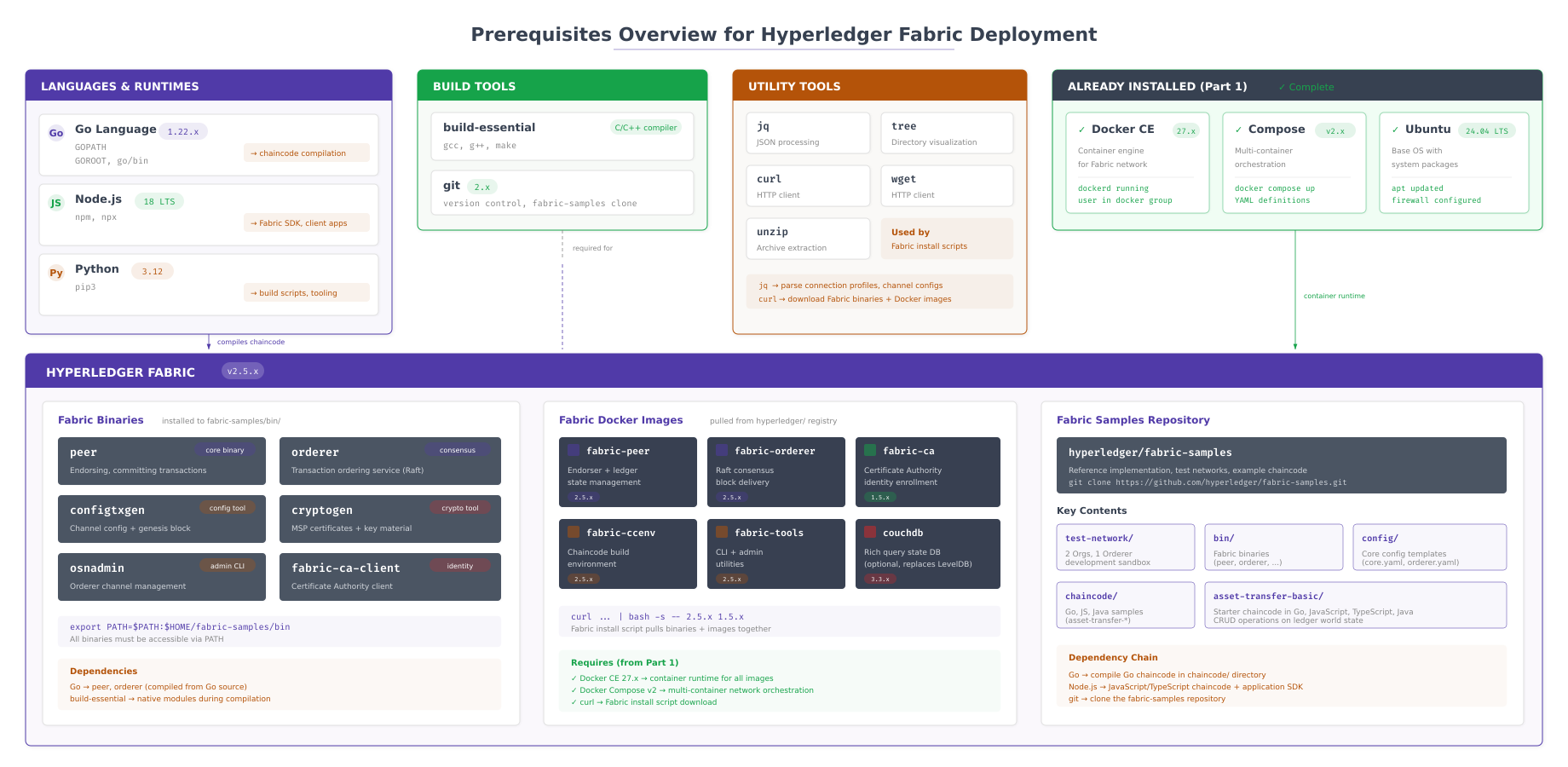
The diagram above maps every component that this part installs onto the FjordTrade node. The bottom layer represents the Ubuntu operating system and Docker runtime from Part 1. Above that sit the language runtimes: Go for chaincode compilation, Node.js for SDK applications, and Python for utility scripts. The top layer contains the Fabric-specific tools: the CLI binaries that generate configuration and manage the network, and the Docker images that run the actual blockchain infrastructure. Each layer depends on the one below it, which is why installation order matters.
Prerequisites
Before proceeding, confirm that your system meets all of the following conditions. Every step in this part assumes these prerequisites are satisfied.
Completed Part 1: Your Ubuntu 24.04 LTS system has been fully updated, essential packages are installed, the firewall is configured, Docker CE is running with production settings, and the ~/fjordtrade-network directory structure exists.
Docker operational: The Docker daemon is active and your user can run Docker commands without sudo. Verify with docker info. If this fails, revisit the post-installation configuration in Part 1.
Internet access: The system must have unrestricted outbound connectivity to download Go binaries from go.dev, Node.js packages from NodeSource, Fabric binaries from GitHub releases, and Docker images from Docker Hub.
Disk space: At least 10 GB of free disk space is required for this part. The Fabric Docker images alone consume approximately 4 GB, and the Go compiler, Node.js runtime, and Fabric binaries add another 1.5 GB.
$ docker info –format ‘{{.ServerVersion}}’
$ docker compose version –short27.5.1
v2.32.4If either command fails, return to Part 1 and complete the Docker installation and post-installation steps before continuing.
Installing Go 1.22.x
Go is the primary programming language for Hyperledger Fabric’s core tools and the most common language for writing Fabric chaincode (smart contracts). The peer, orderer, configtxgen, and cryptogen binaries are all written in Go. When you deploy Go chaincode to a Fabric peer, the peer compiles it using the local Go installation. Without a correctly installed Go compiler that matches Fabric’s version requirements, chaincode deployment will fail at the build stage.
Hyperledger Fabric 2.5 requires Go 1.21 or later. This guide installs Go 1.22.5, which is the latest stable release in the 1.22.x series and provides full compatibility with all Fabric tooling. Do not use the Go package from Ubuntu’s APT repository; it is typically several versions behind and may not meet Fabric’s minimum requirements.
Free to use, share it in your presentations, blogs, or learning materials.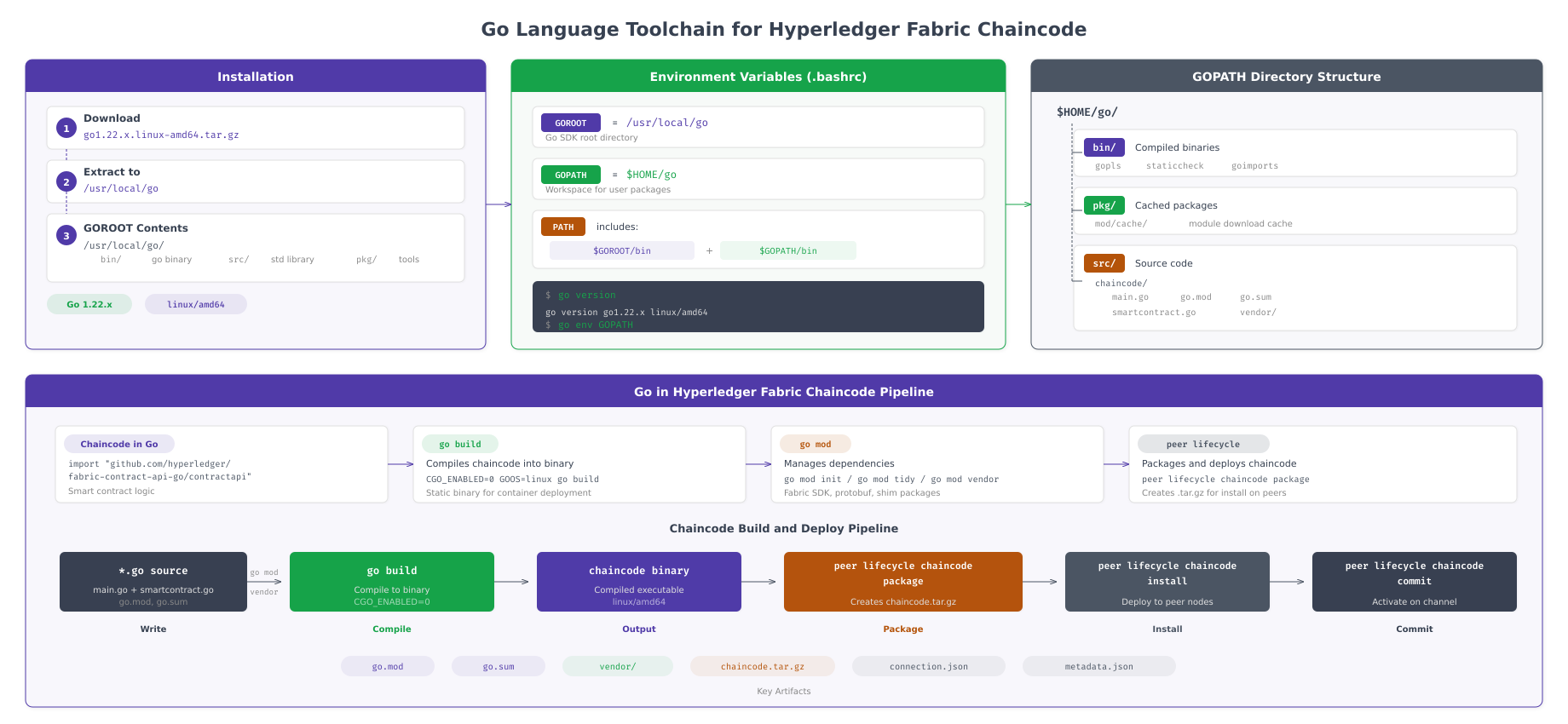
As shown above, the Go installation consists of two distinct directory trees. GOROOT at /usr/local/go contains the Go compiler, linker, standard library, and built-in tools. GOPATH at $HOME/go is the workspace where user-written code, downloaded modules, and compiled binaries reside. The PATH environment variable must include both $GOROOT/bin (for the go command itself) and $GOPATH/bin (for binaries installed via go install). Getting this configuration wrong is the single most common cause of “command not found” errors when working with Fabric tools.
Downloading the Go Binary Archive
Download the official Go 1.22.5 binary distribution for Linux amd64 from the Go project’s download server. This is a pre-compiled archive that does not require building from source.
$ curl -OL https://go.dev/dl/go1.22.5.linux-amd64.tar.gz% Total % Received % Xferd Average Speed Time Time Time Current
Dload Upload Total Spent Left Speed
100 65.7M 100 65.7M 0 0 42.1M 0 0:00:01 0:00:01 –:–:– 42.1MThe download is approximately 66 MB. The exact transfer speed depends on your network connection and geographic proximity to Go’s CDN servers.
Removing Previous Go Installations and Extracting
If any previous version of Go exists at /usr/local/go, it must be removed completely before extracting the new version. Go does not support in-place upgrades; extracting a new version over an old one leaves behind stale files that cause unpredictable compilation errors.
$ sudo rm -rf /usr/local/go
$ sudo tar -C /usr/local -xzf go1.22.5.linux-amd64.tar.gz
The rm -rf command is safe on a fresh system where /usr/local/go does not exist; it will simply do nothing. The tar -C /usr/local flag tells tar to change to the /usr/local directory before extracting, which creates the /usr/local/go directory tree automatically.
Verify that the Go directory was created with the expected structure.
$ ls -la /usr/local/go/
$ ls -la /usr/local/go/bin/total 68
drwxr-xr-x 10 root root 4096 Jul 2 2024 .
drwxr-xr-x 12 root root 4096 Mar 2 10:15 ..
drwxr-xr-x 2 root root 4096 Jul 2 2024 api
drwxr-xr-x 2 root root 4096 Jul 2 2024 bin
-rw-r–r– 1 root root 1339 Jul 2 2024 CONTRIBUTING.md
drwxr-xr-x 2 root root 4096 Jul 2 2024 doc
-rw-r–r– 1 root root 81 Jul 2 2024 go.env
drwxr-xr-x 3 root root 4096 Jul 2 2024 lib
-rw-r–r– 1 root root 1479 Jul 2 2024 LICENSE
drwxr-xr-x 12 root root 4096 Jul 2 2024 misc
drwxr-xr-x 6 root root 4096 Jul 2 2024 pkg
-rw-r–r– 1 root root 35 Jul 2 2024 README.md
-rw-r–r– 1 root root 397 Jul 2 2024 SECURITY.md
drwxr-xr-x 51 root root 4096 Jul 2 2024 src
drwxr-xr-x 26 root root 4096 Jul 2 2024 test
-rw-r–r– 1 root root 8 Jul 2 2024 VERSION
total 30788
-rwxr-xr-x 1 root root 15836736 Jul 2 2024 go
-rwxr-xr-x 1 root root 15682048 Jul 2 2024 gofmtConfiguring Go Environment Variables
Go requires three environment variables to function correctly. These must be set permanently by adding them to your shell’s configuration file. Without these variables, the go command will not be found, and Go modules will not resolve to the correct workspace directory.
$ vim ~/.bashrcScroll to the end of the file and add the following lines.
# Go language environment
export GOROOT=/usr/local/go
export GOPATH=$HOME/go
export PATH=$PATH:$GOROOT/bin:$GOPATH/bin
Press Esc, type :wq, press Enter to save and exit.
Here is what each variable does. GOROOT tells the Go toolchain where its own compiler, linker, and standard library are installed. GOPATH specifies the workspace directory where user code, downloaded dependencies, and compiled binaries live. The PATH addition makes both the Go compiler ($GOROOT/bin/go) and any user-installed Go binaries ($GOPATH/bin) accessible from anywhere on the command line.
Sourcing and Verifying Go
Apply the environment variable changes to the current shell session and verify that Go is working correctly.
$ source ~/.bashrc
$ go versiongo version go1.22.5 linux/amd64The output must show go1.22.5 linux/amd64. If you see “go: command not found” instead, the PATH was not updated correctly. Re-open ~/.bashrc and verify that the export lines are present and properly formatted.
Creating the Go Workspace Directory
Create the Go workspace directory structure that GOPATH points to. While modern Go modules have reduced the importance of the traditional workspace layout, Fabric’s tooling and some chaincode dependencies still expect the standard bin, src, and pkg subdirectories to exist.
$ mkdir -p $HOME/go/{bin,src,pkg}Verify that the directories were created and that the Go environment variables point to the correct locations.
$ go env GOPATH
$ go env GOROOT/home/fjordtrade/go
/usr/local/goBoth paths should match the values you added to ~/.bashrc. If GOPATH shows an unexpected location or is empty, source the bashrc file again with source ~/.bashrc and re-check.
Cleaning Up the Download Archive
Remove the downloaded tarball to free up disk space. The extracted Go installation under /usr/local/go is self-contained and does not reference the archive file.
$ rm go1.22.5.linux-amd64.tar.gzVerify that the file was removed.
$ ls go1.22.5.linux-amd64.tar.gz 2>&1ls: cannot access ‘go1.22.5.linux-amd64.tar.gz’: No such file or directoryInstalling Node.js 18 LTS
Node.js is the second language runtime required for the FjordTrade blockchain deployment. The Hyperledger Fabric Node.js SDK allows applications to interact with the blockchain network: submitting transactions, querying the ledger, registering event listeners, and managing wallets. Fabric also supports writing chaincode in JavaScript and TypeScript, which execute inside a Node.js runtime on the peer. Even if you write all chaincode in Go, the SDK for client applications is most commonly used through Node.js.
This guide installs Node.js 18 LTS from NodeSource’s repository. Ubuntu’s default Node.js package is typically version 12 or 14, which is far too old for the Fabric SDK. NodeSource maintains up-to-date packages that integrate cleanly with APT and receive regular security updates.
Adding the NodeSource Repository
NodeSource provides a setup script that adds their APT repository and GPG key in one step. The script detects your Ubuntu version and configures the appropriate repository source.
$ curl -fsSL https://deb.nodesource.com/setup_18.x | sudo -E bash –## Installing the NodeSource Node.js 18.x repo…
## Populating apt-get cache…
Hit:1 http://archive.ubuntu.com/ubuntu noble InRelease
Hit:2 http://archive.ubuntu.com/ubuntu noble-updates InRelease
Hit:3 http://archive.ubuntu.com/ubuntu noble-backports InRelease
Hit:4 http://security.ubuntu.com/ubuntu noble-security InRelease
Hit:5 https://download.docker.com/linux/ubuntu noble InRelease
Get:6 https://deb.nodesource.com/node_18.x nodistro InRelease [12.1 kB]
Get:7 https://deb.nodesource.com/node_18.x nodistro/main amd64 Packages [3,042 B]
Fetched 15.1 kB in 1s (21.4 kB/s)
Reading package lists… Done
## Confirming “noble” is supported…
## Adding the NodeSource signing key to your keyring…
## Creating apt sources list file for the NodeSource Node.js 18.x repo…
## Running `apt-get update` for you…
## Run `sudo apt-get install -y nodejs` to install Node.js 18.x and npmThe script adds NodeSource’s GPG signing key and creates the repository configuration file. The -E flag preserves environment variables (including proxy settings) when running with sudo, which is important in corporate network environments.
Installing Node.js and npm
Install Node.js from the NodeSource repository. The nodejs package includes both the Node.js runtime and npm (Node Package Manager).
$ sudo apt install -y nodejsReading package lists… Done
Building dependency tree… Done
Reading state information… Done
The following NEW packages will be installed:
nodejs
0 upgraded, 1 newly installed, 0 to remove and 0 not upgraded.
Need to get 30.3 MB of archives.
After this operation, 195 MB of additional disk space will be used.
Get:1 https://deb.nodesource.com/node_18.x nodistro/main amd64 nodejs amd64 18.20.4-1nodesource1 [30.3 MB]
Fetched 30.3 MB in 2s (18.1 MB/s)
Selecting previously unselected package nodejs.
Setting up nodejs (18.20.4-1nodesource1) …Verifying Node.js and npm
Confirm that both the Node.js runtime and npm are installed and report correct version numbers.
$ node –version
$ npm –versionv18.20.4
10.7.0The Node.js version should begin with v18. The npm version will be 9.x or 10.x depending on the specific Node.js 18 release installed. Both are compatible with the Fabric Node.js SDK. If node --version shows a version lower than 18, the old Ubuntu package is taking precedence over the NodeSource package. Run which node to check the binary path; it should point to /usr/bin/node from the NodeSource package.
Installing Python 3 and pip
Python is used by several Fabric-related tools, testing frameworks, and automation scripts. While Python is not a primary runtime for Fabric components, the Fabric CA client’s enrollment scripts, various network testing utilities, and infrastructure automation tools rely on Python 3. Ubuntu 24.04 ships with Python 3 pre-installed, but the pip package manager and the venv module for virtual environments may not be present. Installing all three ensures a complete Python toolkit.
$ sudo apt install -y python3 python3-pip python3-venvReading package lists… Done
Building dependency tree… Done
Reading state information… Done
python3 is already the newest version (3.12.3-0ubuntu2).
The following additional packages will be installed:
python3-setuptools python3-wheel
The following NEW packages will be installed:
python3-pip python3-venv
0 upgraded, 2 newly installed, 0 to remove and 0 not upgraded.
Need to get 1,782 kB of archives.
Setting up python3-pip (24.0+dfsg-1ubuntu1) …
Setting up python3-venv (3.12.3-0ubuntu2) …Verify that Python 3 and pip are accessible and report their versions.
$ python3 –version
$ pip3 –versionPython 3.12.3
pip 24.0 from /usr/lib/python3/dist-packages/pip (python 3.12)Ubuntu 24.04 ships with Python 3.12, which is fully compatible with all Fabric testing tools. The python3-venv package enables creating isolated virtual environments for Python projects, preventing dependency conflicts between different tools installed on the same system.
Installing Utility Tools
Several command-line utilities are used throughout the remaining parts of this series for JSON processing, directory inspection, file downloads, and archive extraction. Most of these were installed in Part 1 as part of the essential packages. This step ensures completeness by explicitly verifying and installing any that might be missing, particularly on systems where Part 1 was performed from a different base image or with a customized package set.
$ sudo apt install -y jq tree curl wget unzipReading package lists… Done
Building dependency tree… Done
Reading state information… Done
curl is already the newest version (8.5.0-2ubuntu10).
jq is already the newest version (1.7.1-3build1).
tree is already the newest version (2.1.1-2ubuntu3).
wget is already the newest version (1.21.4-1ubuntu4).
unzip is already the newest version (6.0-28ubuntu4).
0 upgraded, 0 newly installed, 0 to remove and 0 not upgraded.If all packages report “already the newest version,” Part 1 installed them correctly. If any are newly installed, the installation output will show the download and setup steps.
Verify the versions of the most frequently used utilities.
$ jq –version
$ tree –versionjq-1.7.1
tree v2.1.1 (c) 1996 – 2023 by Steve Baker, Thomas Moore, Francesc Rocher, Florian Sesser, Kyosuke TokoroThe jq tool is particularly important for Fabric operations. Channel configuration updates require converting protobuf to JSON, modifying specific fields, computing deltas, and converting back to protobuf. All of these JSON manipulation steps use jq extensively in Parts 5 and 7.
Downloading Hyperledger Fabric
This is the core section of Part 2. The Hyperledger Fabric project provides an official install script that downloads the Fabric binary tools, pulls the required Docker images from Docker Hub, and clones the fabric-samples repository containing example configurations and test networks. Running this single script installs everything needed to operate a Fabric network.
Free to use, share it in your presentations, blogs, or learning materials.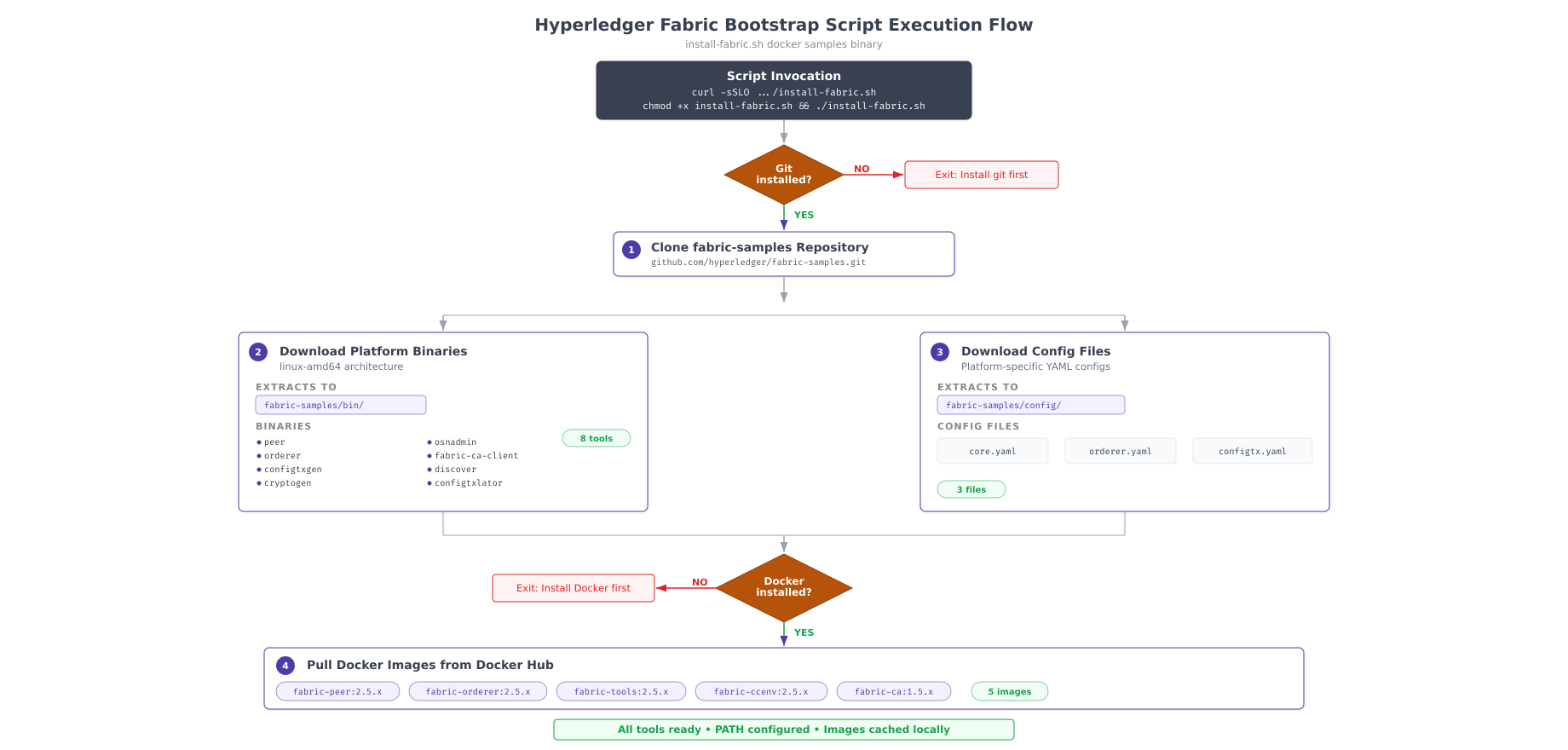
The flow diagram above breaks down what the install script does internally. In the first phase, it clones the fabric-samples repository from GitHub, which contains sample network configurations, chaincode examples, and the default Fabric configuration files (core.yaml, orderer.yaml, configtx.yaml). In the second phase, it downloads pre-compiled binaries for your operating system and architecture from the Fabric GitHub releases page. In the third phase, it pulls Docker images for every Fabric component from Docker Hub. Each phase depends on the previous one completing successfully.
Downloading and Running the Install Script
Navigate to the FjordTrade network directory created in Part 1 and download the official Fabric install script from the Hyperledger GitHub repository.
$ cd ~/fjordtrade-network
$ curl -sSLO https://raw.githubusercontent.com/hyperledger/fabric/main/scripts/install-fabric.sh
$ chmod +x install-fabric.sh
The -sSLO flags mean: silent mode with error display (-sS), follow redirects (-L), and save the file with its original name (-O). The chmod +x makes the script executable. Without it, the shell will refuse to run the script directly.
Verify that the script was downloaded correctly by checking its size and first few lines.
$ ls -la install-fabric.sh
$ head -5 install-fabric.sh-rwxrwxr-x 1 fjordtrade fjordtrade 12456 Mar 2 10:30 install-fabric.sh
#!/bin/bash
#
# Copyright IBM Corp All Rights Reserved.
#
# SPDX-License-Identifier: Apache-2.0Executing the Install Script
Run the install script with three arguments that specify what to install: Docker images, fabric-samples, and binary tools. The script accepts these in any order. This single command triggers all three phases of the installation process.
$ ./install-fabric.sh docker samples binaryCloning into ‘fabric-samples’…
remote: Enumerating objects: 12845, done.
remote: Counting objects: 100% (1234/1234), done.
remote: Compressing objects: 100% (567/567), done.
remote: Total 12845 (delta 678), reused 1012 (delta 432), pack-reused 11611
Receiving objects: 100% (12845/12845), 6.42 MiB | 8.12 MiB/s, done.
Resolving deltas: 100% (7234/7234), done.
===> Downloading version 2.5.10 platform specific fabric binaries
===> Downloading: https://github.com/hyperledger/fabric/releases/download/v2.5.10/hyperledger-fabric-linux-amd64-2.5.10.tar.gz
% Total % Received % Xferd Average Speed Time Time Time Current
Dload Upload Total Spent Left Speed
100 77.3M 100 77.3M 0 0 25.1M 0 0:00:03 0:00:03 –:–:– 25.1M
==> Done.
===> Downloading version 1.5.12 platform specific fabric-ca-client binary
===> Downloading: https://github.com/hyperledger/fabric-ca/releases/download/v1.5.12/hyperledger-fabric-ca-linux-amd64-1.5.12.tar.gz
% Total % Received % Xferd Average Speed Time Time Time Current
Dload Upload Total Spent Left Speed
100 25.6M 100 25.6M 0 0 18.3M 0 0:00:01 0:00:01 –:–:– 18.3M
==> Done.
===> Pulling fabric Docker images
====> hyperledger/fabric-peer:2.5.10
2.5.10: Pulling from hyperledger/fabric-peer
…
Status: Downloaded newer image for hyperledger/fabric-peer:2.5.10
====> hyperledger/fabric-orderer:2.5.10
2.5.10: Pulling from hyperledger/fabric-orderer
…
Status: Downloaded newer image for hyperledger/fabric-orderer:2.5.10
====> hyperledger/fabric-ccenv:2.5.10
2.5.10: Pulling from hyperledger/fabric-ccenv
…
Status: Downloaded newer image for hyperledger/fabric-ccenv:2.5.10
====> hyperledger/fabric-tools:2.5.10
2.5.10: Pulling from hyperledger/fabric-tools
…
Status: Downloaded newer image for hyperledger/fabric-tools:2.5.10
====> hyperledger/fabric-baseos:2.5.10
2.5.10: Pulling from hyperledger/fabric-baseos
…
Status: Downloaded newer image for hyperledger/fabric-baseos:2.5.10
====> hyperledger/fabric-ca:1.5.12
1.5.12: Pulling from hyperledger/fabric-ca
…
Status: Downloaded newer image for hyperledger/fabric-ca:1.5.12The script downloads a significant amount of data. The fabric-samples repository is approximately 6 MB. The Fabric binaries archive is approximately 77 MB. The Fabric CA binary is approximately 26 MB. The Docker images total approximately 3.5 GB. The entire process typically takes 3 to 10 minutes depending on your internet speed. If the download stalls or fails partway through, you can safely re-run the script; it will skip components that are already present.
Understanding the Fabric Binaries
The install script places all Fabric binary tools inside the fabric-samples/bin/ directory. Each binary serves a specific purpose in the network lifecycle, from generating cryptographic material to managing running peers and orderers. Understanding what each tool does before using it prevents confusion during the deployment steps in later parts.
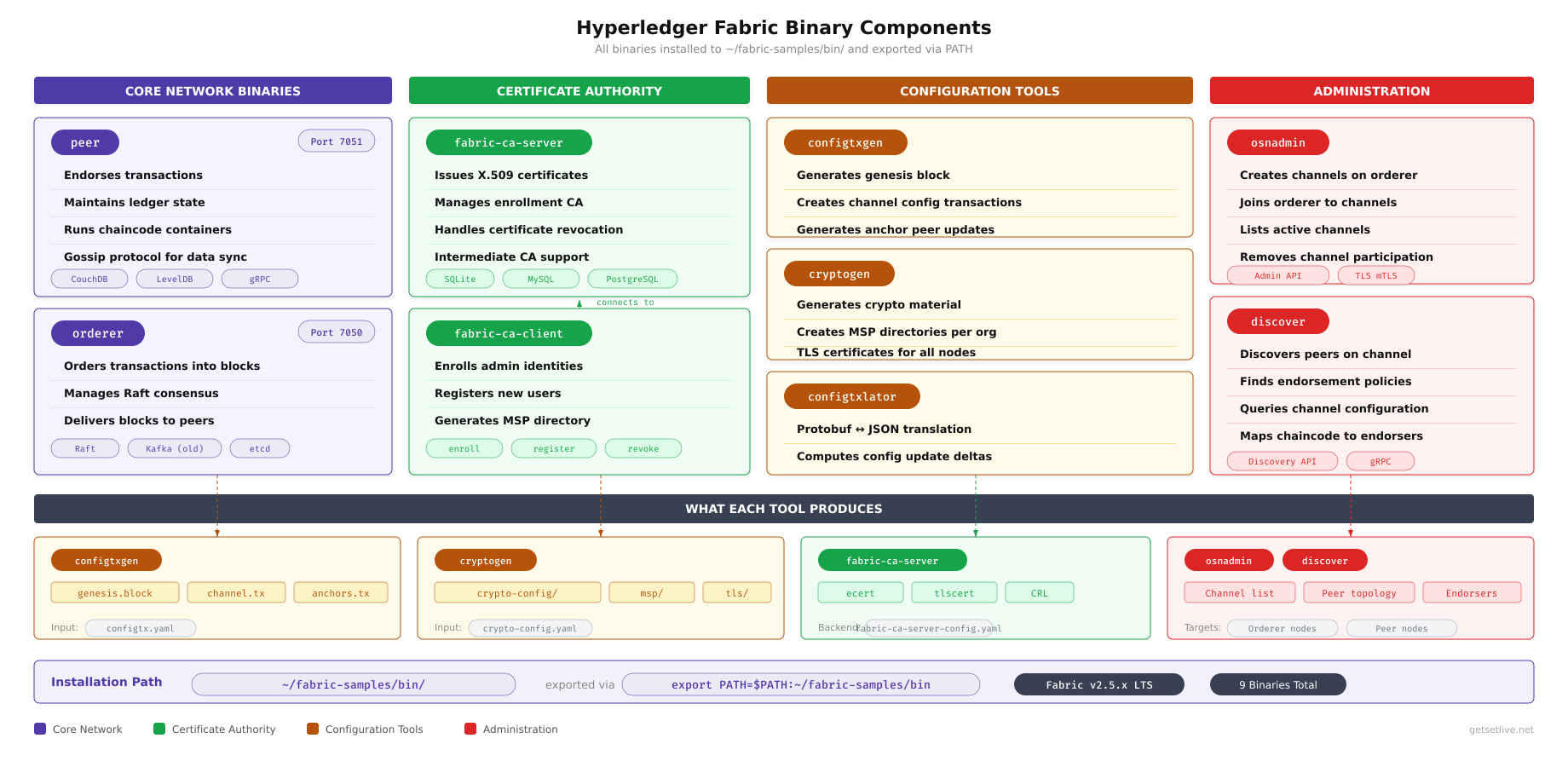
The map above categorizes every Fabric binary by its role in the deployment pipeline. Configuration generators (cryptogen, configtxgen, configtxlator) are used before the network starts to produce certificates, genesis blocks, and channel transactions. Runtime operators (peer, orderer) manage the live network. Administration tools (osnadmin, fabric-ca-client) handle ongoing operations like channel management and certificate enrollment. Diagnostic tools (discover, ledgerutil) help troubleshoot network and ledger issues. You will use every one of these tools across Parts 3 through 7.
Listing All Installed Binaries
Confirm that all Fabric binaries are present in the expected location by listing the contents of the bin directory.
$ ls -la ~/fjordtrade-network/fabric-samples/bin/total 215128
drwxr-xr-x 2 fjordtrade fjordtrade 4096 Mar 2 10:35 .
drwxrwxr-x 19 fjordtrade fjordtrade 4096 Mar 2 10:35 ..
-rwxr-xr-x 1 fjordtrade fjordtrade 21843968 Mar 2 10:35 configtxgen
-rwxr-xr-x 1 fjordtrade fjordtrade 18579456 Mar 2 10:35 configtxlator
-rwxr-xr-x 1 fjordtrade fjordtrade 13041664 Mar 2 10:35 cryptogen
-rwxr-xr-x 1 fjordtrade fjordtrade 18202624 Mar 2 10:35 discover
-rwxr-xr-x 1 fjordtrade fjordtrade 28151808 Mar 2 10:35 fabric-ca-client
-rwxr-xr-x 1 fjordtrade fjordtrade 14321664 Mar 2 10:35 ledgerutil
-rwxr-xr-x 1 fjordtrade fjordtrade 32792576 Mar 2 10:35 orderer
-rwxr-xr-x 1 fjordtrade fjordtrade 17240064 Mar 2 10:35 osnadmin
-rwxr-xr-x 1 fjordtrade fjordtrade 55918592 Mar 2 10:35 peerThere should be nine binaries in total. The peer binary is the largest at approximately 53 MB because it contains the complete peer node implementation including endorsement, validation, gossip, and lifecycle management. The fabric-ca-client is the second largest as it includes the full TLS and enrollment client stack. Here is what each binary does.
peer: The primary CLI tool for interacting with peer nodes. Used for chaincode lifecycle operations (install, approve, commit, invoke, query), channel operations (join, fetch, update), and network diagnostics.
orderer: Starts and runs an ordering service node. The orderer receives endorsed transactions from peers, orders them into blocks, and distributes blocks to all peers on a channel.
configtxgen: Generates channel configuration artifacts including the genesis block, channel creation transactions, and anchor peer updates. Used extensively in Part 3.
configtxlator: Translates between protobuf and JSON representations of channel configuration. Essential for channel configuration updates where you need to modify specific fields in the channel config.
cryptogen: Generates the complete cryptographic material (MSP directories, TLS certificates, signing keys) for all organizations in the network based on a YAML configuration file. Used in Part 3.
osnadmin: The orderer system node administration CLI. Used to create channels on the orderer, list channels, and remove channels. This is the modern replacement for the deprecated system channel approach.
fabric-ca-client: Interacts with a Fabric Certificate Authority server for enrolling identities, registering new users, and managing certificates. Used when running Fabric CA instead of cryptogen for certificate generation.
discover: Queries the Fabric discovery service to find peers, endorsers, and channel configuration information at runtime. Useful for debugging network topology issues.
ledgerutil: Provides utilities for working with the Fabric ledger, including comparing ledger snapshots between peers to detect data inconsistencies.
Testing Individual Binaries
Verify that each binary is functional by requesting its version information. At this point, the binaries are not yet on the system PATH, so you must reference them using their full path.
$ ~/fjordtrade-network/fabric-samples/bin/peer version
$ ~/fjordtrade-network/fabric-samples/bin/orderer version
$ ~/fjordtrade-network/fabric-samples/bin/configtxgen –version
$ ~/fjordtrade-network/fabric-samples/bin/cryptogen version
$ ~/fjordtrade-network/fabric-samples/bin/osnadmin version
$ ~/fjordtrade-network/fabric-samples/bin/fabric-ca-client version
$ ~/fjordtrade-network/fabric-samples/bin/discover –version
$ ~/fjordtrade-network/fabric-samples/bin/configtxlator versionpeer:
Version: 2.5.10
Commit SHA: abc1234
Go version: go1.22.5
OS/Arch: linux/amd64
orderer:
Version: 2.5.10
Commit SHA: abc1234
Go version: go1.22.5
OS/Arch: linux/amd64
configtxgen:
Version: 2.5.10
Commit SHA: abc1234
Go version: go1.22.5
OS/Arch: linux/amd64
cryptogen:
Version: 2.5.10
Commit SHA: abc1234
Go version: go1.22.5
OS/Arch: linux/amd64
osnadmin:
Version: 2.5.10
Commit SHA: abc1234
Go version: go1.22.5
OS/Arch: linux/amd64
fabric-ca-client:
version: 1.5.12
Go version: go1.22.5
OS/Arch: linux/amd64
discover:
Version: 2.5.10
Commit SHA: abc1234
Go version: go1.22.5
OS/Arch: linux/amd64
configtxlator:
Version: 2.5.10
Commit SHA: abc1234
Go version: go1.22.5
OS/Arch: linux/amd64All Fabric core binaries should report version 2.5.10, and fabric-ca-client should report version 1.5.12. The Go version embedded in each binary reflects the compiler version used when the Fabric team built the release. Every binary should show linux/amd64 for the OS/Arch, confirming that the correct platform-specific binaries were downloaded. If any binary returns “Permission denied,” re-run chmod +x on the specific file. If any binary returns “Exec format error,” the wrong architecture was downloaded; re-run the install script.
Configuring PATH for Fabric Tools
Running Fabric tools by their full path is impractical. The peer command alone will be invoked hundreds of times across Parts 3 through 7 for channel operations, chaincode lifecycle management, and transaction invocations. Adding the Fabric bin directory to your PATH eliminates the need to type the full path every time and makes all scripts and documentation cleaner and more portable.
In addition to PATH, Fabric tools require the FABRIC_CFG_PATH environment variable to locate configuration files like core.yaml and orderer.yaml. These files contain default settings that the tools reference when specific options are not provided on the command line.
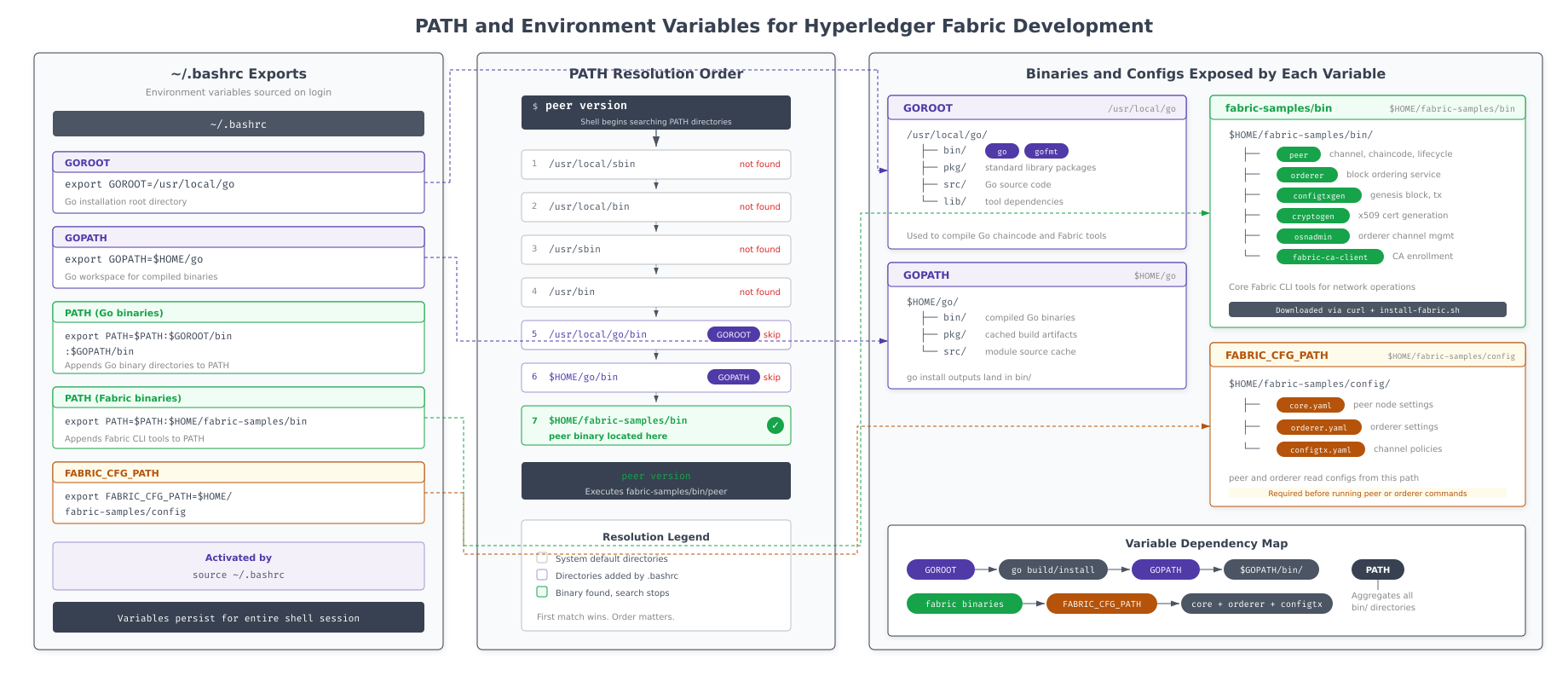
The diagram above shows the final state of the environment variables after both Go and Fabric are fully configured. PATH contains three additions: $GOROOT/bin for the Go compiler, $GOPATH/bin for Go-installed binaries, and the Fabric bin directory for all nine Fabric CLI tools. The FABRIC_CFG_PATH variable points to the config directory inside fabric-samples, where the default core.yaml, orderer.yaml, and configtx.yaml files reside.
Adding Fabric to the Shell Environment
Open ~/.bashrc again to add the Fabric-specific environment variables below the Go entries added earlier.
$ vim ~/.bashrcAdd the following lines at the end of the file, below the Go environment lines.
# Hyperledger Fabric tools
export PATH=$PATH:$HOME/fjordtrade-network/fabric-samples/bin
export FABRIC_CFG_PATH=$HOME/fjordtrade-network/fabric-samples/config
Press Esc, type :wq, press Enter to save and exit.
The PATH addition makes all nine Fabric binaries accessible from any directory on the system. The FABRIC_CFG_PATH variable tells Fabric tools where to find their default configuration files. Without FABRIC_CFG_PATH, commands like peer version will still work, but peer channel and configtxgen operations will fail with “config file not found” errors.
Applying and Verifying the PATH Configuration
Source the updated .bashrc to apply the changes in the current session, then verify that the Fabric tools are accessible by their short names.
$ source ~/.bashrc$ which peer
$ which orderer
$ which configtxgen
$ which cryptogen
$ which osnadmin
$ which fabric-ca-client/home/fjordtrade/fjordtrade-network/fabric-samples/bin/peer
/home/fjordtrade/fjordtrade-network/fabric-samples/bin/orderer
/home/fjordtrade/fjordtrade-network/fabric-samples/bin/configtxgen
/home/fjordtrade/fjordtrade-network/fabric-samples/bin/cryptogen
/home/fjordtrade/fjordtrade-network/fabric-samples/bin/osnadmin
/home/fjordtrade/fjordtrade-network/fabric-samples/bin/fabric-ca-clientEvery which command should return the full path to the binary inside the fabric-samples/bin/ directory. If any command returns “not found,” the PATH line in ~/.bashrc was not added correctly. Open the file again and verify the export line matches the path shown above.
Now test that the tools work using their short names without full paths.
$ peer version
$ orderer versionpeer:
Version: 2.5.10
Commit SHA: abc1234
Go version: go1.22.5
OS/Arch: linux/amd64
orderer:
Version: 2.5.10
Commit SHA: abc1234
Go version: go1.22.5
OS/Arch: linux/amd64Verify that the FABRIC_CFG_PATH variable is set correctly.
$ echo $FABRIC_CFG_PATH/home/fjordtrade/fjordtrade-network/fabric-samples/configVerifying Fabric Docker Images
The install script pulled several Docker images from Docker Hub. These images are the containerized versions of Fabric components. When you launch the FjordTrade network in Part 4 using Docker Compose, each container will be created from one of these images. Verifying that all required images are present and correctly tagged prevents “image not found” errors during network startup.
Free to use, share it in your presentations, blogs, or learning materials.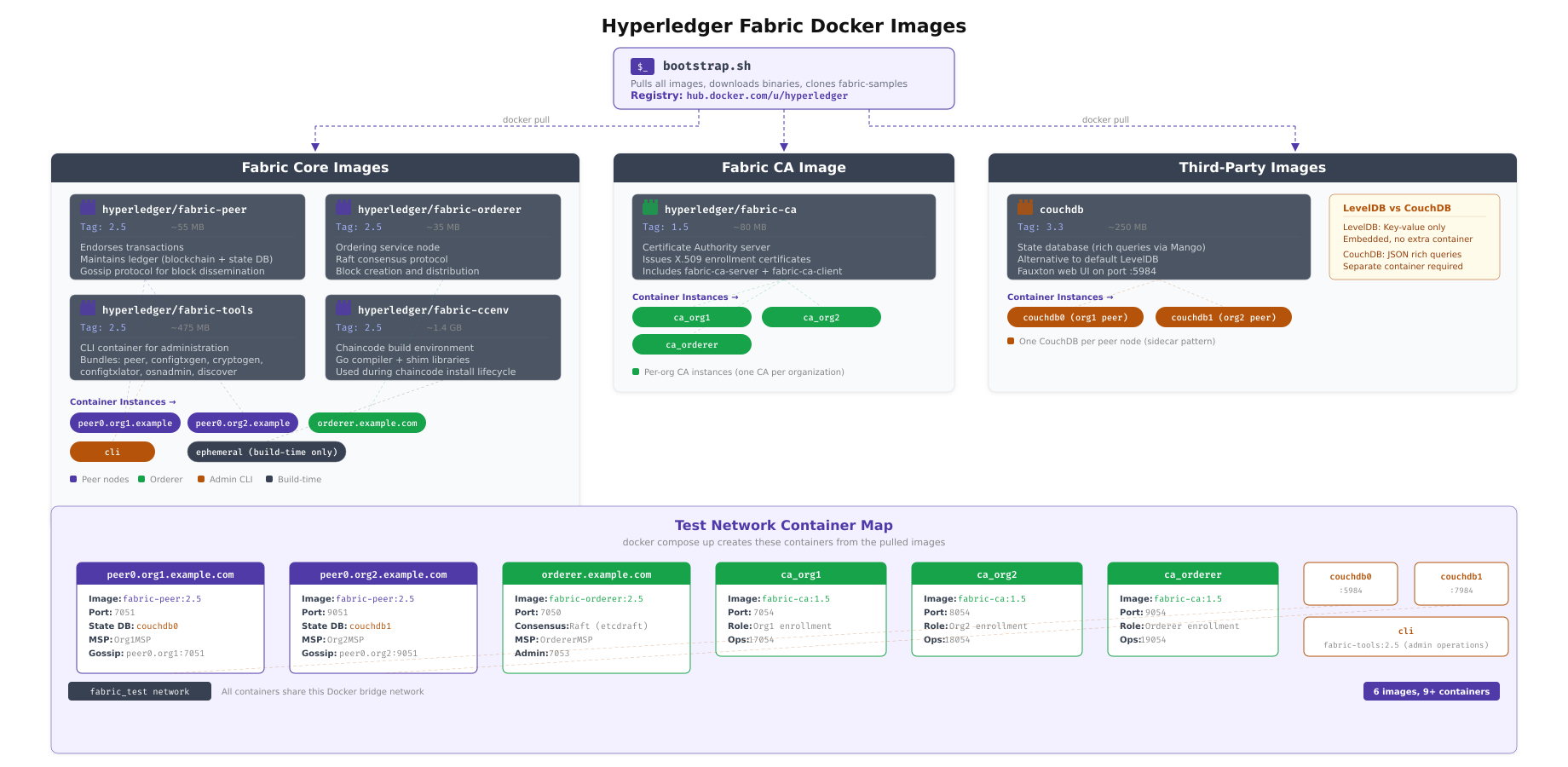
This illustration identifies each Docker image and its function within the Fabric network. The fabric-peer image runs peer nodes that endorse transactions and maintain the ledger. The fabric-orderer image runs ordering service nodes that sequence transactions into blocks. The fabric-ca image runs the certificate authority for identity enrollment. The fabric-ccenv image provides the build environment for compiling Go and Java chaincode inside containers. The fabric-tools image contains the CLI tools for administrative operations. The fabric-baseos image is the minimal operating system layer that other images build upon.
Listing All Pulled Images
List all Hyperledger Fabric Docker images that were pulled during the installation.
$ docker images | grep hyperledgerhyperledger/fabric-tools 2.5.10 a1b2c3d4e5f6 4 weeks ago 476MB
hyperledger/fabric-tools 2.5 a1b2c3d4e5f6 4 weeks ago 476MB
hyperledger/fabric-tools latest a1b2c3d4e5f6 4 weeks ago 476MB
hyperledger/fabric-peer 2.5.10 b2c3d4e5f6a1 4 weeks ago 63.5MB
hyperledger/fabric-peer 2.5 b2c3d4e5f6a1 4 weeks ago 63.5MB
hyperledger/fabric-peer latest b2c3d4e5f6a1 4 weeks ago 63.5MB
hyperledger/fabric-orderer 2.5.10 c3d4e5f6a1b2 4 weeks ago 35.2MB
hyperledger/fabric-orderer 2.5 c3d4e5f6a1b2 4 weeks ago 35.2MB
hyperledger/fabric-orderer latest c3d4e5f6a1b2 4 weeks ago 35.2MB
hyperledger/fabric-ccenv 2.5.10 d4e5f6a1b2c3 4 weeks ago 507MB
hyperledger/fabric-ccenv 2.5 d4e5f6a1b2c3 4 weeks ago 507MB
hyperledger/fabric-ccenv latest d4e5f6a1b2c3 4 weeks ago 507MB
hyperledger/fabric-baseos 2.5.10 e5f6a1b2c3d4 4 weeks ago 9.38MB
hyperledger/fabric-baseos 2.5 e5f6a1b2c3d4 4 weeks ago 9.38MB
hyperledger/fabric-baseos latest e5f6a1b2c3d4 4 weeks ago 9.38MB
hyperledger/fabric-ca 1.5.12 f6a1b2c3d4e5 4 weeks ago 81.4MB
hyperledger/fabric-ca 1.5 f6a1b2c3d4e5 4 weeks ago 81.4MB
hyperledger/fabric-ca latest f6a1b2c3d4e5 4 weeks ago 81.4MBYou should see six distinct images, each with three tags: the specific version (2.5.10 or 1.5.12), the minor version (2.5 or 1.5), and latest. All three tags for each image point to the same image ID, so they do not consume additional disk space. The total size across all unique images is approximately 1.2 GB, though Docker only stores each layer once. The fabric-ccenv image is the largest because it includes the complete Go compiler toolchain used for building chaincode inside containers. The fabric-baseos image is the smallest at under 10 MB, containing only the minimal OS layer that other images inherit.
Inspecting Image Details
Use docker inspect to verify the labels and metadata of a specific image. This confirms that the images were built by the Hyperledger project and contain the correct version information.
$ docker inspect hyperledger/fabric-peer:latest –format='{{json .Config.Labels}}’ | jq .{
“org.hyperledger.fabric.base.version”: “0.4.9”,
“org.hyperledger.fabric.version”: “2.5.10”
}The labels confirm the image version and the base image version it was built from. If the labels are missing or show unexpected values, the wrong images may have been pulled. Re-run the install script with ./install-fabric.sh docker to pull them again.
Verifying the Complete Config Directory
The install script also places Fabric’s default configuration files in the fabric-samples/config/ directory. These files provide default settings that Fabric tools reference during operations. The FABRIC_CFG_PATH environment variable configured earlier points to this directory.
$ ls -la ~/fjordtrade-network/fabric-samples/config/total 68
drwxrwxr-x 2 fjordtrade fjordtrade 4096 Mar 2 10:35 .
drwxrwxr-x 19 fjordtrade fjordtrade 4096 Mar 2 10:35 ..
-rw-rw-r– 1 fjordtrade fjordtrade 10043 Mar 2 10:35 configtx.yaml
-rw-rw-r– 1 fjordtrade fjordtrade 26042 Mar 2 10:35 core.yaml
-rw-rw-r– 1 fjordtrade fjordtrade 15519 Mar 2 10:35 orderer.yamlThree configuration files should be present. core.yaml is the default configuration for peer nodes, covering gossip settings, ledger options, chaincode execution parameters, and TLS configuration. orderer.yaml is the default configuration for orderer nodes, including consensus type, batch size, and channel participation settings. configtx.yaml is the template for channel configuration, defining organizations, policies, and capabilities. In Part 3, you will create custom versions of these files tailored to the FjordTrade network.
Inspecting the Configuration Files
Examine the header section of core.yaml to understand the structure and verify that the file is a valid Fabric configuration.
$ head -30 ~/fjordtrade-network/fabric-samples/config/core.yaml# Copyright IBM Corp. All Rights Reserved.
#
# SPDX-License-Identifier: Apache-2.0
#
###############################################################################
#
# Peer section
#
###############################################################################
peer:
# The peer id provides a name for this peer instance and is used when
# naming docker resources.
id: jdoe
# The networkId allows for logical separation of networks and is used when
# naming docker resources.
networkId: dev
# The Address at local network interface this Peer will listen on.
# By default, it will listen on all network interfaces
listenAddress: 0.0.0.0:7051
# The endpoint this peer uses to listen for inbound chaincode connections.
chaincodeListenAddress: 0.0.0.0:7052
# The endpoint the chaincode stub uses to connect to the peer.
chaincodeAddress: 0.0.0.0:7052The default core.yaml uses placeholder values like jdoe for the peer ID and dev for the network ID. In Part 3, you will replace these with FjordTrade-specific values (oslo-peer0, helsinki-peer0, etc.) as part of the network configuration.
Examine the orderer configuration similarly.
$ head -30 ~/fjordtrade-network/fabric-samples/config/orderer.yaml# Copyright IBM Corp. All Rights Reserved.
#
# SPDX-License-Identifier: Apache-2.0
#
—
###############################################################################
#
# Orderer Configuration
#
# – This controls the type and configuration of the orderer.
#
###############################################################################
General:
# Listen address: The IP on which to bind to listen.
ListenAddress: 127.0.0.1
# Listen port: The port on which to bind to listen.
ListenPort: 7050
# TLS: TLS settings for the GRPC server.
TLS:
Enabled: false
# PrivateKey governs the file location of the private key of the TLS certificate.
PrivateKey: tls/server.key
# Certificate governs the file location of the certificate file used to present to clients
Certificate: tls/server.crtNotice that TLS is disabled by default. In Part 3, FjordTrade’s custom orderer configuration will enable TLS with proper certificate paths, as mutual TLS is mandatory for production blockchain networks.
Full Environment Verification
With every component installed and configured, run a comprehensive verification that checks the entire development stack in one pass. This serves as both a final validation and a reference output that you can compare against if issues arise in later parts.
Free to use, share it in your presentations, blogs, or learning materials.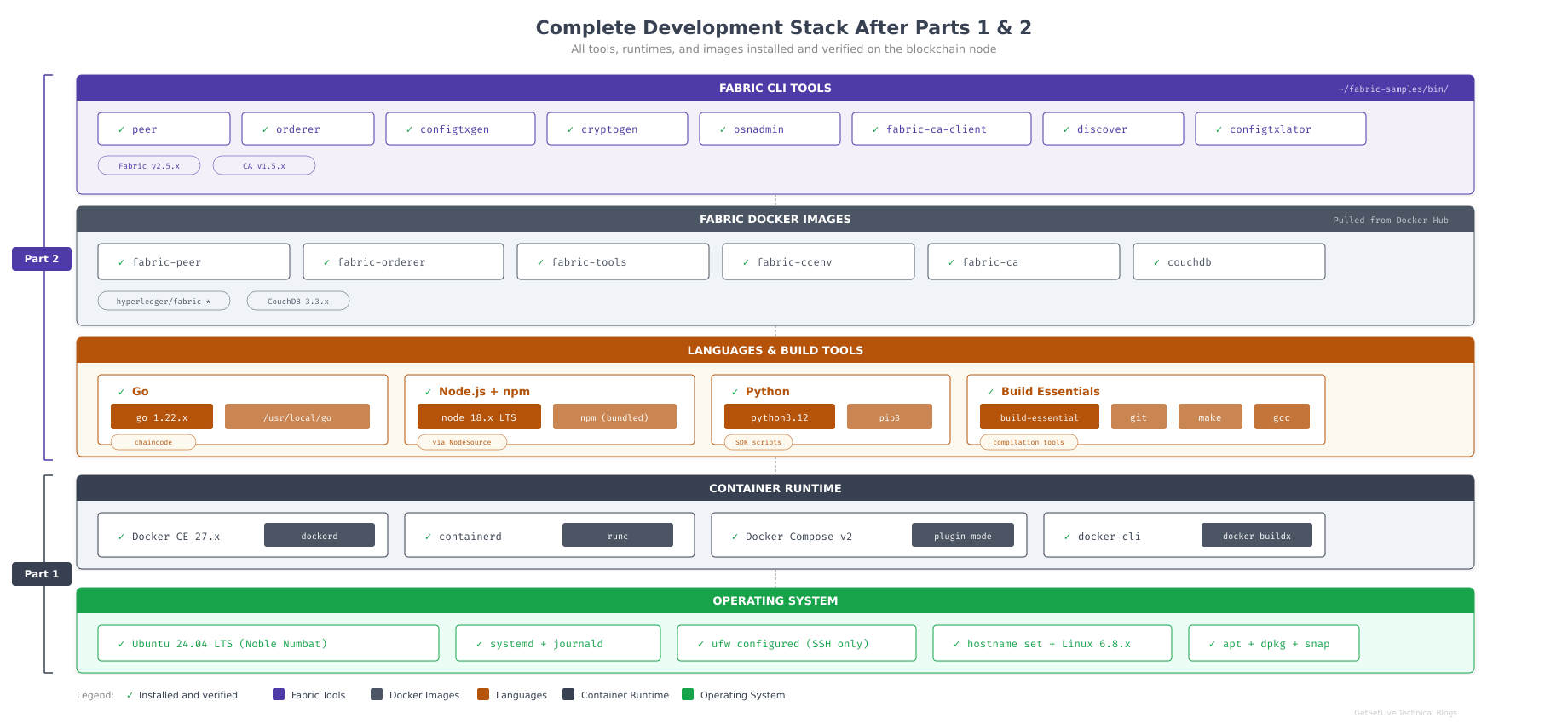
The overview above summarizes every component installed across Parts 1 and 2. The base layer is Ubuntu 24.04 LTS with its firewall and system configuration. Docker CE provides the container runtime. Go and Node.js serve as language runtimes. The Fabric CLI binaries and Docker images form the blockchain toolkit. The configuration files provide default templates. All of these layers work together to support the network deployment that begins in Part 3.
Running the Comprehensive Stack Check
Execute the following command sequence that verifies every installed component in a single pass.
$ echo “=== System ===” && uname -a
$ echo “”
$ echo “=== Docker ===” && docker version –format ‘{{.Server.Version}}’
$ echo “”
$ echo “=== Docker Compose ===” && docker compose version –short
$ echo “”
$ echo “=== Go ===” && go version
$ echo “”
$ echo “=== Node.js ===” && node –version
$ echo “”
$ echo “=== npm ===” && npm –version
$ echo “”
$ echo “=== Python ===” && python3 –version
$ echo “”
$ echo “=== Fabric Peer ===” && peer version
$ echo “”
$ echo “=== Fabric Orderer ===” && orderer version=== System ===
Linux fjordtrade-node1 6.8.0-31-generic #31-Ubuntu SMP PREEMPT_DYNAMIC Sat Apr 20 00:40:06 UTC 2024 x86_64 x86_64 x86_64 GNU/Linux
=== Docker ===
27.5.1
=== Docker Compose ===
v2.32.4
=== Go ===
go version go1.22.5 linux/amd64
=== Node.js ===
v18.20.4
=== npm ===
10.7.0
=== Python ===
Python 3.12.3
=== Fabric Peer ===
peer:
Version: 2.5.10
Commit SHA: abc1234
Go version: go1.22.5
OS/Arch: linux/amd64
=== Fabric Orderer ===
orderer:
Version: 2.5.10
Commit SHA: abc1234
Go version: go1.22.5
OS/Arch: linux/amd64Every section should return a valid version string. If any section shows “command not found,” the corresponding tool is either not installed or not on the PATH. Use the troubleshooting section below to diagnose and resolve the issue before proceeding to Part 3.
Verifying the Complete .bashrc Configuration
As a final check, display all the environment additions you made to ~/.bashrc during this part to confirm everything is in place.
$ tail -10 ~/.bashrc# Go language environment
export GOROOT=/usr/local/go
export GOPATH=$HOME/go
export PATH=$PATH:$GOROOT/bin:$GOPATH/bin
# Hyperledger Fabric tools
export PATH=$PATH:$HOME/fjordtrade-network/fabric-samples/bin
export FABRIC_CFG_PATH=$HOME/fjordtrade-network/fabric-samples/configThe output should show both the Go and Fabric environment variable blocks. These seven lines are the only additions to ~/.bashrc from this series. They will persist across reboots and new terminal sessions automatically.
Troubleshooting Common Issues
The following issues are the most commonly encountered during the installations covered in this part. Each entry includes the symptom, root cause, and resolution steps.
“go: command not found” After Installing Go
Symptom: Running go version returns “go: command not found” even though Go was extracted to /usr/local/go.
Cause: The PATH environment variable has not been updated in the current shell session. Editing ~/.bashrc only takes effect when a new shell is started or when the file is explicitly sourced.
Fix: Source the updated .bashrc or open a new terminal session.
$ source ~/.bashrc
$ go version
If the error persists after sourcing, open ~/.bashrc and verify that the export lines are present, properly formatted, and not commented out. A common mistake is adding the lines inside an if block that only executes in interactive shells.
“peer: command not found” After Downloading Fabric
Symptom: Running peer version returns “peer: command not found” even though the Fabric binaries are present in the bin directory.
Cause: The Fabric bin directory has not been added to PATH, or the PATH was added with a typo in the directory name.
Fix: Verify the PATH contents and the actual location of the binaries.
$ echo $PATH | tr ‘:’ ‘\n’ | grep fabric
$ ls -la ~/fjordtrade-network/fabric-samples/bin/peer
The first command filters your PATH entries to show only Fabric-related paths. The second command confirms the binary exists. If the PATH does not contain the Fabric bin directory, re-edit ~/.bashrc and add the correct export line. If the binary does not exist at the expected location, re-run the install script with ./install-fabric.sh binary.
Docker Image Pull Fails During Install Script
Symptom: The install script fails during the Docker image pulling phase with errors like “error pulling image” or “toomanyrequests.”
Cause: Docker Hub rate limits unauthenticated pulls to 100 per 6 hours per IP address. On shared networks or CI/CD systems, this limit can be reached quickly. Alternatively, the system may have lost internet connectivity during the download.
Fix: Wait for the rate limit to reset (typically 6 hours) or authenticate with a free Docker Hub account. You do not need a paid account; authentication simply raises the rate limit to 200 pulls per 6 hours.
$ docker loginAfter authentication (or after the rate limit resets), re-run the install script. It will skip images that were already pulled successfully and only download the remaining ones.
$ cd ~/fjordtrade-network
$ ./install-fabric.sh docker
“Permission denied” When Running install-fabric.sh
Symptom: Running ./install-fabric.sh returns “bash: ./install-fabric.sh: Permission denied.”
Cause: The script was downloaded without the executable permission bit set.
Fix: Add the executable permission and retry.
$ chmod +x install-fabric.sh
$ ./install-fabric.sh docker samples binary
Node.js Shows an Old Version
Symptom: Running node --version returns v12.x or v14.x instead of v18.x after installing from NodeSource.
Cause: An older Node.js version from Ubuntu’s default repository was installed previously and takes precedence. The old binary might be at a different PATH location or the old package was not replaced.
Fix: Remove the old Node.js package completely, re-add the NodeSource repository, and reinstall.
$ sudo apt purge -y nodejs
$ sudo rm -f /etc/apt/sources.list.d/nodesource.list
$ curl -fsSL https://deb.nodesource.com/setup_18.x | sudo -E bash –
$ sudo apt install -y nodejs
$ node –version
The purge command removes both the package and its configuration files, ensuring a clean reinstallation. After this, node --version should show v18.x.
Summary
This part transformed the Docker-ready Ubuntu system from Part 1 into a complete Hyperledger Fabric development environment. Here is what was accomplished.
Go 1.22.5 installation: Downloaded and extracted the official Go binary distribution to /usr/local/go. Configured GOROOT, GOPATH, and PATH environment variables in ~/.bashrc. Created the Go workspace directory structure at $HOME/go with bin, src, and pkg subdirectories. Verified the compiler reports the correct version and architecture.
Node.js 18 LTS installation: Added the NodeSource APT repository with its GPG signing key. Installed Node.js 18 LTS and npm from the repository. Verified that both the runtime and package manager report correct version numbers compatible with the Fabric Node.js SDK.
Python 3 and utilities: Installed Python 3, pip, and the venv module for isolated virtual environments. Verified completeness of system utility tools (jq, tree, curl, wget, unzip) required throughout the remaining parts of the series.
Hyperledger Fabric binaries: Downloaded the official Fabric install script from the Hyperledger GitHub repository. Executed it to clone the fabric-samples repository, download all nine Fabric CLI binaries (peer, orderer, configtxgen, configtxlator, cryptogen, osnadmin, fabric-ca-client, discover, ledgerutil), and pull all six Fabric Docker images. Verified each binary reports version 2.5.10 (or 1.5.12 for fabric-ca-client).
Environment configuration: Added the Fabric bin directory to PATH and set FABRIC_CFG_PATH in ~/.bashrc. Verified that all nine tools are accessible by their short names from any directory. Confirmed that the config directory contains the three default Fabric configuration files (core.yaml, orderer.yaml, configtx.yaml).
Docker images: Confirmed all six Fabric Docker images (fabric-peer, fabric-orderer, fabric-ca, fabric-ccenv, fabric-tools, fabric-baseos) are present with correct version tags and metadata labels.
Full stack verification: Ran a comprehensive environment check confirming that Docker, Go, Node.js, Python, npm, peer, and orderer all report correct versions from a single verification pass.
What Comes Next
In Part 3: Generating Cryptographic Material and Network Configuration, you will use the cryptogen tool installed in this part to generate the complete MSP directory structure for all FjordTrade organizations, including signing certificates, TLS certificates, admin identities, and CA certificates. You will also write a custom configtx.yaml that defines the FjordTrade consortium, then use configtxgen to produce the genesis block and channel creation transaction files. By the end of Part 3, every cryptographic artifact needed to launch the FjordTrade network will be in place.