
In Part 1, you prepared the operating system, configured the firewall, and installed Docker CE. In Part 2, you installed Go, Node.js, Python, all nine Fabric CLI binaries, and pulled every Fabric Docker image. This part uses two of those tools, cryptogen and configtxgen, to generate the complete identity infrastructure and channel configuration artifacts for the FjordTrade network.
By the end of this part, you will have a complete PKI hierarchy with enrollment and TLS certificates for three orderer nodes and four peer nodes across two organizations. You will have a genesis block that bootstraps the orderer system channel, a channel creation transaction for the FjordTrade application channel, and anchor peer update transactions for both organizations. Every artifact will be verified, and the directory structure will be ready for the Docker Compose files in Part 4.
FjordTrade is the scenario company used throughout this series. FjordTrade is a Nordic commodity trading platform that facilitates cross-border trade settlement across three offices: Oslo (Org1), Helsinki (Org2), and Tallinn (Org3, added in Part 7). Each office operates its own organization node within a permissioned Hyperledger Fabric network. The Oslo office serves as the initial orderer host, Helsinki runs the primary peer for its organization, and Tallinn joins the consortium later to demonstrate dynamic organization onboarding.
Free to use, share it in your presentations, blogs, or learning materials.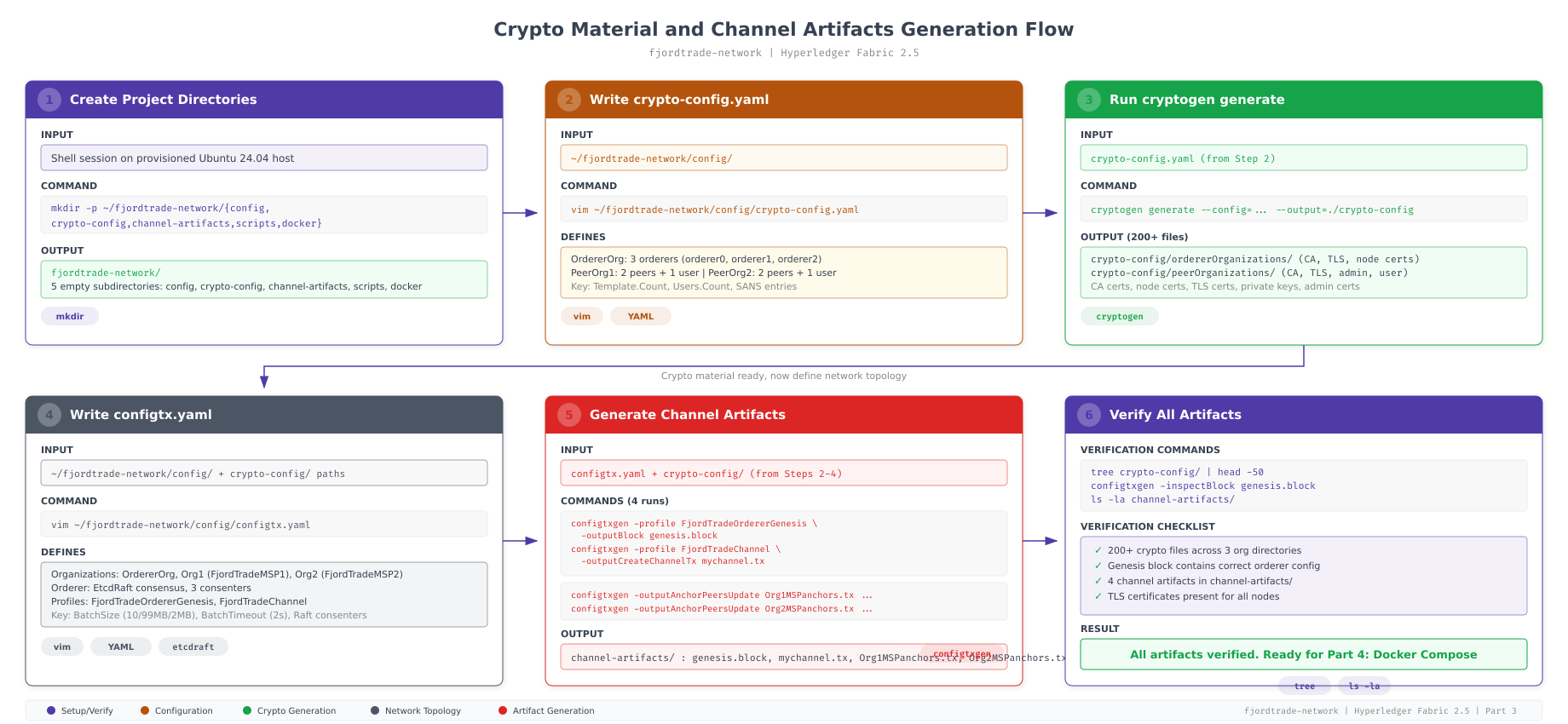
The flow above maps the entire sequence of operations covered in this part. Step 1 creates the directory structure. Step 2 writes the crypto-config.yaml file that defines the organizational structure. Step 3 runs cryptogen to generate over 200 certificate and key files. Step 4 writes the configtx.yaml file that defines orderer settings, organization policies, and channel profiles. Step 5 runs configtxgen four times to produce the genesis block, channel transaction, and anchor peer updates. Step 6 verifies every artifact. Each step depends on the previous one, so they must be executed in order.
Prerequisites
Before proceeding, confirm that your system meets all of the following conditions. Every step in this part assumes these prerequisites are satisfied.
Completed Parts 1 and 2: Your Ubuntu 24.04 LTS system is fully updated, Docker CE is running with production settings, Go 1.22.x is installed, and all nine Fabric CLI binaries are in your PATH.
Fabric tools accessible: The cryptogen and configtxgen binaries must be executable from any directory. If which cryptogen returns nothing, revisit the PATH configuration in Part 2.
Project directory exists: The ~/fjordtrade-network directory created in Part 1 must be present with its subdirectories (config, docker, chaincode, scripts, crypto-config, channel-artifacts).
$ which cryptogen
$ which configtxgen
$ cryptogen version
$ configtxgen -version
$ ls ~/fjordtrade-network//home/fjordtrade/fabric-samples/bin/cryptogen
/home/fjordtrade/fabric-samples/bin/configtxgen
cryptogen:
Version: 2.5.10
Commit SHA: dc7e4b1
Go version: go1.22.5
OS/Arch: linux/amd64
configtxgen:
Version: 2.5.10
Commit SHA: dc7e4b1
Go version: go1.22.5
OS/Arch: linux/amd64
chaincode channel-artifacts config crypto-config docker scriptsIf any tool reports “command not found” or the project directory is missing, return to the relevant part and complete the installation before continuing.
Understanding Fabric’s Identity Model
Before generating any certificates, it is important to understand what they represent and how Fabric uses them. Every entity in a Fabric network, whether it is a peer, an orderer, an admin user, or a client application, has two distinct sets of cryptographic material: an enrollment certificate and a TLS certificate.
The enrollment certificate (also called the signing certificate or identity certificate) is what makes an entity recognizable to the network. When a peer endorses a transaction, it signs the endorsement with its enrollment private key. When an admin submits a channel configuration update, the signature is verified against the admin’s enrollment certificate. The enrollment certificate ties an entity to a specific organization through the certificate’s organizational unit (OU) field.
The TLS certificate handles transport security. Every connection between peers, orderers, and clients uses mutual TLS (mTLS). Both sides of every connection present their TLS certificates and verify the other party’s certificate against the organization’s TLS CA root. This prevents man-in-the-middle attacks and ensures that only authorized nodes can communicate.
Free to use, share it in your presentations, blogs, or learning materials.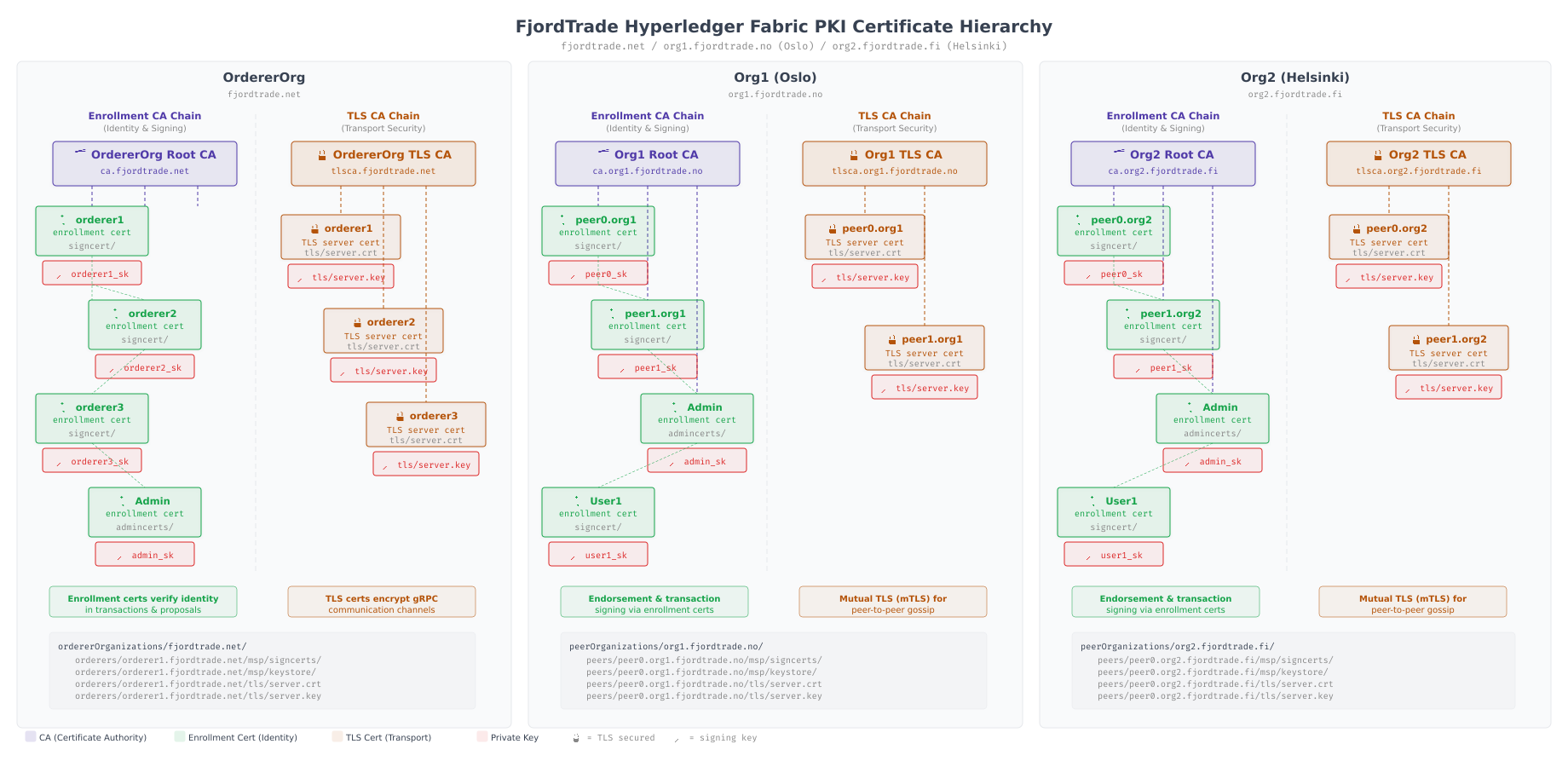
The hierarchy above shows how certificates are organized across the FjordTrade network. Each organization (OrdererOrg, Org1, Org2) has its own enrollment CA that issues identity certificates to its members, and its own TLS CA that issues transport certificates. The orderer nodes get certificates from OrdererOrg’s CAs. Peer0 and Peer1 in Org1 get certificates from Org1’s CAs. This separation ensures that no organization can impersonate members of another organization, because each organization’s CA is independently rooted.
Fabric uses a structure called the Membership Service Provider (MSP) to organize these certificates into a directory layout that nodes can read at startup. The MSP directory contains the CA root certificates (for verifying other members), the node’s own signing certificate and private key (for proving identity), the TLS certificates (for secure communication), and the admin certificates (for identifying who can perform administrative operations). Every peer and orderer container expects to find these files at specific paths inside its MSP directory.
Writing the Crypto Configuration File
The cryptogen tool reads a YAML configuration file that defines the organizational structure of the network: how many orderer organizations exist, how many peer organizations exist, how many nodes each organization operates, and how many users each organization has. From this single file, cryptogen generates the entire PKI hierarchy, creating CA certificates, node certificates, TLS certificates, and private keys for every entity defined.
Navigate to the FjordTrade project directory and create the configuration file.
$ cd ~/fjordtrade-network$ vim config/crypto-config.yaml# crypto-config.yaml
# Defines the organizational structure for the FjordTrade blockchain network.
# cryptogen uses this file to generate all PKI material (certificates, keys, CAs).
# OrdererOrganizations defines the orderer service provider.
# FjordTrade runs a 3-node Raft orderer cluster hosted by the Oslo office.
OrdererOrganizations:
– Name: OrdererOrg
Domain: orderer.fjordtrade.com
EnableNodeOUs: true
Specs:
– Hostname: orderer1
SANS:
– localhost
– 127.0.0.1
– Hostname: orderer2
SANS:
– localhost
– 127.0.0.1
– Hostname: orderer3
SANS:
– localhost
– 127.0.0.1
# PeerOrganizations defines the consortium members.
# Each organization operates peers that endorse transactions and maintain ledger copies.
PeerOrganizations:
# Org1 represents FjordTrade’s Oslo office.
# Operates 2 peer nodes: peer0 (primary endorser) and peer1 (backup/query peer).
– Name: Org1
Domain: org1.fjordtrade.com
EnableNodeOUs: true
Template:
Count: 2
SANS:
– localhost
– 127.0.0.1
Users:
Count: 1
# Org2 represents FjordTrade’s Helsinki office.
# Operates 2 peer nodes with the same topology as Org1.
– Name: Org2
Domain: org2.fjordtrade.com
EnableNodeOUs: true
Template:
Count: 2
SANS:
– localhost
– 127.0.0.1
Users:
Count: 1Press Esc, type :wq, press Enter to save and exit.
Every field in this file has a specific purpose. Name sets the organization’s MSP identifier (OrdererOrg, Org1, Org2). Domain defines the DNS namespace used in certificate subject fields. EnableNodeOUs activates organizational unit classification, which allows Fabric to distinguish between admin, peer, client, and orderer roles based on the certificate’s OU field rather than requiring explicit certificate lists. The Specs section under OrdererOrganizations lists each orderer node by hostname, while the Template section under PeerOrganizations uses a count-based approach to generate numbered peers (peer0, peer1). The SANS (Subject Alternative Names) entries ensure that TLS certificates are valid when connecting via localhost during development.
The Users: Count: 1 entry creates one additional user beyond the mandatory Admin user. This gives each organization an Admin identity (for channel management and chaincode lifecycle operations) and a User1 identity (for submitting regular transactions from client applications).
Generating Cryptographic Material with Cryptogen
With the configuration file in place, run cryptogen generate to produce the complete PKI hierarchy. This single command creates every certificate, every private key, and every CA root needed by the entire FjordTrade network.
$ cryptogen generate –config=config/crypto-config.yaml –output=crypto-configorg1.fjordtrade.com
org2.fjordtrade.comThe output is intentionally minimal. Cryptogen prints only the peer organization domain names it processed. The orderer organization is processed silently. If you see an error message instead of organization names, the most likely cause is a YAML syntax error in crypto-config.yaml (check indentation carefully, YAML is sensitive to spaces versus tabs).
Exploring the Generated Directory Structure
Cryptogen created a deep directory tree under crypto-config/. Use the tree command to see the top-level structure, then explore specific branches to understand the layout.
$ tree crypto-config -L 2crypto-config
├── ordererOrganizations
│ └── orderer.fjordtrade.com
└── peerOrganizations
├── org1.fjordtrade.com
└── org2.fjordtrade.com
4 directories, 0 filesThe top level splits into two branches: ordererOrganizations for the ordering service and peerOrganizations for the consortium members. Each organization has its own subdirectory named after its domain.
$ tree crypto-config/peerOrganizations/org1.fjordtrade.com -L 3crypto-config/peerOrganizations/org1.fjordtrade.com
├── ca
│ ├── ca.org1.fjordtrade.com-cert.pem
│ └── priv_sk
├── msp
│ ├── admincerts
│ ├── cacerts
│ │ └── ca.org1.fjordtrade.com-cert.pem
│ ├── config.yaml
│ └── tlscacerts
│ └── tlsca.org1.fjordtrade.com-cert.pem
├── peers
│ ├── peer0.org1.fjordtrade.com
│ │ ├── msp
│ │ └── tls
│ └── peer1.org1.fjordtrade.com
│ ├── msp
│ └── tls
├── tlsca
│ ├── priv_sk
│ └── tlsca.org1.fjordtrade.com-cert.pem
└── users
├── Admin@org1.fjordtrade.com
│ ├── msp
│ └── tls
└── User1@org1.fjordtrade.com
├── msp
└── tls
20 directories, 5 filesEach organization contains five top-level directories. The ca directory holds the enrollment CA certificate and private key. The tlsca directory holds the TLS CA certificate and private key. The msp directory is the organization-level MSP used in channel configuration. The peers directory contains per-node MSP and TLS directories for each peer. The users directory holds identity material for the Admin and User1 accounts.
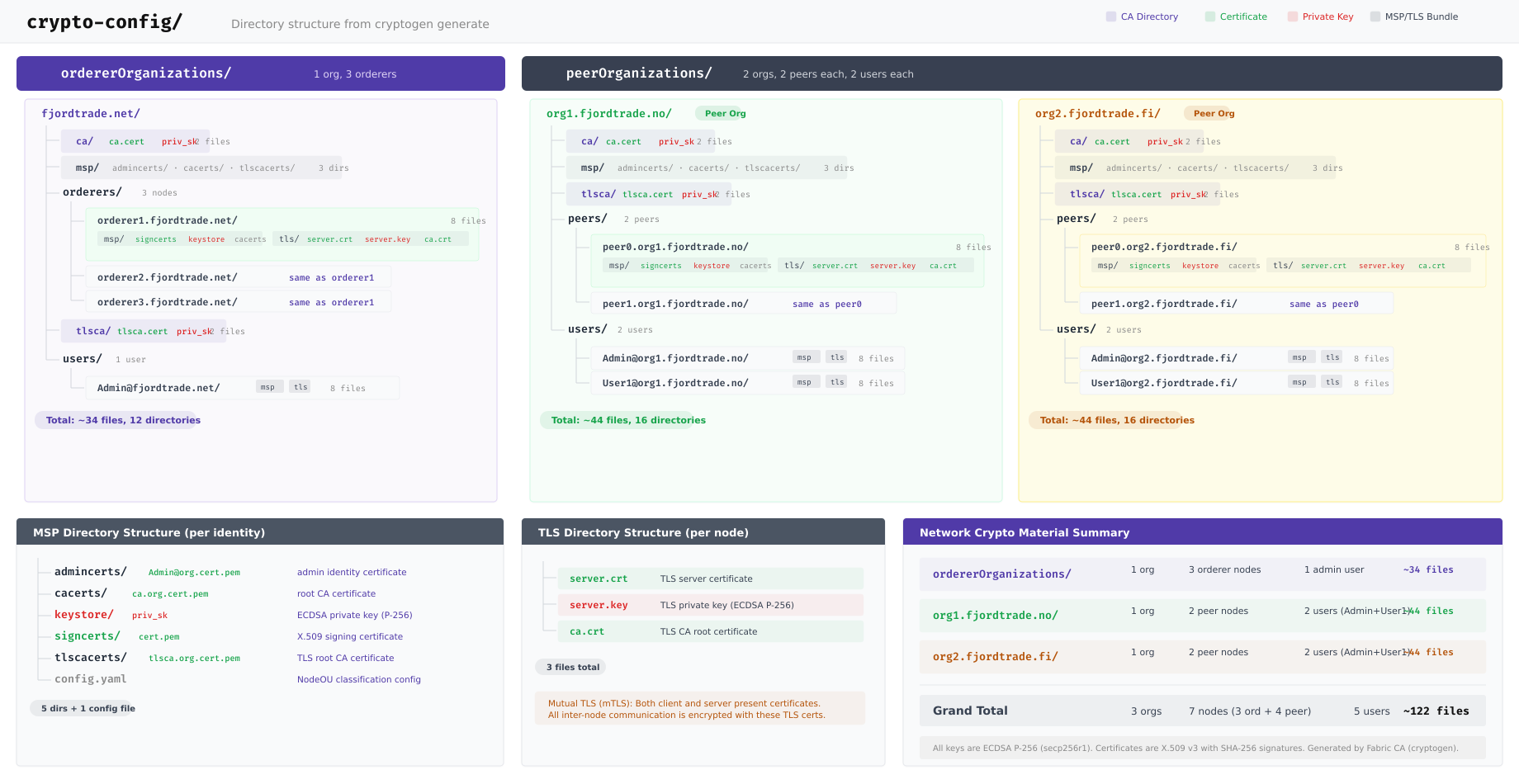
The diagram above maps the complete directory tree that cryptogen produced. The OrdererOrg branch contains three orderer nodes (orderer1, orderer2, orderer3), each with its own MSP and TLS directories. The Org1 and Org2 branches each contain two peer nodes and two user identities. In total, the generation produced material for 3 organizations, 7 nodes (3 orderers plus 4 peers), and 6 users (1 Admin plus 1 User1 per peer organization, plus 1 Admin for the orderer organization), resulting in approximately 120 files across the entire tree.
Examining a Peer Node’s MSP Directory
Each peer node has its own MSP directory that the peer container reads at startup. Understanding this structure is critical because Docker Compose files in Part 4 will mount these exact paths into the containers.
$ tree crypto-config/peerOrganizations/org1.fjordtrade.com/peers/peer0.org1.fjordtrade.com/crypto-config/peerOrganizations/org1.fjordtrade.com/peers/peer0.org1.fjordtrade.com/
├── msp
│ ├── admincerts
│ ├── cacerts
│ │ └── ca.org1.fjordtrade.com-cert.pem
│ ├── config.yaml
│ ├── keystore
│ │ └── priv_sk
│ ├── signcerts
│ │ └── peer0.org1.fjordtrade.com-cert.pem
│ └── tlscacerts
│ └── tlsca.org1.fjordtrade.com-cert.pem
└── tls
├── ca.crt
├── server.crt
└── server.key
6 directories, 6 filesThe node-level MSP directory has six subdirectories. cacerts contains the enrollment CA root certificate used to verify the identity of other members in the same organization. keystore holds the node’s private signing key (this file must never be shared or exposed). signcerts contains the node’s public enrollment certificate that other nodes use to verify its signatures. tlscacerts holds the TLS CA root certificate for verifying TLS connections. admincerts is empty when NodeOUs are enabled because admin role identification happens through the certificate’s OU field. config.yaml defines the NodeOU classification rules.
The tls directory is separate from the MSP and contains three files: ca.crt (the TLS CA root), server.crt (the node’s TLS certificate), and server.key (the node’s TLS private key). These are mounted into the container and referenced by TLS-related environment variables.
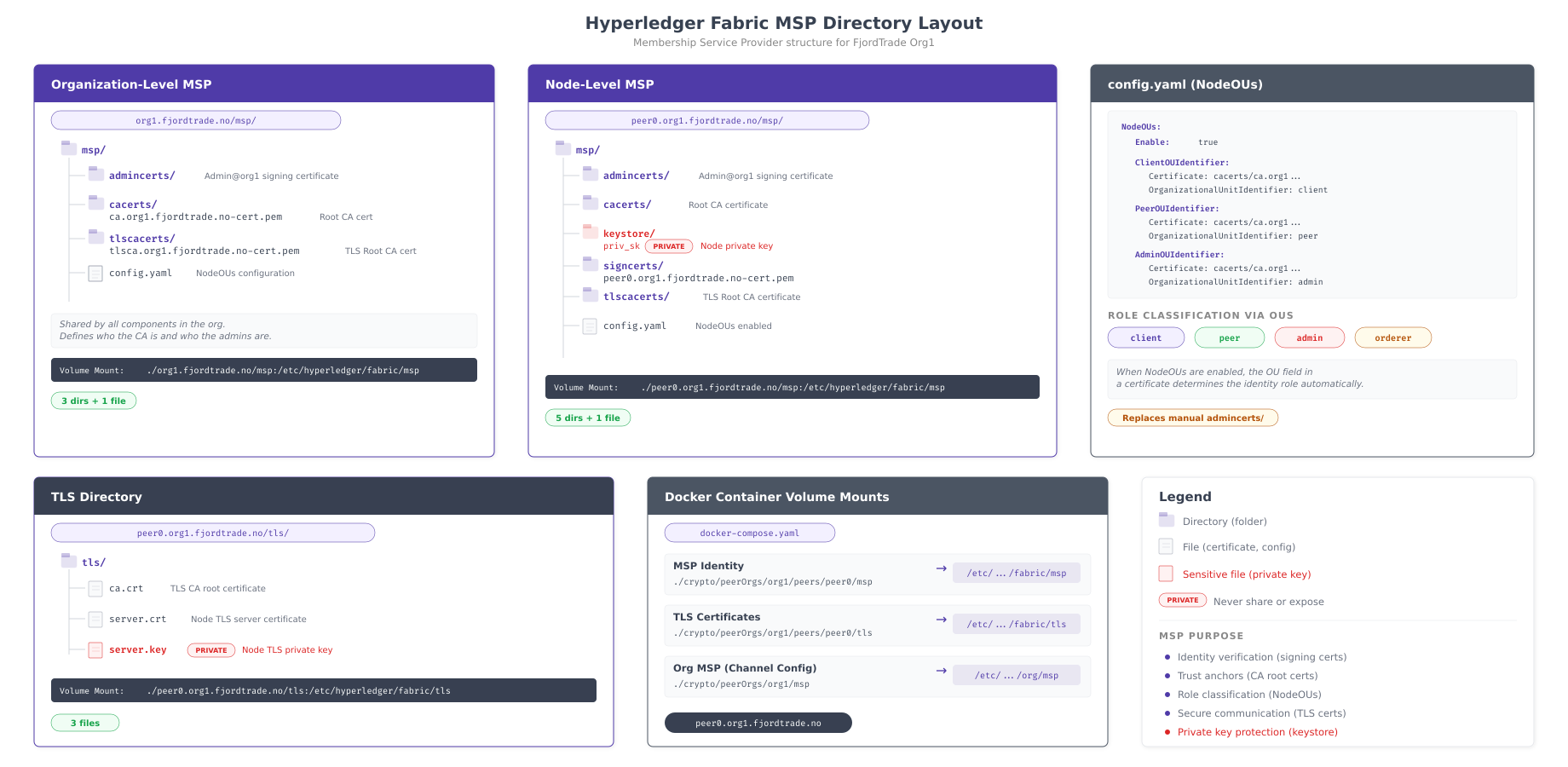
The illustration above contrasts the organization-level MSP (used in channel configuration) with the node-level MSP (mounted into containers). The key difference is that node-level MSPs contain keystore and signcerts directories with the node’s own identity material, while the organization-level MSP only contains CA root certificates and configuration. The bottom section shows how each directory maps to a path inside the Docker container, which becomes directly relevant when writing Docker Compose files in Part 4.
Examining the NodeOU Configuration
The config.yaml file inside each MSP directory defines how Fabric classifies certificate holders into roles. View its contents to understand the OU-based identity classification system.
$ cat crypto-config/peerOrganizations/org1.fjordtrade.com/msp/config.yamlNodeOUs:
Enable: true
ClientOUIdentifier:
Certificate: cacerts/ca.org1.fjordtrade.com-cert.pem
OrganizationalUnitIdentifier: client
PeerOUIdentifier:
Certificate: cacerts/ca.org1.fjordtrade.com-cert.pem
OrganizationalUnitIdentifier: peer
AdminOUIdentifier:
Certificate: cacerts/ca.org1.fjordtrade.com-cert.pem
OrganizationalUnitIdentifier: admin
OrdererOUIdentifier:
Certificate: cacerts/ca.org1.fjordtrade.com-cert.pem
OrganizationalUnitIdentifier: ordererWhen Enable: true is set, Fabric examines the OU field in each certificate to determine the holder’s role. A certificate with OU=peer is treated as a peer node. A certificate with OU=admin grants administrative privileges. This eliminates the need to maintain explicit admin certificate lists in the admincerts directory. The Certificate field in each identifier points to the CA root that issued certificates for that role, which is always the organization’s enrollment CA.
Verifying the Orderer Organization Structure
The orderer organization follows a similar structure but contains orderer nodes instead of peers. Verify that all three orderer nodes were generated correctly.
$ tree crypto-config/ordererOrganizations/orderer.fjordtrade.com/orderers/ -L 2crypto-config/ordererOrganizations/orderer.fjordtrade.com/orderers/
├── orderer1.orderer.fjordtrade.com
│ ├── msp
│ └── tls
├── orderer2.orderer.fjordtrade.com
│ ├── msp
│ └── tls
└── orderer3.orderer.fjordtrade.com
├── msp
└── tls
9 directories, 0 filesAll three orderer nodes are present. Each has its own MSP directory (for identity and signing) and TLS directory (for transport security). The three orderers will form a Raft consensus cluster in Part 4, where orderer1 acts as the initial leader and orderer2/orderer3 serve as followers.
$ find crypto-config -type f | wc -l122The cryptogen generate command produced 122 files from a single 40-line configuration file. These include CA certificates, node enrollment certificates, node TLS certificates, private keys, and NodeOU configuration files for every entity in the FjordTrade network.
Writing the Channel Configuration File
With all cryptographic material generated, the next step is to define the network’s channel configuration. The configtx.yaml file is the most complex configuration file in a Fabric deployment. It defines organizations and their MSP locations, the orderer type and consensus parameters, channel policies that govern who can read, write, and administer the network, capability versions, and channel profiles that combine these elements into deployable configurations.
The configtxgen tool reads this file and produces binary artifacts: a genesis block for bootstrapping the orderer, a channel creation transaction for the application channel, and anchor peer update transactions for cross-organization gossip discovery.
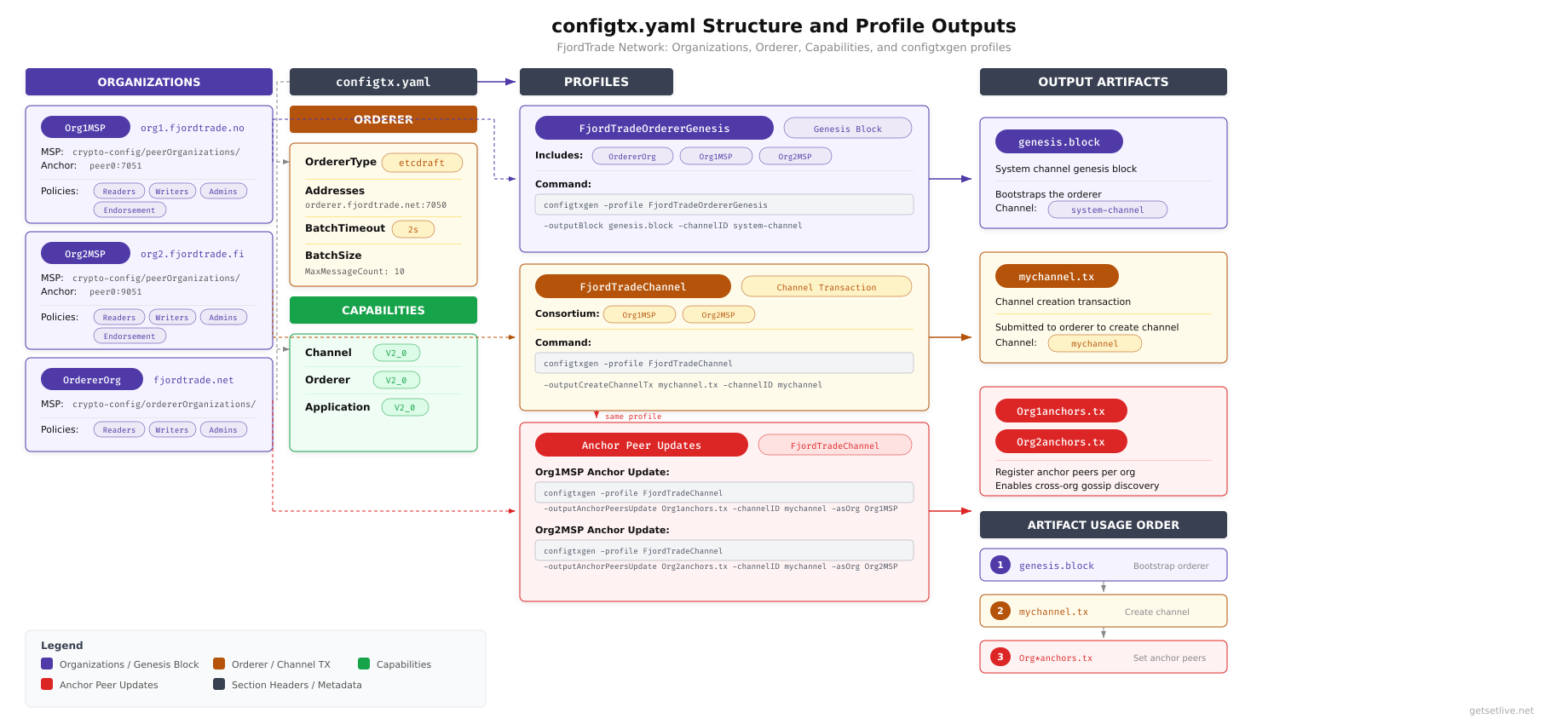
As shown above, the configtx.yaml file has four major sections. The Organizations section defines Org1, Org2, and OrdererOrg with their MSP directory paths and access policies. The Orderer section configures EtcdRaft consensus with batch size and timeout parameters. The Capabilities section sets version gates that control which features are available on the channel. The Profiles section defines two configurations: one for the genesis block that bootstraps the orderer system channel, and one for the application channel that FjordTrade’s peers will join.
$ vim config/configtx.yaml# configtx.yaml
# Defines organizations, orderer settings, and channel profiles
# for the FjordTrade blockchain network.
################################################################################
# ORGANIZATIONS
################################################################################
Organizations:
– &OrdererOrg
Name: OrdererOrg
ID: OrdererMSP
MSPDir: ../crypto-config/ordererOrganizations/orderer.fjordtrade.com/msp
Policies:
Readers:
Type: Signature
Rule: “OR(‘OrdererMSP.member’)”
Writers:
Type: Signature
Rule: “OR(‘OrdererMSP.member’)”
Admins:
Type: Signature
Rule: “OR(‘OrdererMSP.admin’)”
OrdererEndpoints:
– orderer1.orderer.fjordtrade.com:7050
– orderer2.orderer.fjordtrade.com:8050
– orderer3.orderer.fjordtrade.com:9050
– &Org1
Name: Org1MSP
ID: Org1MSP
MSPDir: ../crypto-config/peerOrganizations/org1.fjordtrade.com/msp
Policies:
Readers:
Type: Signature
Rule: “OR(‘Org1MSP.admin’, ‘Org1MSP.peer’, ‘Org1MSP.client’)”
Writers:
Type: Signature
Rule: “OR(‘Org1MSP.admin’, ‘Org1MSP.client’)”
Admins:
Type: Signature
Rule: “OR(‘Org1MSP.admin’)”
Endorsement:
Type: Signature
Rule: “OR(‘Org1MSP.peer’)”
AnchorPeers:
– Host: peer0.org1.fjordtrade.com
Port: 7051
– &Org2
Name: Org2MSP
ID: Org2MSP
MSPDir: ../crypto-config/peerOrganizations/org2.fjordtrade.com/msp
Policies:
Readers:
Type: Signature
Rule: “OR(‘Org2MSP.admin’, ‘Org2MSP.peer’, ‘Org2MSP.client’)”
Writers:
Type: Signature
Rule: “OR(‘Org2MSP.admin’, ‘Org2MSP.client’)”
Admins:
Type: Signature
Rule: “OR(‘Org2MSP.admin’)”
Endorsement:
Type: Signature
Rule: “OR(‘Org2MSP.peer’)”
AnchorPeers:
– Host: peer0.org2.fjordtrade.com
Port: 9051
################################################################################
# CAPABILITIES
################################################################################
Capabilities:
Channel: &ChannelCapabilities
V2_0: true
Orderer: &OrdererCapabilities
V2_0: true
Application: &ApplicationCapabilities
V2_0: true
################################################################################
# APPLICATION
################################################################################
Application: &ApplicationDefaults
Organizations:
Policies:
Readers:
Type: ImplicitMeta
Rule: “ANY Readers”
Writers:
Type: ImplicitMeta
Rule: “ANY Writers”
Admins:
Type: ImplicitMeta
Rule: “MAJORITY Admins”
LifecycleEndorsement:
Type: ImplicitMeta
Rule: “MAJORITY Endorsement”
Endorsement:
Type: ImplicitMeta
Rule: “MAJORITY Endorsement”
Capabilities:
<<: *ApplicationCapabilities
################################################################################
# ORDERER
################################################################################
Orderer: &OrdererDefaults
OrdererType: etcdraft
Addresses:
- orderer1.orderer.fjordtrade.com:7050
- orderer2.orderer.fjordtrade.com:8050
- orderer3.orderer.fjordtrade.com:9050
EtcdRaft:
Consenters:
- Host: orderer1.orderer.fjordtrade.com
Port: 7050
ClientTLSCert: ../crypto-config/ordererOrganizations/orderer.fjordtrade.com/orderers/orderer1.orderer.fjordtrade.com/tls/server.crt
ServerTLSCert: ../crypto-config/ordererOrganizations/orderer.fjordtrade.com/orderers/orderer1.orderer.fjordtrade.com/tls/server.crt
- Host: orderer2.orderer.fjordtrade.com
Port: 8050
ClientTLSCert: ../crypto-config/ordererOrganizations/orderer.fjordtrade.com/orderers/orderer2.orderer.fjordtrade.com/tls/server.crt
ServerTLSCert: ../crypto-config/ordererOrganizations/orderer.fjordtrade.com/orderers/orderer2.orderer.fjordtrade.com/tls/server.crt
- Host: orderer3.orderer.fjordtrade.com
Port: 9050
ClientTLSCert: ../crypto-config/ordererOrganizations/orderer.fjordtrade.com/orderers/orderer3.orderer.fjordtrade.com/tls/server.crt
ServerTLSCert: ../crypto-config/ordererOrganizations/orderer.fjordtrade.com/orderers/orderer3.orderer.fjordtrade.com/tls/server.crt
BatchTimeout: 2s
BatchSize:
MaxMessageCount: 10
AbsoluteMaxBytes: 99 MB
PreferredMaxBytes: 512 KB
Organizations:
Policies:
Readers:
Type: ImplicitMeta
Rule: "ANY Readers"
Writers:
Type: ImplicitMeta
Rule: "ANY Writers"
Admins:
Type: ImplicitMeta
Rule: "MAJORITY Admins"
BlockValidation:
Type: ImplicitMeta
Rule: "ANY Writers"
Capabilities:
<<: *OrdererCapabilities
################################################################################
# CHANNEL
################################################################################
Channel: &ChannelDefaults
Policies:
Readers:
Type: ImplicitMeta
Rule: "ANY Readers"
Writers:
Type: ImplicitMeta
Rule: "ANY Writers"
Admins:
Type: ImplicitMeta
Rule: "MAJORITY Admins"
Capabilities:
<<: *ChannelCapabilities
################################################################################
# PROFILES
################################################################################
Profiles:
FjordTradeOrdererGenesis:
<<: *ChannelDefaults
Orderer:
<<: *OrdererDefaults
Organizations:
- *OrdererOrg
Consortiums:
FjordTradeConsortium:
Organizations:
- *Org1
- *Org2
FjordTradeChannel:
Consortium: FjordTradeConsortium
<<: *ChannelDefaults
Application:
<<: *ApplicationDefaults
Organizations:
- *Org1
- *Org2[/gsl_terminal]
Press <code>Esc</code>, type <code>:wq</code>, press <code>Enter</code> to save and exit.
This file defines the complete governance model for the FjordTrade network. The Organizations section uses YAML anchors (<code>&OrdererOrg</code>, <code>&Org1</code>, <code>&Org2</code>) so the definitions can be referenced by name in the Profiles section. Each organization’s <code>MSPDir</code> points to the organization-level MSP directory generated by cryptogen. The relative paths (<code>../crypto-config/</code>) assume that <code>configtxgen</code> is run from inside the <code>config/</code> directory.
The policy rules use two types. <code>Signature</code> policies require explicit cryptographic signatures from specified MSP roles (admin, peer, client, member). <code>ImplicitMeta</code> policies aggregate the sub-policies of child organizations using rules like <code>ANY</code> (at least one must satisfy), <code>MAJORITY</code> (more than half must satisfy), or <code>ALL</code> (every organization must satisfy). The <code>MAJORITY Admins</code> rule on channel-level Admin operations means that both Org1 and Org2 admins must approve changes like adding a new organization, which is exactly the behavior required when Org3 (Tallinn) joins in Part 7.
The Orderer section configures EtcdRaft consensus with three consenters. Each consenter entry includes its hostname, port, and TLS certificate paths. The <code>BatchTimeout</code> of 2 seconds means the orderer waits up to 2 seconds to collect transactions before cutting a new block. The <code>BatchSize</code> settings define maximum transactions per block (10), absolute maximum block size (99 MB), and preferred maximum (512 KB). These values are appropriate for development and testing; production networks typically use smaller batch sizes and shorter timeouts.
The Profiles section defines two configurations. <code>FjordTradeOrdererGenesis</code> is used to generate the orderer system channel genesis block, which bootstraps the Raft cluster and defines the initial consortium (Org1 and Org2). <code>FjordTradeChannel</code> is used to generate the application channel creation transaction, which Org1 and Org2 peers will join to share ledger data.
<h2 class="wp-block-heading">Generating the Genesis Block</h2>
The genesis block is block number zero of the orderer system channel. It contains the complete initial configuration of the network: which organizations exist, what their MSP certificates are, what the orderer consensus type is, who the consenters are, and what policies govern the network. When orderer nodes start for the first time, they read this genesis block to initialize themselves and form the Raft cluster.
<span class="gsl-free-notice">Free to use, share it in your presentations, blogs, or learning materials.</span><figure class="wp-block-image alignwide size-large"><img src="https://blogs.getsetlive.com/wp-content/uploads/2026/03/ht-p3-genesis-block-anatomy.png" alt="Internal anatomy of the genesis block showing the header with block number zero, metadata with orderer signatures, and data section containing the full channel configuration with orderer group, application group, and channel policies" class="wp-image-554"/><figcaption class="wp-element-caption">Internal anatomy of the FjordTrade genesis block, showing how the header, metadata, and data sections combine to form the initial network configuration that orderer nodes read at bootstrap.</figcaption></figure>
The diagram above breaks open the genesis block to show its internal structure. The header contains block number zero and the data hash. The metadata section holds orderer signatures and capability information. The data section is where the actual configuration lives: the Orderer group defines consensus parameters and consenter identities, the Application group lists the consortium members (Org1MSP and Org2MSP) with their policies, and the Channel group sets top-level access rules. This entire structure is serialized into a single binary file that each orderer reads at first boot.
Run <code>configtxgen</code> from the <code>config/</code> directory so that the relative MSP paths in configtx.yaml resolve correctly.
[gsl_terminal title="Generate the genesis block"]cd ~/fjordtrade-network/config
configtxgen -profile FjordTradeOrdererGenesis -channelID system-channel -outputBlock ../channel-artifacts/genesis.block2026-03-02 10:15:32.456 UTC 0001 INFO [common.tools.configtxgen] main -> Loading configuration
2026-03-02 10:15:32.489 UTC 0002 INFO [common.tools.configtxgen.localconfig] completeInitialization -> orderer type: etcdraft
2026-03-02 10:15:32.489 UTC 0003 INFO [common.tools.configtxgen.localconfig] Load -> Loaded configuration: configtx.yaml
2026-03-02 10:15:32.491 UTC 0004 INFO [common.tools.configtxgen] doOutputBlock -> Generating genesis block
2026-03-02 10:15:32.491 UTC 0005 INFO [common.tools.configtxgen] doOutputBlock -> Creating system channel genesis block
2026-03-02 10:15:32.493 UTC 0006 INFO [common.tools.configtxgen] doOutputBlock -> Writing genesis blockThe output confirms that configtxgen loaded the configuration, recognized the orderer type as etcdraft, and wrote the genesis block to ../channel-artifacts/genesis.block. If you see an error about MSP directories not being found, verify that the MSPDir paths in configtx.yaml correctly point to the crypto-config directories using relative paths from the config/ directory.
$ ls -la ~/fjordtrade-network/channel-artifacts/genesis.block-rw-r–r– 1 fjordtrade fjordtrade 12836 Mar 2 10:15 /home/fjordtrade/fjordtrade-network/channel-artifacts/genesis.blockThe genesis block is approximately 12-13 KB. This size is typical for a 2-organization network with 3 orderer consenters. The file size grows with each additional organization because the MSP certificates for every consortium member are embedded in the block.
Generating the Channel Creation Transaction
The channel creation transaction is submitted to the orderer to create a new application channel. Unlike the genesis block which bootstraps the system channel, this transaction creates the channel that peers will actually join to share ledger data. The channel name used here must match exactly when creating the channel in Part 5.
$ configtxgen -profile FjordTradeChannel -outputCreateChannelTx ../channel-artifacts/fjordtradechannel.tx -channelID fjordtradechannel2026-03-02 10:16:45.123 UTC 0001 INFO [common.tools.configtxgen] main -> Loading configuration
2026-03-02 10:16:45.156 UTC 0002 INFO [common.tools.configtxgen.localconfig] Load -> Loaded configuration: configtx.yaml
2026-03-02 10:16:45.158 UTC 0003 INFO [common.tools.configtxgen] doOutputChannelCreateTx -> Generating new channel configtx
2026-03-02 10:16:45.160 UTC 0004 INFO [common.tools.configtxgen] doOutputChannelCreateTx -> Writing new channel txThe channel name fjordtradechannel is used consistently throughout the remaining parts of this series. Fabric channel names must be lowercase, can contain only alphanumeric characters and dashes, must start with a letter, and must be fewer than 250 characters.
Generating Anchor Peer Update Transactions
Anchor peers are the designated contact points for cross-organization gossip communication. When a peer in Org1 needs to discover peers in Org2, it contacts Org2’s anchor peer. Without anchor peer configuration, organizations can communicate internally but cannot discover or exchange blocks with peers from other organizations. Each organization needs its own anchor peer update transaction.
$ configtxgen -profile FjordTradeChannel -outputAnchorPeersUpdate ../channel-artifacts/Org1MSPanchors.tx -channelID fjordtradechannel -asOrg Org1MSP2026-03-02 10:17:22.345 UTC 0001 INFO [common.tools.configtxgen] main -> Loading configuration
2026-03-02 10:17:22.378 UTC 0002 INFO [common.tools.configtxgen.localconfig] Load -> Loaded configuration: configtx.yaml
2026-03-02 10:17:22.380 UTC 0003 INFO [common.tools.configtxgen] doOutputAnchorPeersUpdate -> Generating anchor peer update
2026-03-02 10:17:22.381 UTC 0004 INFO [common.tools.configtxgen] doOutputAnchorPeersUpdate -> Writing anchor peer update$ configtxgen -profile FjordTradeChannel -outputAnchorPeersUpdate ../channel-artifacts/Org2MSPanchors.tx -channelID fjordtradechannel -asOrg Org2MSP2026-03-02 10:17:45.567 UTC 0001 INFO [common.tools.configtxgen] main -> Loading configuration
2026-03-02 10:17:45.600 UTC 0002 INFO [common.tools.configtxgen.localconfig] Load -> Loaded configuration: configtx.yaml
2026-03-02 10:17:45.602 UTC 0003 INFO [common.tools.configtxgen] doOutputAnchorPeersUpdate -> Generating anchor peer update
2026-03-02 10:17:45.603 UTC 0004 INFO [common.tools.configtxgen] doOutputAnchorPeersUpdate -> Writing anchor peer updateEach anchor peer update transaction specifies which peer in the organization serves as the anchor. For Org1, the anchor peer is peer0.org1.fjordtrade.com on port 7051 (as defined in the configtx.yaml AnchorPeers section). For Org2, it is peer0.org2.fjordtrade.com on port 9051. These transactions will be submitted to the channel after peers join it in Part 5.
Verifying All Channel Artifacts
Before proceeding to Part 4, verify that every required artifact exists in the channel-artifacts directory. A missing or zero-byte file at this stage will cause container startup failures later.
$ ls -la ~/fjordtrade-network/channel-artifacts/total 28
drwxr-xr-x 2 fjordtrade fjordtrade 4096 Mar 2 10:17 .
drwxr-xr-x 8 fjordtrade fjordtrade 4096 Mar 2 09:30 ..
-rw-r–r– 1 fjordtrade fjordtrade 12836 Mar 2 10:15 genesis.block
-rw-r–r– 1 fjordtrade fjordtrade 1632 Mar 2 10:16 fjordtradechannel.tx
-rw-r–r– 1 fjordtrade fjordtrade 284 Mar 2 10:17 Org1MSPanchors.tx
-rw-r–r– 1 fjordtrade fjordtrade 284 Mar 2 10:17 Org2MSPanchors.txFour files should be present: the genesis block (approximately 12-13 KB), the channel creation transaction (approximately 1.6 KB), and two anchor peer update transactions (approximately 284 bytes each). If any file is missing or shows 0 bytes, re-run the corresponding configtxgen command from the config/ directory.
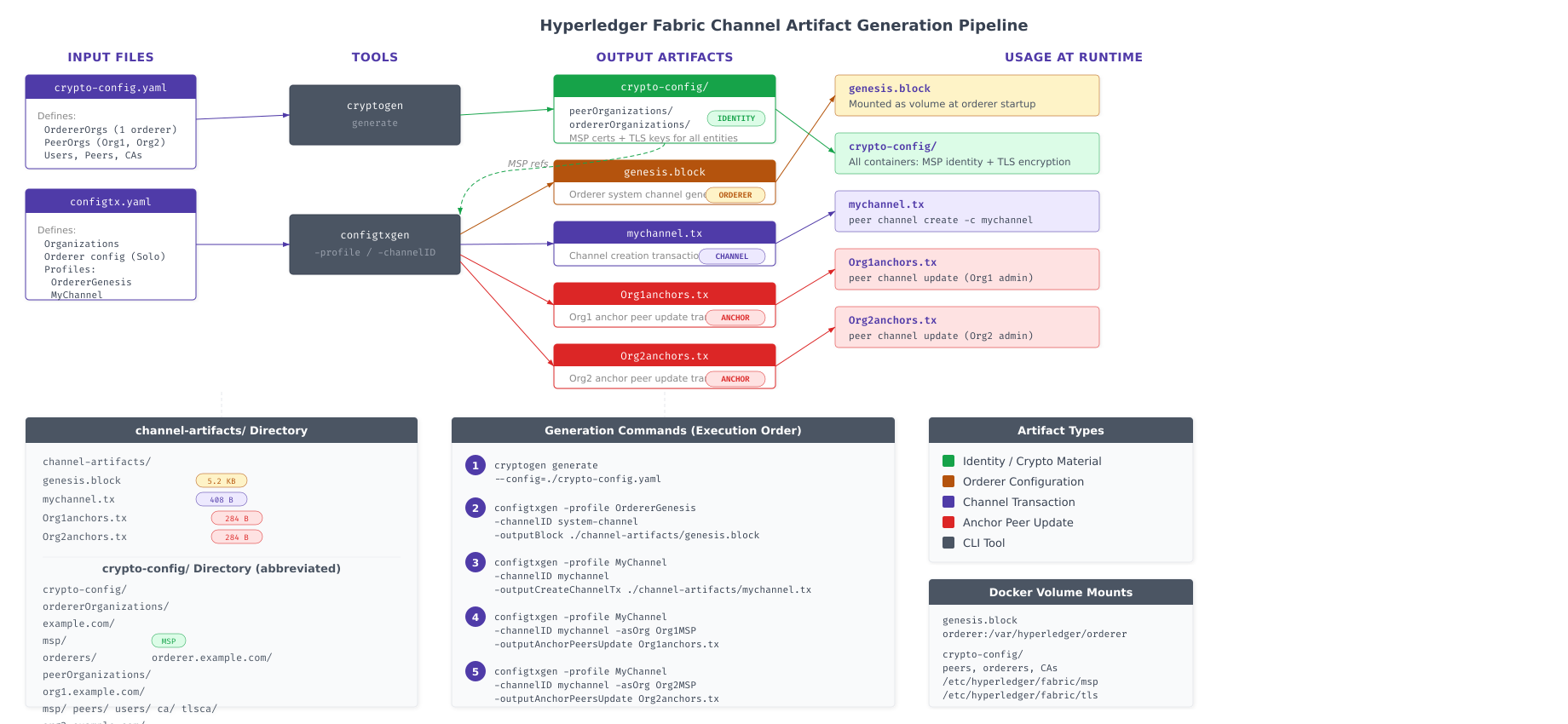
The pipeline above traces every artifact from its source configuration file to its runtime consumer. The crypto-config.yaml feeds into cryptogen, which produces the entire crypto-config directory tree (identities and TLS material). The configtx.yaml feeds into configtxgen, which produces the genesis block (consumed by orderers at boot), the channel transaction (consumed by the peer channel create command), and the anchor peer updates (consumed by the peer channel update command). The arrows on the right side show where each artifact is mounted or referenced when containers launch in Part 4.
Inspecting the Genesis Block
Use configtxgen‘s inspect mode to decode the genesis block and verify its contents. This confirms that all organizations, orderer settings, and policies were correctly encoded.
$ configtxgen -inspectBlock ../channel-artifacts/genesis.block | head -60{
“data”: {
“data”: [
{
“payload”: {
“data”: {
“config”: {
“channel_group”: {
“groups”: {
“Consortiums”: {
“groups”: {
“FjordTradeConsortium”: {
“groups”: {
“Org1MSP”: {
“groups”: {},
“mod_policy”: “Admins”,
“policies”: {
“Admins”: {
“mod_policy”: “Admins”,
“policy”: {
“type”: 1,
“value”: {
“identities”: [
{
“principal”: {
“msp_identifier”: “Org1MSP”,
“role”: “ADMIN”
}
}
]
}
}
},
“Endorsement”: {
“mod_policy”: “Admins”,
“policy”: {
“type”: 1,
“value”: {
“identities”: [
{
“principal”: {
“msp_identifier”: “Org1MSP”,
“role”: “PEER”
}
}
]
}
}
}
}
},
“Org2MSP”: {
“groups”: {},
“mod_policy”: “Admins”,
“policies”: {
“Admins”: {
“mod_policy”: “Admins”,
“policy”: {
“type”: 1,
“value”: {The JSON output confirms that the genesis block contains the FjordTradeConsortium with both Org1MSP and Org2MSP as members. The policies show the correct role assignments: ADMIN for administrative operations and PEER for endorsement. If either organization is missing from the output, check the Profiles section of configtx.yaml to ensure both organizations are listed under the consortium.
$ configtxgen -inspectBlock ../channel-artifacts/genesis.block | grep -A 2 “consensus_type”“consensus_type”: {
“metadata”: null,
“state”: “STATE_NORMAL”,$ configtxgen -inspectBlock ../channel-artifacts/genesis.block | grep “host” | head -6“host”: “orderer1.orderer.fjordtrade.com”,
“host”: “orderer2.orderer.fjordtrade.com”,
“host”: “orderer3.orderer.fjordtrade.com”,All three orderer consenters (orderer1, orderer2, orderer3) are present in the genesis block configuration. When these orderers boot in Part 4, each one will find itself in the consenter set and participate in Raft leader election.
Inspecting the Channel Transaction
Verify the channel creation transaction to confirm it references the correct channel profile and consortium members.
$ configtxgen -inspectChannelCreateTx ../channel-artifacts/fjordtradechannel.tx -channelID fjordtradechannel{
“payload”: {
“data”: {
“config_update”: {
“channel_id”: “fjordtradechannel”,
“read_set”: {
“groups”: {
“Application”: {
“groups”: {
“Org1MSP”: {},
“Org2MSP”: {}
}
}
}
},
“write_set”: {
“groups”: {
“Application”: {
“groups”: {
“Org1MSP”: {},
“Org2MSP”: {}
}
}
}
}
}
}
}
}The channel transaction shows that fjordtradechannel will include both Org1MSP and Org2MSP in its Application group. The read_set and write_set confirm that both organizations have read and write access to the channel from the moment it is created.
Final Directory Structure Verification
Run a comprehensive verification to confirm that the entire FjordTrade project directory is correctly populated and ready for Part 4.
$ cd ~/fjordtrade-network
$ tree -L 1fjordtrade-network
├── chaincode
├── channel-artifacts
├── config
├── crypto-config
├── docker
└── scripts
6 directories, 0 files$ ls -lh channel-artifacts/total 16K
-rw-r–r– 1 fjordtrade fjordtrade 284 Mar 2 10:17 Org1MSPanchors.tx
-rw-r–r– 1 fjordtrade fjordtrade 284 Mar 2 10:17 Org2MSPanchors.tx
-rw-r–r– 1 fjordtrade fjordtrade 1.6K Mar 2 10:16 fjordtradechannel.tx
-rw-r–r– 1 fjordtrade fjordtrade 13K Mar 2 10:15 genesis.block$ ls -lh config/total 8.0K
-rw-r–r– 1 fjordtrade fjordtrade 3.8K Mar 2 10:14 configtx.yaml
-rw-r–r– 1 fjordtrade fjordtrade 987 Mar 2 10:10 crypto-config.yaml$ echo “=== OrdererOrg nodes ===”
$ ls crypto-config/ordererOrganizations/orderer.fjordtrade.com/orderers/
$ echo “”
$ echo “=== Org1 peers ===”
$ ls crypto-config/peerOrganizations/org1.fjordtrade.com/peers/
$ echo “”
$ echo “=== Org2 peers ===”
$ ls crypto-config/peerOrganizations/org2.fjordtrade.com/peers/
$ echo “”
$ echo “=== Org1 users ===”
$ ls crypto-config/peerOrganizations/org1.fjordtrade.com/users/
$ echo “”
$ echo “=== Org2 users ===”
$ ls crypto-config/peerOrganizations/org2.fjordtrade.com/users/
$ echo “”
$ echo “=== Total files generated ===”
$ find crypto-config -type f | wc -l=== OrdererOrg nodes ===
orderer1.orderer.fjordtrade.com orderer2.orderer.fjordtrade.com orderer3.orderer.fjordtrade.com
=== Org1 peers ===
peer0.org1.fjordtrade.com peer1.org1.fjordtrade.com
=== Org2 peers ===
peer0.org2.fjordtrade.com peer1.org2.fjordtrade.com
=== Org1 users ===
Admin@org1.fjordtrade.com User1@org1.fjordtrade.com
=== Org2 users ===
Admin@org2.fjordtrade.com User1@org2.fjordtrade.com
=== Total files generated ===
122The verification confirms the complete state of the FjordTrade project directory. Three orderer nodes, four peer nodes (two per organization), four user identities (Admin plus User1 per organization), 122 cryptographic files, two configuration files, and four channel artifacts are all in place. Every file needed to launch the Docker containers in Part 4 has been generated and verified.
Troubleshooting
This section covers the most common errors encountered during cryptographic material and channel artifact generation.
YAML Indentation Errors
Both cryptogen and configtxgen will fail with parse errors if the YAML files contain tabs instead of spaces, or if the indentation levels are inconsistent. YAML requires spaces only (never tabs), and each nesting level must use consistent indentation (2 spaces is standard).
$ grep -P ‘\t’ config/crypto-config.yaml
$ grep -P ‘\t’ config/configtx.yaml
If either command produces output, tabs are present. Open the file in vim and use :set list to make tabs visible (they appear as ^I). Replace them with spaces using :%s/\t/ /g.
MSP Directory Not Found
If configtxgen reports that it cannot find an MSP directory, the issue is almost always a relative path mismatch. The MSPDir paths in configtx.yaml are relative to the directory where configtxgen is executed, not relative to the YAML file location.
$ pwd/home/fjordtrade/fjordtrade-network/configIf your working directory is ~/fjordtrade-network (the project root) instead of ~/fjordtrade-network/config, the relative path ../crypto-config will resolve to the wrong location. Always cd into the config/ directory before running configtxgen, or adjust the paths to match your working directory.
Regenerating Material After Configuration Changes
If you need to modify crypto-config.yaml and regenerate the certificates, you must remove the existing crypto-config directory first. Cryptogen will not overwrite existing material.
$ cd ~/fjordtrade-network
$ rm -rf crypto-config/*
$ cryptogen generate –config=config/crypto-config.yaml –output=crypto-config
After regenerating crypto material, you must also regenerate all channel artifacts (genesis block, channel transaction, anchor peer updates) because they embed the MSP certificates. Using a genesis block that references old certificates with new node certificates will cause TLS handshake failures.
Permission Denied on Private Keys
If Docker containers cannot read private key files, the issue is file ownership. The user running Docker Compose must have read access to all files in the crypto-config directory.
$ ls -la crypto-config/peerOrganizations/org1.fjordtrade.com/peers/peer0.org1.fjordtrade.com/msp/keystore/total 8
drwx—— 2 fjordtrade fjordtrade 4096 Mar 2 10:12 .
drwxr-xr-x 8 fjordtrade fjordtrade 4096 Mar 2 10:12 ..
-rwx—— 1 fjordtrade fjordtrade 241 Mar 2 10:12 priv_skThe keystore directory and private key file (priv_sk) have restricted permissions (owner-only access), which is correct for security. If the Docker daemon runs as a different user and cannot access these files, adjust permissions with chmod 644 on the specific files, or ensure Docker runs under the same user that owns the crypto-config tree. In a production environment, never set permissions broader than necessary on private key files.
Summary
This part generated the complete identity infrastructure and channel configuration artifacts for the FjordTrade blockchain network. Here is what was accomplished.
Crypto configuration: Created crypto-config.yaml defining the FjordTrade network structure with one orderer organization (3 Raft nodes) and two peer organizations (2 peers each, plus Admin and User1 identities). Enabled NodeOU classification for role-based identity verification.
Cryptographic material generation: Ran cryptogen generate to produce 122 files across the complete PKI hierarchy: enrollment CA certificates and keys, TLS CA certificates and keys, node-level signing certificates and private keys, TLS server certificates and keys, and user identity material for all three organizations.
Channel configuration: Created configtx.yaml defining organization MSP locations, Signature and ImplicitMeta policies, EtcdRaft orderer configuration with 3 consenters, batch size and timeout parameters, V2_0 capabilities, and two channel profiles (FjordTradeOrdererGenesis and FjordTradeChannel).
Genesis block: Generated the orderer system channel genesis block containing the complete initial network configuration, consortium definition (Org1MSP and Org2MSP), and Raft consenter list. Verified that all organizations and orderer nodes are correctly encoded.
Channel transaction: Generated the application channel creation transaction for fjordtradechannel, which will be submitted to create the channel that peers join for ledger sharing.
Anchor peer updates: Generated anchor peer update transactions for both Org1 (peer0 on port 7051) and Org2 (peer0 on port 9051), enabling cross-organization gossip discovery after peers join the channel.
Verification: Inspected the genesis block JSON to confirm correct consortium membership, orderer consensus type, and consenter list. Verified the channel transaction to confirm both organizations are included in the Application group. Counted and validated all 122 generated files and 4 channel artifacts.
What Comes Next
In Part 4: Writing Docker Compose Files and Launching the Network, you will write Docker Compose configuration files for the orderer cluster, both peer organizations with CouchDB sidecars, and the Fabric CA. Each compose file will reference the cryptographic material and channel artifacts generated in this part, mounting them as volumes into the containers. By the end of Part 4, all FjordTrade containers will be running: 3 orderer nodes forming a Raft cluster, 4 peer nodes with their CouchDB state databases, and the certificate authority services. The Raft cluster will elect a leader, and every container will be verified operational through Docker logs and health checks.