
In Part 4, you installed marketplace skills, created a custom morning briefing, and configured cron-based automation. The agent is fully functional across three channels with six skills and three scheduled jobs. This part adds the final two pillars: local LLM capability and production security hardening.
By the end of this part, the LumaNova server will have Ollama running with a local model, automatic fallback from cloud to local LLM, all API keys secured in environment variables with locked file permissions, encrypted configuration backups, and a clean security audit.
Prerequisites
Completed Part 4: The OpenClaw gateway is running with 3 active channels and 6 loaded skills.
For local LLM: At least 16 GB RAM for small models (8B parameters) or 32 GB+ RAM for larger models (32B+ parameters). A dedicated NVIDIA GPU with CUDA support significantly improves inference speed but is not strictly required.
$ curl -s http://127.0.0.1:18789/healthz | jq ‘{status: .status, channels: .channels, skills: .skills}’{
“status”: “ok”,
“channels”: {
“configured”: 3,
“active”: 3
},
“skills”: {
“loaded”: 6,
“available”: 6
}
}Installing Ollama
Ollama is a lightweight framework for running large language models locally. It handles model downloading, quantization, and serving behind a simple REST API. The installation is a single command.
$ curl -fsSL https://ollama.com/install.sh | sh>>> Installing ollama to /usr/local
>>> Downloading Linux amd64 bundle
######################################################################## 100.0%
>>> Creating ollama user…
>>> Adding ollama user to video group…
>>> Adding current user to ollama group…
>>> Creating ollama systemd service…
>>> Enabling and starting ollama service…
>>> The Ollama API is now available at 127.0.0.1:11434.
>>> Install complete. Run “ollama” from the command line.$ ollama –version
$ curl -s http://localhost:11434/api/version | jq .ollama version is 0.6.2
{
“version”: “0.6.2”
}Pulling Local Models
Download two models: Llama 3.3 for general conversation and Qwen 2.5 Coder for code-related tasks. The download sizes are significant, so this step takes several minutes depending on your internet speed.
$ ollama pull llama3.3pulling manifest
pulling dde5aa3fc5ff… 100% ▕████████████████████████████████████████████████████▏ 4.7 GB
pulling 966de95ca8a6… 100% ▕████████████████████████████████████████████████████▏ 1.4 KB
pulling fcc5a6bec9da… 100% ▕████████████████████████████████████████████████████▏ 7.7 KB
pulling a70ff7e570d9… 100% ▕████████████████████████████████████████████████████▏ 6.0 KB
pulling 56bb8bd477a5… 100% ▕████████████████████████████████████████████████████▏ 96 B
pulling 34bb5ab01051… 100% ▕████████████████████████████████████████████████████▏ 561 B
verifying sha256 digest
writing manifest
success$ ollama pull qwen2.5-coder:32bpulling manifest
pulling ac3d1ba8aa78… 100% ▕████████████████████████████████████████████████████▏ 18 GB
pulling 62fbfd9ed093… 100% ▕████████████████████████████████████████████████████▏ 1.5 KB
pulling c71d239df917… 100% ▕████████████████████████████████████████████████████▏ 11 KB
verifying sha256 digest
writing manifest
success$ ollama listNAME ID SIZE MODIFIED
llama3.3:latest a6eb66ca5b05 4.7 GB 2 minutes ago
qwen2.5-coder:32b ac3d1ba8aa78 18 GB 30 seconds ago$ ollama show llama3.3Model
architecture llama
parameters 8.0B
quantization Q4_K_M
context length 131072
embedding length 4096
License
Llama 3.3 Community License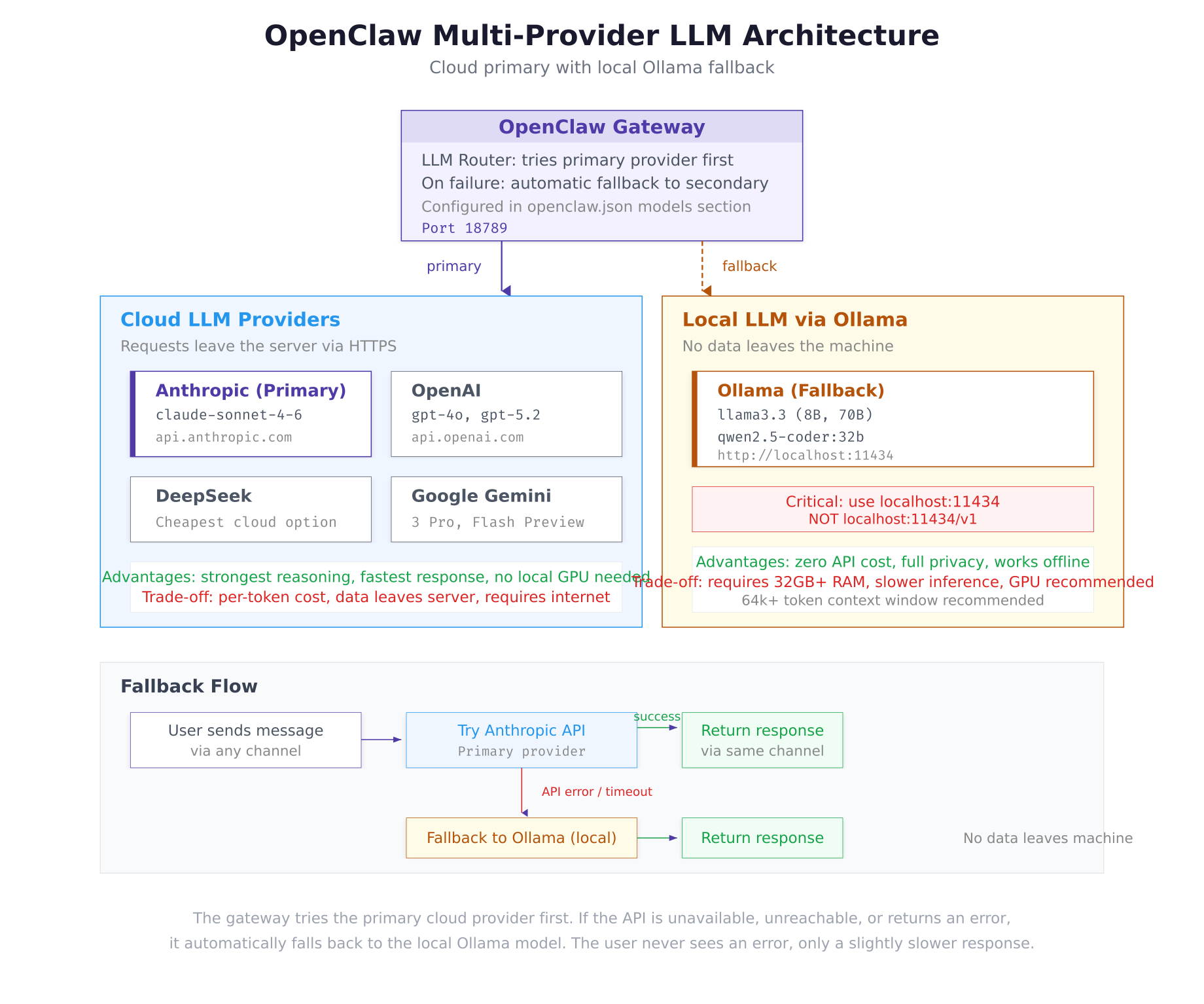
The architecture diagram above shows the two execution paths. Under normal operation, the gateway routes prompts to Anthropic’s Claude over HTTPS. If the API returns an error, times out, or is unreachable, the gateway automatically falls back to the local Ollama model. The user on the other end of the messaging channel never sees an error, only a slightly slower response.
Configuring OpenClaw for Ollama
Update the OpenClaw configuration to register Ollama as a secondary LLM provider with automatic fallback behavior.
$ vim ~/.openclaw/.envANTHROPIC_API_KEY=sk-ant-api03-xxxxxxxxxxxxxxxxxxxxxxxxxxxxx
TELEGRAM_BOT_TOKEN=7234567890:AAHdqTcvCH1vGWJxfSeofSAs0K5PALDsaw
DISCORD_BOT_TOKEN=MTIzNDU2Nzg5MDEyMzQ1Njc4OQ.GHJklm.abcdefghijklmnopqrstuvwxyz1234567890
OPENWEATHER_API_KEY=a1b2c3d4e5f6g7h8i9j0k1l2m3n4o5p6
SERP_API_KEY=your-serp-api-key-here
NEWS_API_KEY=your-newsapi-key-here
OLLAMA_API_KEY=ollama-localPress Esc, type :wq, press Enter to save and exit.
The OLLAMA_API_KEY value is a placeholder. Ollama does not require authentication since it runs locally, but OpenClaw’s configuration schema expects an API key field for every provider.
$ vim ~/.openclaw/openclaw.jsonPress <code>Esc</code>, type <code>:wq</code>, press <code>Enter</code> to save and exit.
The <code>baseUrl</code> must be <code>http://localhost:11434</code> without a <code>/v1</code> suffix. This is a common configuration mistake. Ollama’s API is compatible with the OpenAI format but serves it at the root path, not under <code>/v1</code>. Adding <code>/v1</code> results in 404 errors.
[gsl_terminal title="Restart gateway and verify Ollama fallback"]cd ~/openclaw/docker && docker compose restart
curl -s http://127.0.0.1:18789/healthz | jq .llm{
“provider”: “anthropic”,
“model”: “claude-sonnet-4-6”,
“connected”: true,
“fallback”: {
“provider”: “ollama”,
“model”: “llama3.3”,
“connected”: true
}
}Both providers show connected: true. The gateway will use Anthropic as the primary provider and automatically fall back to the local Llama 3.3 model if the Anthropic API is unavailable.
Testing the Local Model
Test the Ollama model directly to verify it responds correctly before relying on it as a fallback.
$ curl -s http://localhost:11434/api/chat -d ‘{
$   “model”: “llama3.3”,
$   “messages”: [{“role”: “user”, “content”: “What is the capital of Denmark?”}],
$   “stream”: false
$ }’ | jq ‘.message.content’“The capital of Denmark is Copenhagen (Danish: København).”Security Hardening
The deployment is now functionally complete. The remaining steps secure the configuration so API keys, tokens, and session data are properly protected against unauthorized access.
Moving API Keys to Environment Variables
Throughout Parts 2 through 4, API keys were already stored in the .env file and referenced using ${VARIABLE_NAME} syntax in openclaw.json. Verify that no plaintext API keys remain in the main configuration file.
$ grep -E “sk-ant|sk-proj|AAH|MTI” ~/.openclaw/openclaw.jsonIf the grep command returns any matches, those values need to be moved to the .env file and replaced with variable references. An empty output confirms all keys are stored securely.
Locking File Permissions
Set restrictive permissions on the OpenClaw configuration directory. The directory itself gets 700 (owner read/write/execute only), and sensitive files get 600 (owner read/write only). This prevents other users on the server from reading API keys or session tokens.
$ chmod 700 ~/.openclaw
$ chmod 600 ~/.openclaw/openclaw.json
$ chmod 600 ~/.openclaw/.env
$ chmod -R 700 ~/.openclaw/workspace
$ chmod -R 700 ~/.openclaw/whatsapp-session 2>/dev/null$ ls -la ~/.openclaw/total 24
drwx—— 4 lumanova lumanova 4096 Mar 2 12:30 .
drwxr-x— 8 lumanova lumanova 4096 Mar 2 10:20 ..
-rw——- 1 lumanova lumanova 842 Mar 2 12:25 .env
-rw——- 1 lumanova lumanova 947 Mar 2 12:22 openclaw.json
drwx—— 4 lumanova lumanova 4096 Mar 2 12:18 whatsapp-session
drwx—— 4 lumanova lumanova 4096 Mar 2 12:18 workspaceEvery file and directory shows ------ for group and other permissions. Only the lumanova user (owner) can read, write, or traverse these paths.
Creating Encrypted Backups
Create an encrypted backup of the entire OpenClaw configuration using tar and GPG symmetric encryption. This backup can be stored on an external drive, transferred to another server, or kept in cloud storage without exposing API keys.
$ sudo apt install -y gnupg$ tar czf – ~/.openclaw/ | gpg –symmetric –cipher-algo AES256 -o ~/openclaw-backup-$(date +%Y%m%d).tar.gz.gpgEnter passphrase: ********
Repeat passphrase: ********Choose a strong passphrase and store it securely. Without this passphrase, the backup cannot be decrypted.
$ ls -lh ~/openclaw-backup-*.gpg-rw——- 1 lumanova lumanova 4.2K Mar 2 12:35 /home/lumanova/openclaw-backup-20260302.tar.gz.gpg$ gpg –decrypt ~/openclaw-backup-20260302.tar.gz.gpg | tar xzf – -C /Running the Security Audit
OpenClaw includes a built-in security audit tool that checks file permissions, API key storage, configuration integrity, Docker container security, and backup status.
$ docker exec openclaw-gateway openclaw doctorOpenClaw Security Audit
========================
[✓] File permissions
~/.openclaw/ is 700 (owner-only)
openclaw.json is 600 (owner read/write)
.env is 600 (owner read/write)
[✓] API key storage
No plaintext API keys found in openclaw.json
All keys referenced via environment variables
[✓] Docker container
Running as non-root user (openclaw)
Health check configured and passing
Log rotation enabled (10m, 3 files)
[✓] Gateway configuration
Auth token set (48 characters)
HTTPS recommended for production (currently HTTP)
[✓] LLM providers
Primary: anthropic (connected)
Fallback: ollama (connected, local)
[!] Recommendations
– Consider enabling HTTPS with a reverse proxy (nginx/caddy)
– Consider setting up automated daily backups
– WhatsApp session should be backed up separately
Score: 5/5 checks passed, 0 critical, 3 recommendations$ docker exec openclaw-gateway openclaw doctor –fixRunning auto-fix…
No critical issues found. Nothing to fix.
3 recommendations logged (manual action required).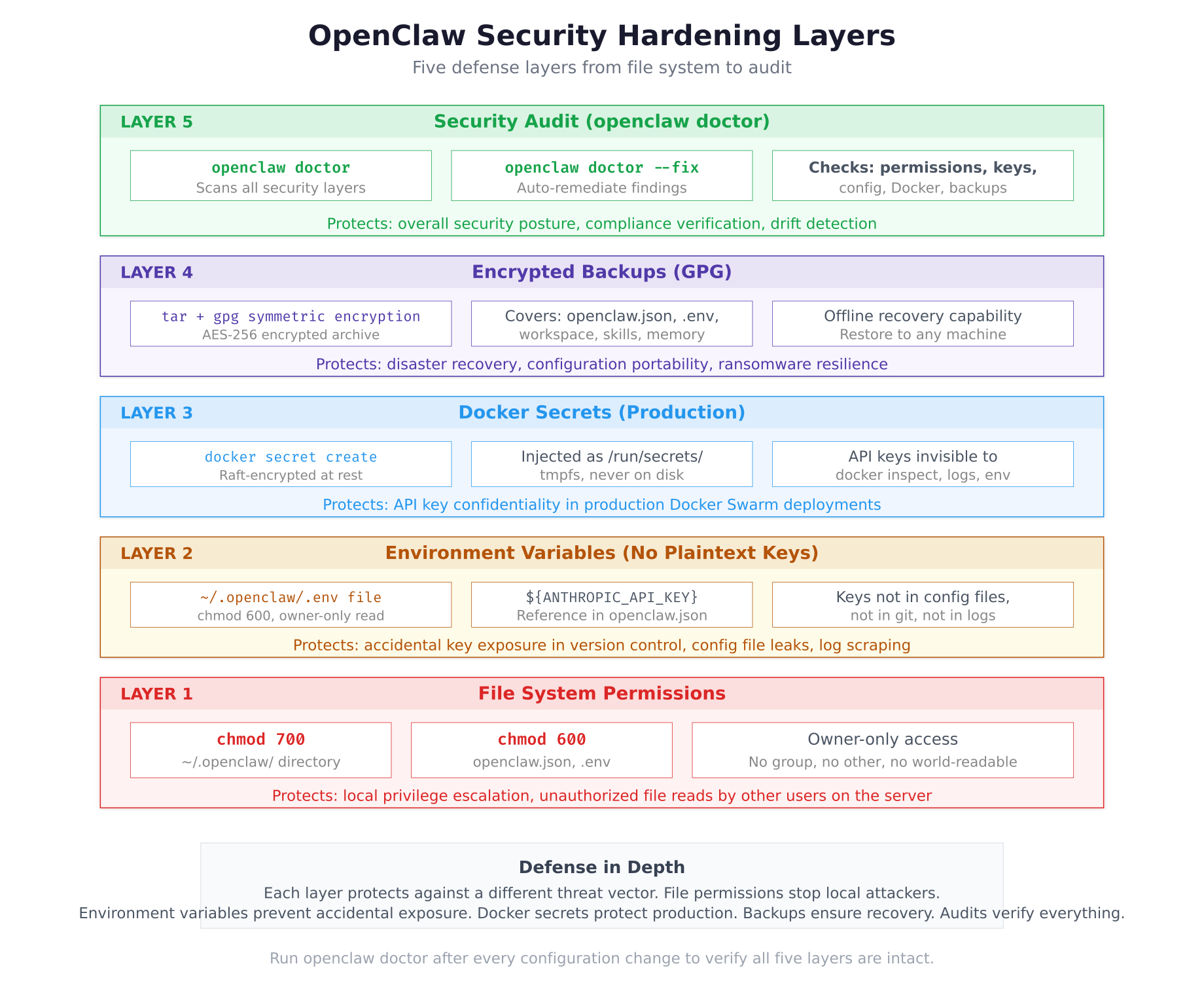
The security layers diagram above shows the defense-in-depth approach. Each layer addresses a different threat vector. File permissions prevent local privilege escalation. Environment variables stop accidental key exposure in version control or logs. Docker secrets protect keys in production Swarm deployments. Encrypted backups ensure disaster recovery. The audit tool verifies that all layers remain intact after every configuration change.
Final Verification Checklist
Run the complete system verification to confirm every component of the LumaNova deployment is operational and secure.
$ curl -s http://127.0.0.1:18789/healthz | jq .{
“status”: “ok”,
“version”: “2026.3.1”,
“uptime”: 3847,
“llm”: {
“provider”: “anthropic”,
“model”: “claude-sonnet-4-6”,
“connected”: true,
“fallback”: {
“provider”: “ollama”,
“model”: “llama3.3”,
“connected”: true
}
},
“channels”: {
“configured”: 3,
“active”: 3
},
“skills”: {
“loaded”: 6,
“available”: 6
}
}$ docker exec openclaw-gateway openclaw models statusLLM Models:
Primary: anthropic / claude-sonnet-4-6 connected cloud
Fallback: ollama / llama3.3 connected local
Local models (Ollama):
llama3.3 8.0B Q4_K_M 4.7 GB connected
qwen2.5-coder:32b 32B Q4_K_M 18 GB available$ docker exec openclaw-gateway openclaw channels statusChannels:
telegram active @lumanova_assistant_bot polling
discord active LumaNova Assistant connected
whatsapp active linked device connected$ docker exec openclaw-gateway clawhub listInstalled skills (6):
weather-forecast v2.1.0 marketplace
email-manager v1.9.0 marketplace
web-search v3.0.1 marketplace
code-reviewer v2.4.0 marketplace
news-briefing v1.5.2 marketplace
morning-briefing v1.0.0 custom$ docker exec openclaw-gateway openclaw memory statusMemory Status:
Directory: ~/.openclaw/workspace/memory/
Files: 12
Total size: 68.7 KB
Context tokens used: 7,241 / 32,000 max$ docker exec openclaw-gateway openclaw doctorOpenClaw Security Audit
========================
[✓] File permissions
[✓] API key storage
[✓] Docker container
[✓] Gateway configuration
[✓] LLM providers
Score: 5/5 checks passedTroubleshooting
Ollama Connection Refused
If the health endpoint shows connected: false for Ollama, verify the service is running.
$ sudo systemctl status ollama –no-pager$ sudo systemctl start ollama
$ sudo systemctl enable ollamaIf Ollama runs inside the Docker container (instead of on the host), the baseUrl must use http://host.docker.internal:11434 instead of http://localhost:11434 because localhost inside the container refers to the container itself, not the host machine.
Ollama Out of Memory
If Ollama crashes or returns errors when processing prompts, the model may be too large for the available RAM.
$ free -hThe Llama 3.3 8B model requires approximately 6 GB of RAM during inference. The Qwen 2.5 Coder 32B model requires approximately 20 GB. If memory is insufficient, switch to a smaller model variant or add swap space.
Permission Denied After Hardening
If the gateway container cannot read the configuration after permission changes, the Docker bind mount may need the files to be owned by the correct user.
$ ls -la ~/.openclaw/openclaw.jsonThe container runs as the openclaw user. If the host files are owned by a different user, the container may not be able to read them despite the 600 permissions being set. Ensure the UID mapping between host and container is consistent.
Summary
The LumaNova OpenClaw deployment is now complete, secure, and production-ready. This part accomplished the following:
- Installed Ollama on the Ubuntu server and pulled two local models: Llama 3.3 (8B, 4.7 GB) and Qwen 2.5 Coder (32B, 18 GB)
- Configured OpenClaw with automatic fallback from Anthropic (cloud) to Ollama (local) for zero-downtime LLM access
- Verified the correct Ollama base URL configuration (
http://localhost:11434without/v1) - Confirmed all API keys are stored in the
.envfile using variable references, with no plaintext keys inopenclaw.json - Locked file permissions:
chmod 700on the configuration directory,chmod 600on sensitive files - Created an AES-256 encrypted backup of the entire configuration using GPG
- Ran the
openclaw doctorsecurity audit with 5/5 checks passed - Completed the final verification checklist: health endpoint, LLM providers, channels, skills, memory, and security audit all confirmed operational
Series Summary
Over these five parts, the LumaNova Technologies OpenClaw deployment went from a fresh Ubuntu 24.04 LTS server to a fully operational, multi-channel, skill-equipped, locally-resilient AI agent.
- Part 1: Prepared the server with Docker CE, Docker Compose, and Node.js 22 LTS
- Part 2: Deployed the OpenClaw gateway in a Docker container with Anthropic as the LLM provider
- Part 3: Connected Telegram (management), Discord (engineering), and WhatsApp (sales) with shared cross-channel memory
- Part 4: Installed marketplace skills, created a custom morning briefing, and configured automated cron jobs
- Part 5: Added local LLM via Ollama with automatic fallback, hardened security with file permissions and encrypted backups, and passed the security audit
The result is an AI assistant that serves three teams across three messaging platforms, executes six skills including a custom morning briefing, runs on a schedule without user intervention, falls back to a local model if the cloud API is unavailable, and keeps all configuration encrypted and permission-locked. The entire stack runs on a single Ubuntu server using Docker, with all state stored as readable files under ~/.openclaw/.