
In Part 1, you learned the architecture. In Part 2, you configured the Nimbus agent identity and rules. In Part 3, you built six knowledge skills covering every NimbusServe service line. This part connects all the pieces and takes the support agent live.
WhatsApp Business Configuration for Support
If you followed the installation series Part 3, you already have a WhatsApp Business channel configured in openclaw.json. The support use case requires additional settings for welcome messages, business hours display, and customer conversation handling. Update the WhatsApp channel configuration with these support-specific settings.
{
  “channels”: {
    “whatsapp”: {
      “enabled”: true,
      “provider”: “whatsapp-business”,
      “phoneNumberId”: “YOUR_PHONE_NUMBER_ID”,
      “accessToken”: “YOUR_ACCESS_TOKEN”,
      “verifyToken”: “YOUR_VERIFY_TOKEN”,
      “webhookPath”: “/webhook/whatsapp”,
      “support”: {
        “welcomeMessage”: “Hello! Welcome to NimbusServe support. I am Nimbus, your AI assistant. I can help with hosting plans, domain management, technical issues, and more. How can I help you today?”,
        “businessHoursNote”: “Our team is available Mon-Fri 8:00-20:00 CET and Sat 9:00-14:00 CET. I am available 24/7 for general questions.”,
        “dmPolicy”: “accept_all”,
        “quickReplies”: [
          “Check my plan details”,
          “DNS help”,
          “Report a problem”,
          “Talk to support team”
        ],
        “autoReply”: {
          “enabled”: true,
          “delay”: 0,
          “message”: null
        }
      }
    }
  }
}
The welcomeMessage is sent when a customer initiates their first conversation. The quickReplies array provides tappable shortcut buttons that WhatsApp displays below the welcome message. These shortcuts help customers get started without typing a message. The dmPolicy set to “accept_all” means Nimbus responds to every incoming message rather than requiring the customer to match a specific pattern.
Telegram Bot for Developer Support
The Telegram bot targets developers and technically inclined customers who prefer slash commands and a faster interface. Update the existing Telegram channel configuration with a command menu and support-specific settings.
{
  “channels”: {
    “telegram”: {
      “enabled”: true,
      “botToken”: “YOUR_BOT_TOKEN”,
      “webhookPath”: “/webhook/telegram”,
      “support”: {
        “welcomeMessage”: “Welcome to NimbusServe technical support. I am Nimbus, your AI support agent. Use the commands below for quick access or just describe your question.”,
        “commands”: [
          {“command”: “plans”, “description”: “View all hosting and VPS plans”},
          {“command”: “status”, “description”: “Check server and service status”},
          {“command”: “dns”, “description”: “DNS configuration help”},
          {“command”: “support”, “description”: “Connect with human support team”}
        ],
        “parseMode”: “Markdown”,
        “disableWebPreview”: true
      }
    }
  }
}
The commands array registers slash commands in the Telegram bot menu. When customers open the bot, they see /plans, /status, /dns, and /support as tappable options. The /support command triggers the human escalation pathway immediately. The parseMode set to “Markdown” allows Nimbus to format responses with bold text, code blocks, and links natively in Telegram.
Web Chat Widget Integration
The web chat widget captures website visitors who are browsing nimbusserve.com and considering a purchase. This channel is primarily for pre-sales inquiries and needs a proactive greeting to engage visitors before they leave.
{
  “channels”: {
    “widget”: {
      “enabled”: true,
      “webhookPath”: “/webhook/widget”,
      “endpoint”: “https://nimbusserve.com/chat”,
      “support”: {
        “welcomeMessage”: “Hello! I am Nimbus from NimbusServe. Looking for the right hosting plan? I can help you compare options and find the best fit for your project.”,
        “proactiveGreeting”: {
          “enabled”: true,
          “delay”: 30,
          “message”: “Looking for web hosting? I can help you compare plans and answer questions. Just type your question below.”
        },
        “typingIndicator”: true,
        “position”: “bottom-right”,
        “theme”: {
          “primaryColor”: “#503AA8”,
          “headerText”: “NimbusServe Support”,
          “headerSubtext”: “AI-powered assistance”,
          “avatarUrl”: “/assets/nimbus-avatar.png”,
          “fontFamily”: “Inter, sans-serif”
        }
      }
    }
  }
}
The proactiveGreeting section is what differentiates the web widget from the other channels. After a visitor has been on any page for 30 seconds, the widget displays a greeting message as a floating bubble. This converts passive browsers into active conversations. The theme section ensures the widget matches the NimbusServe brand with the company accent color and font.
To embed the widget on the NimbusServe website, add the following script tag to the site footer or template.
<script
  src="https://YOUR_SERVER_IP:18789/widget.js"
  data-endpoint="https://YOUR_SERVER_IP:18789/webhook/widget"
  data-theme-color="#503AA8"
  data-position="bottom-right"
  async>
</script>
Replace YOUR_SERVER_IP with the actual IP address or domain of the server running the OpenClaw gateway. The script loads asynchronously and injects the chat widget into the page without affecting load performance.
Free to use, share it in your presentations, blogs, or learning materials.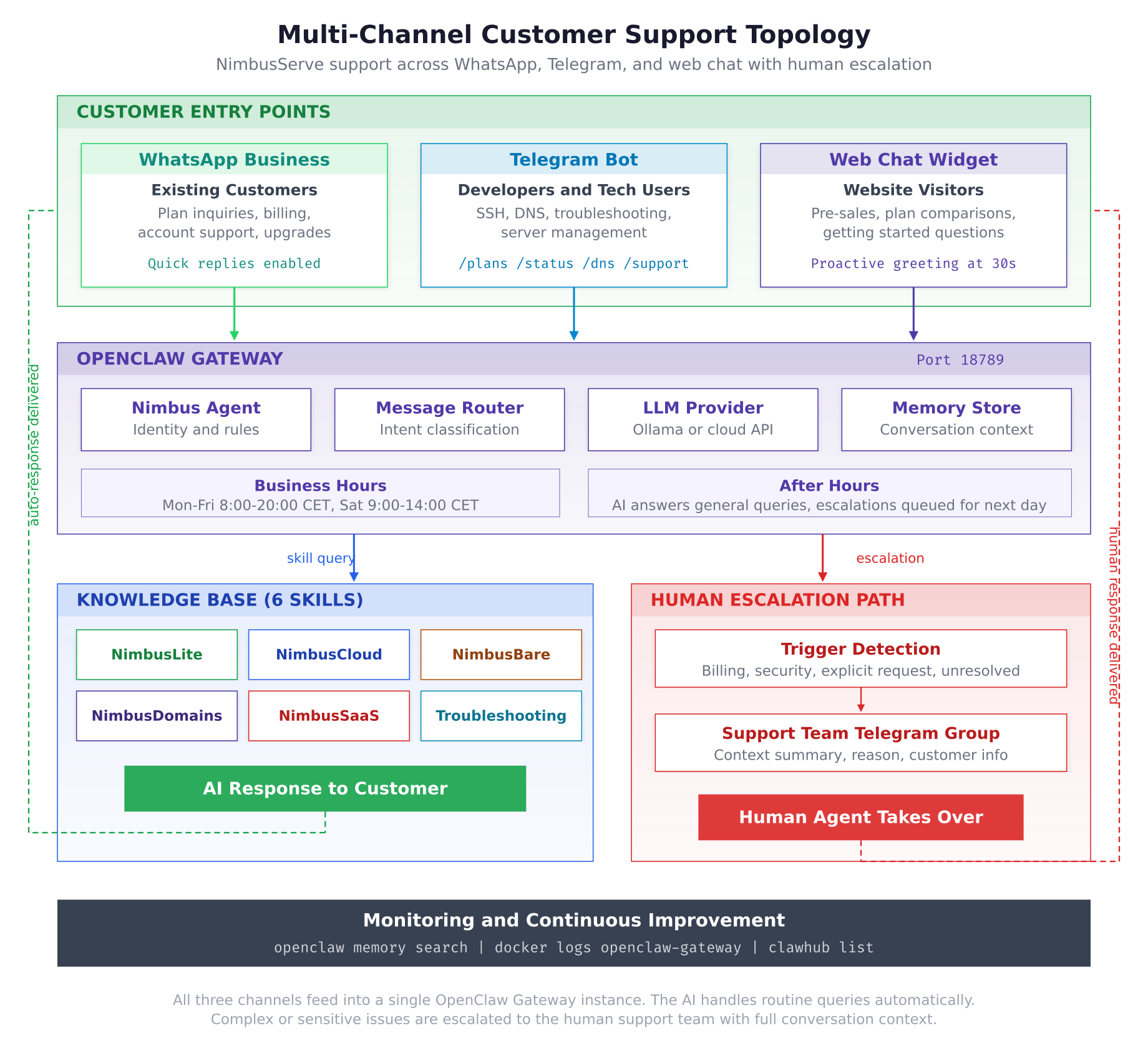
The channel topology above shows the complete picture. Three customer channels feed into a single OpenClaw Gateway running on port 18789. The gateway processes each message through the Nimbus agent identity, routes it to the appropriate knowledge skill, and generates a response via the LLM. When a message matches an escalation trigger or the agent cannot resolve the issue, the conversation is handed to the human support team through a dedicated Telegram group. Business hours and after-hours handling determines whether escalations are processed immediately or queued for the next business day.
Human Escalation Workflow
The escalation triggers were configured in Part 2. This section sets up the destination channel where escalated conversations land and defines how the handoff information is formatted for the human agents.
Create a dedicated Telegram group for the NimbusServe support team. Add all human support agents to the group and then add the OpenClaw Telegram bot as a member. The bot needs permission to send messages in the group.
{
  “escalation”: {
    “channel”: “telegram-support-team”,
    “telegramGroupId”: “YOUR_SUPPORT_GROUP_CHAT_ID”,
    “format”: {
      “header”: “New Escalation from Nimbus AI”,
      “fields”: [
        “Customer Name: {customer.name}”,
        “Channel: {channel.type}”,
        “Reason: {escalation.reason}”,
        “Conversation Summary: {conversation.summary}”,
        “Last Customer Message: {message.last}”
      ],
      “footer”: “Reply in this thread to take over the conversation.”
    },
    “acknowledgment”: {
      “toCustomer”: “I understand this needs personal attention. I have connected you with our support team, and a team member will be with you shortly. I have shared a summary of our conversation so you will not need to repeat anything.”,
      “toTeam”: “Escalation acknowledged. Customer is waiting on {channel.type}.”
    }
  }
}
When an escalation triggers, the bot sends a formatted message to the support team Telegram group containing the customer name, which channel they are on, the reason for escalation, a summary of the conversation so far, and the customer’s last message. Human agents reply in the Telegram thread to take over the conversation. The customer receives the acknowledgment message confirming that a human will follow up shortly.
Test the escalation workflow by sending a message that triggers an escalation through any channel.
$ # Send this message through WhatsApp, Telegram, or web chat:
$ “I was overcharged on my last invoice. I want a refund.”
The expected behavior is that Nimbus detects the “overcharged” and “refund” keywords from the billingDispute trigger, sends the acknowledgment message to the customer, and posts the escalation notification to the support team Telegram group with the conversation context.
Operating Hours and Auto-Responses
NimbusServe operates on Central European Time (CET). Business hours define when human escalations are handled immediately versus queued for the next business day. The AI agent itself runs 24/7.
{
  “businessHours”: {
    “timezone”: “Europe/Berlin”,
    “schedule”: {
      “monday”:    {“open”: “08:00”, “close”: “20:00”},
      “tuesday”:   {“open”: “08:00”, “close”: “20:00”},
      “wednesday”: {“open”: “08:00”, “close”: “20:00”},
      “thursday”:  {“open”: “08:00”, “close”: “20:00”},
      “friday”:    {“open”: “08:00”, “close”: “20:00”},
      “saturday”:  {“open”: “09:00”, “close”: “14:00”},
      “sunday”:    “closed”
    },
    “holidays”: [
      {“date”: “2026-01-01”, “name”: “New Year”},
      {“date”: “2026-04-03”, “name”: “Good Friday”},
      {“date”: “2026-04-06”, “name”: “Easter Monday”},
      {“date”: “2026-05-01”, “name”: “Labour Day”},
      {“date”: “2026-10-03”, “name”: “German Unity Day”},
      {“date”: “2026-12-25”, “name”: “Christmas”},
      {“date”: “2026-12-26”, “name”: “Second Christmas Day”}
    ],
    “afterHoursResponse”: “Thank you for reaching out to NimbusServe. Our support team is currently offline (business hours: Mon-Fri 8:00-20:00 CET, Sat 9:00-14:00 CET). I can still help with general questions about our hosting plans, DNS configuration, and common troubleshooting. For account-specific issues, a team member will follow up when we reopen.”,
    “escalationBehavior”: {
      “duringHours”: “immediate”,
      “afterHours”: “queue”,
      “queueNotification”: “Your request has been queued for our support team. They will reach out when business hours resume.”
    }
  }
}
The schedule defines open and close times for each day. Sunday is closed entirely. The holidays array lists German public holidays where the business is closed. During these times, the AI still operates and answers general knowledge questions, but escalations are queued rather than sent immediately to the support team. The escalationBehavior section defines this distinction: during business hours, escalations notify the team immediately; after hours, they are queued with a notification to the customer explaining the delay.
Going Live Checklist
Before opening the channels to real customers, run through this checklist to verify every component is functioning correctly.
Step 1: Restart the gateway with the final configuration.
$ docker restart openclaw-gatewayStep 2: Verify gateway health.
$ curl -s http://127.0.0.1:18789/healthz | jq .{
“status”: “ok”,
“version”: “2026.3.1”,
“uptime”: “0d 0h 0m”
}Step 3: Verify all skills are loaded.
$ clawhub listInstalled Skills:
nimbuslite-hosting NimbusLite Shared Hosting
nimbuscloud-vps NimbusCloud VPS
nimbusbare-dedicated NimbusBare Dedicated Servers
nimbusdomains-dns NimbusDomains
nimbussaas-modules NimbusSaaS Modules
common-troubleshooting Common Troubleshooting
6 skills loaded.Step 4: Verify channel connectivity.
$ openclaw channels statusChannel Status:
whatsapp connected webhook active
telegram connected webhook active
widget connected endpoint ready
3 channels active.Step 5: Send test queries on each channel.
Send the following test messages through each of the three channels and verify the responses are accurate and follow the agent rules.
- WhatsApp test: “What is the cheapest hosting plan you offer?” Expected: NimbusLite Starter at 4.99/mo with plan details.
- Telegram test: Send /plans command. Expected: overview of all hosting and VPS tiers with pricing.
- Web chat test: Wait 30 seconds for the proactive greeting, then ask “I need a VPS with 16 GB RAM.” Expected: Storm (16 GB, 59.99/mo) and Thunder (32 GB, 119.99/mo) options.
Step 6: Test the escalation flow.
Send “I want a refund for my last payment” through any channel. Verify that Nimbus sends the acknowledgment message to the customer and posts the escalation notification with full context to the support team Telegram group.
Step 7: Check gateway logs for errors.
$ docker logs openclaw-gateway –tail 50Look for any error lines in the output. A healthy startup shows agent loading, skill loading, channel connections, and “Gateway ready on port 18789” with no error-level messages.
Free to use, share it in your presentations, blogs, or learning materials.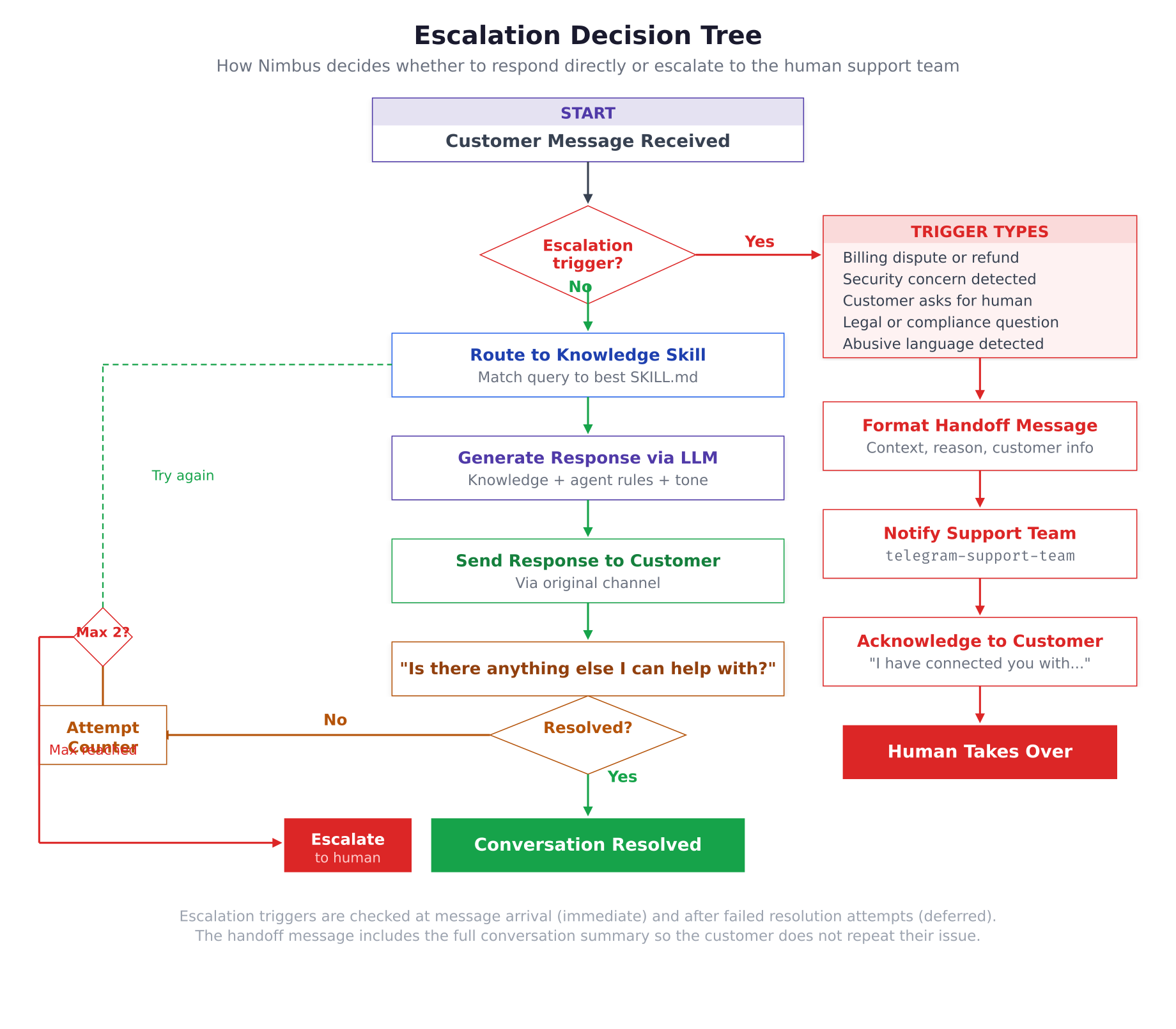
The escalation decision tree above shows both escalation paths. The immediate path (right side) activates when a message matches an escalation trigger at arrival, such as billing disputes, security concerns, or explicit human requests. The deferred path (left side) activates when the agent attempts to resolve an issue but the customer confirms it is not resolved. After two attempts, the conversation automatically escalates with the full context. Both paths deliver the handoff message to the customer and the conversation summary to the support team.
Monitoring and Continuous Improvement
Once Nimbus is live, monitoring and improvement become ongoing activities. OpenClaw provides tools for reviewing conversations, identifying gaps in the knowledge base, and measuring agent performance.
Review conversation history. The memory search command retrieves past conversations for review. Use this to identify questions the agent handled well and questions where it struggled.
$ openclaw memory search “502 error” –limit 10$ openclaw memory search –escalated –limit 20Identify knowledge gaps. When customers ask questions that the agent cannot answer or that result in escalation, review the conversation to determine whether the knowledge base is missing information. Common gaps include new products or features that have not been added to the skills yet, edge-case troubleshooting scenarios not covered in the troubleshooting skill, and pricing changes that have not been reflected in the SKILL.md files.
Update skills as products evolve. When NimbusServe adds a new hosting plan, changes pricing, or introduces a new feature, update the corresponding SKILL.md file and restart the gateway. The Dynamic Skill Loader picks up the new content immediately.
$ vim ~/.openclaw/skills/nimbuslite-hosting/SKILL.md$ docker restart openclaw-gateway$ clawhub listMonitor gateway health. Set up a cron job to check the gateway health endpoint at regular intervals and alert the team if it goes down.
*/5 * * * * curl -sf http://127.0.0.1:18789/healthz > /dev/null || echo “OpenClaw gateway down” | mail -s “Alert: Nimbus Down” ops@nimbusserve.comWhat NimbusServe Achieved
The Nimbus AI support agent is now live on three customer channels. Existing customers can message the WhatsApp Business number for plan inquiries, billing questions, and general support. Developers can use the Telegram bot with slash commands for DNS help, server management, and troubleshooting. Website visitors see a proactive chat widget that helps them compare plans and answers pre-sales questions before they leave the site.
Behind every response, six knowledge skills provide accurate product information covering shared hosting, cloud VPS, dedicated servers, domain services, SaaS modules, and common troubleshooting procedures. The agent knows the exact specifications of every NimbusServe plan, can guide customers through DNS configuration step by step, and walks them through troubleshooting trees for 502 errors, SSL issues, and email delivery problems.
When Nimbus encounters a situation it cannot handle, clear boundaries and escalation triggers ensure the conversation reaches a human agent with full context. Billing disputes, security concerns, legal questions, and unresolved issues after two attempts are all escalated automatically. The human support team receives a summary of the conversation in their dedicated Telegram group and can take over without the customer repeating anything.
The entire system runs on the OpenClaw gateway configured through a single openclaw.json file. No custom application code was written. The agent identity, behavior rules, knowledge base, channel connections, escalation workflow, and business hours are all configuration-driven. When NimbusServe adds a new product or changes pricing, updating a SKILL.md file and restarting the container is all that is needed.