
In Part 1, you learned about the NimbusServe scenario and architecture. In Part 2, you configured the Nimbus agent identity, behavior rules, boundaries, and escalation triggers. This part creates the product knowledge that Nimbus retrieves when answering customer questions. Each skill is a standalone SKILL.md file containing product specifications, pricing, features, and FAQ entries that the OpenClaw Dynamic Skill Loader indexes and queries at runtime.
Knowledge Base Strategy
The NimbusServe knowledge base uses a one-skill-per-domain approach. Each of the five service lines gets its own skill directory with a dedicated SKILL.md file. A sixth skill covers common troubleshooting procedures that span all service lines. This separation keeps each skill focused and allows the Dynamic Skill Loader to match customer queries to the most relevant domain without loading unnecessary information into the LLM context.
All skill directories live inside the OpenClaw skills path at ~/.openclaw/skills/. Each directory name matches the skill identifier used in openclaw.json for registration.
Free to use, share it in your presentations, blogs, or learning materials.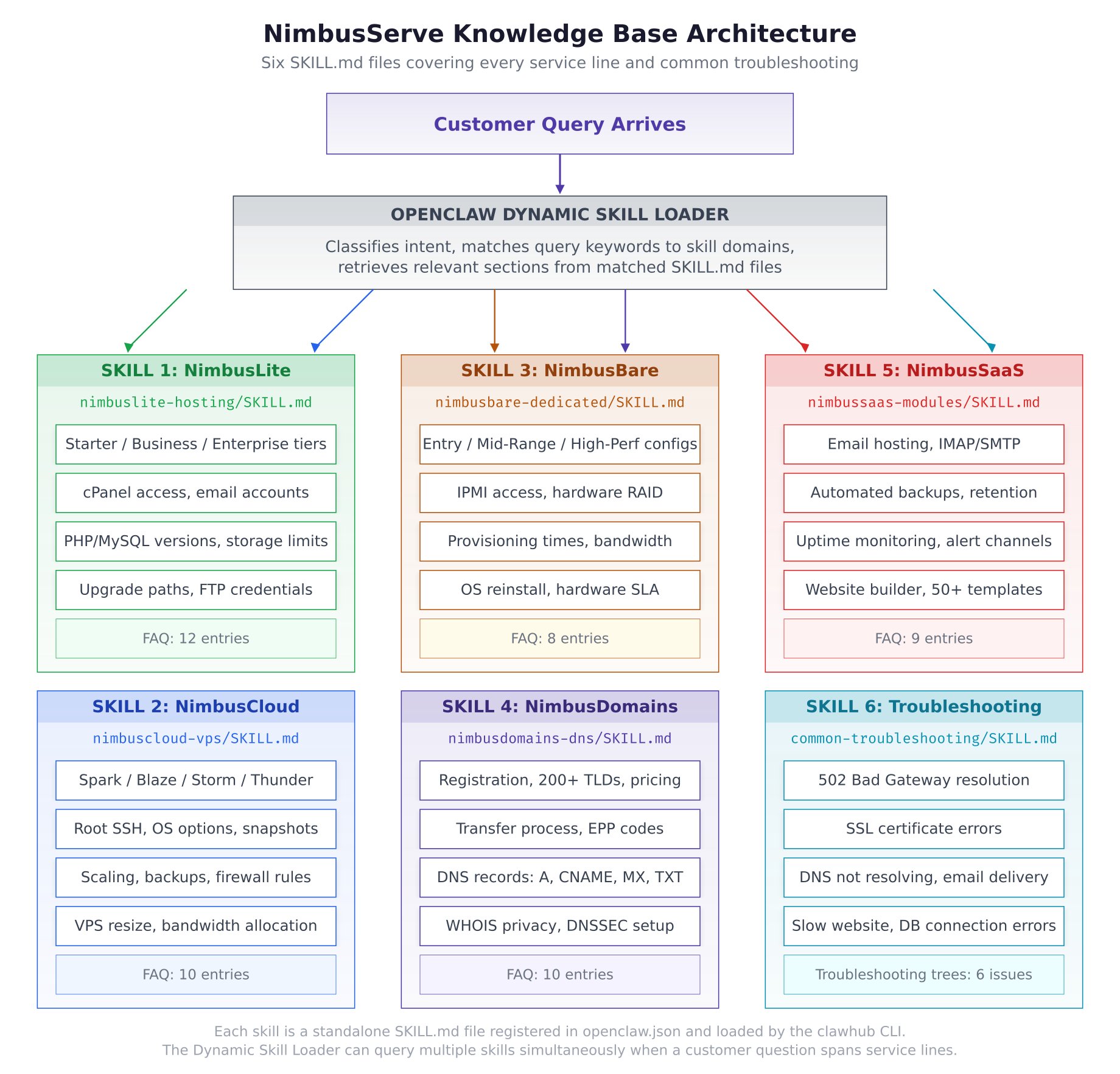
The knowledge base architecture above shows how each skill maps to a NimbusServe service line. When a customer query arrives, the Dynamic Skill Loader classifies the intent, matches it to one or more skills based on keyword analysis, and retrieves the relevant sections from the matched SKILL.md files. The retrieved content is then passed to the LLM as context for generating an accurate response.
Skill 1: NimbusLite Shared Hosting
The first skill covers the NimbusLite shared hosting product line. Create the skill directory and open the SKILL.md file for editing.
$ mkdir -p ~/.openclaw/skills/nimbuslite-hosting$ vim ~/.openclaw/skills/nimbuslite-hosting/SKILL.mdAdd the following content to the SKILL.md file. This covers all three shared hosting tiers with their specifications, features, and common FAQ entries.
# NimbusLite Shared Hosting

## Overview
NimbusLite is the shared hosting product line from NimbusServe Technologies.
All plans include cPanel access, free SSL certificates, and daily backups.
Shared hosting is ideal for personal websites, small businesses, and blogs
that do not require root server access.

## Plans

### Starter Plan – 4.99/mo
– 10 GB SSD storage
– 1 website
– 5 email accounts
– Unmetered bandwidth (fair use policy applies above 50 GB/mo)
– cPanel access
– Free SSL certificate (Let’s Encrypt)
– PHP 8.1, 8.2, 8.3 supported
– MySQL 8.0
– Daily backup (7-day retention)

### Business Plan – 12.99/mo
– 50 GB SSD storage
– 10 websites
– 25 email accounts
– Unmetered bandwidth (fair use policy applies above 200 GB/mo)
– cPanel access
– Free SSL certificate (Let’s Encrypt)
– Free dedicated IP address
– PHP 8.1, 8.2, 8.3 supported
– MySQL 8.0
– Staging environment for each website
– Daily backup (14-day retention)
– SSH access (non-root)

### Enterprise Plan – 29.99/mo
– 200 GB SSD storage
– Unlimited websites
– Unlimited email accounts
– Unmetered bandwidth (fair use policy applies above 500 GB/mo)
– cPanel access
– Free SSL certificate (Let’s Encrypt)
– Free dedicated IP address
– PHP 8.1, 8.2, 8.3 supported
– MySQL 8.0
– Staging environment for each website
– Daily backup (30-day retention)
– SSH access (non-root)
– Priority support queue
– Free domain for first year

## FAQ

Q: How do I access cPanel?
A: Log in at https://cpanel.nimbusserve.com using the credentials
sent to your email after purchase. You can also access cPanel through
the NimbusServe client area under Services > Your Hosting Plan > cPanel.

Q: How do I upgrade from Starter to Business?
A: Go to the NimbusServe client area, navigate to Services > Your Plan,
and click Upgrade. The price difference is prorated for your current
billing cycle. No downtime occurs during the upgrade.

Q: How do I set up email on my phone?
A: Use IMAP for incoming mail and SMTP for outgoing. Server:
mail.yourdomain.com, IMAP port 993 (SSL), SMTP port 465 (SSL).
Use your full email address as the username.

Q: Can I install WordPress?
A: Yes. cPanel includes Softaculous, which offers one-click WordPress
installation. Go to cPanel > Softaculous Apps Installer > WordPress
> Install. The process takes under 60 seconds.

Q: What PHP version does my plan use?
A: All plans support PHP 8.1, 8.2, and 8.3. You can switch PHP
versions in cPanel > MultiPHP Manager. Select your domain, choose
the desired version, and click Apply.

Q: How do I get FTP access?
A: FTP credentials are the same as your cPanel login. Use SFTP
(port 22) or FTPS (port 21 with TLS). Server: ftp.yourdomain.com.
You can also create additional FTP accounts in cPanel > FTP Accounts.

Q: What happens if I exceed my storage limit?
A: You will receive email warnings at 80% and 90% usage. At 100%,
new uploads and email delivery may fail. Upgrade your plan or remove
unnecessary files to resolve this. No data is deleted automatically.

Q: How do I restore a backup?
A: Go to cPanel > JetBackup > Restore. Select the backup date and
choose what to restore (files, databases, email, or all). Restoration
takes 5 to 15 minutes depending on the data size.

Q: Is there a money-back guarantee?
A: Yes. All NimbusLite plans include a 30-day money-back guarantee.
Contact our billing team through the client area to request a refund
within the first 30 days of service.

Q: Can I host multiple domains on the Starter plan?
A: No. The Starter plan supports only one website. Upgrade to Business
(10 websites) or Enterprise (unlimited) for multi-domain hosting.

Q: How do I point my domain to NimbusLite hosting?
A: Update your domain’s nameservers to ns1.nimbusserve.com and
ns2.nimbusserve.com. DNS propagation takes 2 to 48 hours. You can
also use A record pointing to the IP address shown in cPanel.

Q: Does NimbusLite support Node.js or Python?
A: NimbusLite shared hosting supports PHP only. For Node.js or Python
applications, use NimbusCloud VPS which provides full root access and
the ability to install any runtime.
Skill 2: NimbusCloud VPS
The second skill covers the NimbusCloud virtual private server product line with four tiers of cloud VPS instances.
$ mkdir -p ~/.openclaw/skills/nimbuscloud-vps$ vim ~/.openclaw/skills/nimbuscloud-vps/SKILL.md# NimbusCloud VPS
## Overview
NimbusCloud provides cloud VPS instances with full root SSH access,
dedicated resources, and NVMe storage. All VPS instances run on
KVM virtualization with guaranteed CPU and RAM allocations. Customers
have complete control over the operating system and installed software.
## Plans
### Spark – 14.99/mo
– 2 vCPU cores
– 4 GB DDR5 RAM
– 50 GB NVMe storage
– 2 TB bandwidth/mo
– 1 IPv4 address, /64 IPv6 block
– Full root SSH access
– KVM virtualization
### Blaze – 29.99/mo
– 4 vCPU cores
– 8 GB DDR5 RAM
– 100 GB NVMe storage
– 4 TB bandwidth/mo
– 1 IPv4 address, /64 IPv6 block
– Full root SSH access
– KVM virtualization
### Storm – 59.99/mo
– 8 vCPU cores
– 16 GB DDR5 RAM
– 200 GB NVMe storage
– 8 TB bandwidth/mo
– 2 IPv4 addresses, /64 IPv6 block
– Full root SSH access
– KVM virtualization
### Thunder – 119.99/mo
– 16 vCPU cores
– 32 GB DDR5 RAM
– 500 GB NVMe storage
– 16 TB bandwidth/mo
– 3 IPv4 addresses, /64 IPv6 block
– Full root SSH access
– KVM virtualization
## Supported Operating Systems
– Ubuntu 22.04 LTS, 24.04 LTS
– Debian 11, 12
– CentOS Stream 9
– Rocky Linux 9
– AlmaLinux 9
– Fedora 39, 40
– Custom ISO upload supported on Storm and Thunder plans
## Features (all plans)
– Weekly snapshots (manual snapshots available anytime)
– Firewall management via NimbusServe panel or OS-level (iptables/ufw)
– VNC console access for emergency recovery
– Automated daily backups (optional add-on: 4.99/mo)
– DDoS protection included (up to 10 Gbps)
– 99.95% uptime SLA
## FAQ
Q: How do I SSH into my VPS?
A: Use the command: ssh root@YOUR_SERVER_IP. The root password is
sent to your email after provisioning. We recommend setting up SSH
key authentication and disabling password login for security.
Q: How do I resize my VPS?
A: Go to the NimbusServe client area > Services > Your VPS > Resize.
Select the target plan. Upsizing takes 2 to 5 minutes with no data
loss. Downsizing requires a fresh installation if the current disk
usage exceeds the target plan’s storage.
Q: How often are backups taken?
A: Weekly automatic snapshots are included free. For daily backups,
add the backup module at 4.99/mo. Manual snapshots can be taken
anytime through the client area or API.
Q: Can I install Docker?
A: Yes. You have full root access and can install Docker, Docker
Compose, Kubernetes, or any other software. All VPS instances run
KVM with no containerization restrictions.
Q: How do I configure the firewall?
A: You can manage firewall rules through the NimbusServe panel
(Services > VPS > Firewall) or directly on the server using
iptables, ufw (Ubuntu), or firewalld (CentOS/Rocky/Alma).
Q: What is the provisioning time?
A: VPS instances are provisioned automatically within 60 seconds
after payment confirmation. You will receive the root credentials
and IP address via email immediately.
Q: Can I add extra storage?
A: Yes. Additional NVMe block storage is available at 0.10/GB/mo.
Attach volumes through the client area. Maximum 2 TB additional
storage per VPS instance.
Q: Is there a bandwidth overage charge?
A: Traffic beyond the plan allocation is billed at 0.01/GB. You
receive email alerts at 80% and 90% of your monthly allocation.
Q: Can I run Windows on NimbusCloud?
A: NimbusCloud supports Linux distributions only. For Windows VPS,
contact our sales team for a custom configuration quote.
Q: How do I access the VNC console?
A: Go to the client area > Services > Your VPS > Console. This
provides direct screen access even if SSH is not working, useful
for firewall lockouts or boot issues.Skill 3: NimbusBare Dedicated Servers
The third skill covers the NimbusBare dedicated server product line with three hardware configurations.
$ mkdir -p ~/.openclaw/skills/nimbusbare-dedicated$ vim ~/.openclaw/skills/nimbusbare-dedicated/SKILL.md# NimbusBare Dedicated Servers
## Overview
NimbusBare provides bare metal dedicated servers with no virtualization
overhead. Customers get exclusive access to physical hardware with full
IPMI/BMC remote management. All servers are located in NimbusServe’s
Frankfurt data center (DE-FRA1) with redundant power and cooling.
## Configurations
### Entry Level – 89.99/mo
– Intel Xeon E-2388G (8 cores, 16 threads, 3.2 GHz base, 5.1 GHz turbo)
– 32 GB DDR5 ECC RAM
– 2x 1 TB NVMe SSD (hardware RAID1)
– 1 Gbps uplink, 30 TB bandwidth/mo
– 1 IPv4 address, /64 IPv6 block
– Full IPMI access
– Provisioning: 4 to 24 hours
### Mid-Range – 199.99/mo
– Intel Xeon Gold 6426Y (16 cores, 32 threads, 2.5 GHz base, 3.3 GHz turbo)
– 128 GB DDR5 ECC RAM
– 4x 1 TB NVMe SSD (hardware RAID10)
– 10 Gbps uplink, 50 TB bandwidth/mo
– 4 IPv4 addresses, /48 IPv6 block
– Full IPMI access
– Provisioning: 24 to 48 hours
### High-Performance – 499.99/mo
– Dual AMD EPYC 9554 (128 cores, 256 threads total, 3.1 GHz base, 3.75 GHz turbo)
– 512 GB DDR5 ECC RAM
– 8x 2 TB NVMe SSD (hardware RAID6)
– 10 Gbps uplink, 100 TB bandwidth/mo
– 16 IPv4 addresses, /48 IPv6 block
– Full IPMI access
– Provisioning: 48 to 72 hours (custom build)
## Features (all configurations)
– 99.99% uptime SLA with financial credit guarantee
– Hardware replacement within 4 hours (Frankfurt data center)
– Remote reboot and power cycle via IPMI
– OS reinstallation via IPMI virtual media or support request
– KVM-over-IP for remote console access
– DDoS protection included (up to 20 Gbps)
## FAQ
Q: How long does provisioning take?
A: Entry level: 4 to 24 hours (pre-built stock). Mid-range: 24 to
48 hours. High-performance: 48 to 72 hours (assembled to order).
You will receive an email with IPMI credentials and IP address once
the server is ready.
Q: How do I access IPMI?
A: IPMI is accessible at the IP address provided in your setup email.
Log in with the credentials sent separately. From IPMI, you can
power cycle, mount ISO images, and access the remote console.
Q: Can I request a custom hardware configuration?
A: Yes. Contact our sales team with your requirements. Custom
configurations are quoted individually and typically have a 5 to 10
business day lead time for procurement and assembly.
Q: What happens if hardware fails?
A: NimbusServe replaces failed hardware within 4 hours under the SLA.
For drive failures in RAID configurations, the array continues
operating in degraded mode while the replacement is installed. No
data loss occurs with RAID1, RAID10, or RAID6 for single drive failures.
Q: Can I upgrade RAM or storage later?
A: Yes. RAM upgrades and additional drive bays can be added during a
scheduled maintenance window (typically under 30 minutes of downtime).
Contact support to schedule the upgrade.
Q: How do I reinstall the operating system?
A: Use IPMI virtual media to mount an ISO image and boot from it.
Alternatively, submit a support ticket and our team will reinstall
the OS of your choice within 2 hours. All data on the drives will
be erased during reinstallation.
Q: Is there a setup fee?
A: Entry and mid-range configurations have no setup fee. High-
performance configurations have a one-time 99 setup fee to cover
custom assembly and testing.
Q: Can I colocate my own hardware instead?
A: NimbusServe does not offer colocation services at this time.
NimbusBare provides pre-configured dedicated servers only.Skill 4: NimbusDomains
The fourth skill covers domain registration, transfers, DNS management, and related services.
$ mkdir -p ~/.openclaw/skills/nimbusdomains-dns$ vim ~/.openclaw/skills/nimbusdomains-dns/SKILL.md# NimbusDomains
## Overview
NimbusDomains provides domain registration, transfer, and DNS
management services. Over 200 TLDs are supported through accredited
registrar partnerships. All domains include free WHOIS privacy
protection and access to the NimbusServe DNS management panel.
## Domain Registration
### Popular TLD Pricing (per year)
– .com: 12.99
– .net: 14.99
– .org: 13.99
– .io: 39.99
– .de: 8.99
– .eu: 9.99
– .co.uk: 10.99
– .tech: 34.99
– .dev: 16.99
– .app: 18.99
### Registration includes
– Free WHOIS privacy protection
– DNS management panel
– Email forwarding (5 addresses)
– Domain locking (transfer protection)
– Auto-renewal option
## Domain Transfer
### Transfer process
1. Unlock the domain at your current registrar
2. Obtain the EPP/authorization code from your current registrar
3. Go to nimbusserve.com/domains > Transfer
4. Enter the domain name and EPP code
5. Confirm the transfer and complete payment
6. Transfer completes within 5 to 7 days (some TLDs are instant)
### Transfer pricing
– Transfers cost the same as a new registration for that TLD
– Transfer includes a free 1-year extension of the domain
– WHOIS privacy is included free after transfer
## DNS Management
### Supported record types
– A record: Maps a domain to an IPv4 address
– AAAA record: Maps a domain to an IPv6 address
– CNAME record: Creates an alias pointing to another domain
– MX record: Specifies mail servers for the domain
– TXT record: Stores text data (SPF, DKIM, DMARC, verification)
– NS record: Delegates a subdomain to different nameservers
– SRV record: Specifies server locations for services
– CAA record: Specifies which CAs can issue certificates
### NimbusServe nameservers
– ns1.nimbusserve.com (185.100.85.1)
– ns2.nimbusserve.com (185.100.86.1)
### DNS propagation
– Changes made in the NimbusServe DNS panel propagate within 5 minutes
to NimbusServe nameservers
– Global propagation (all ISPs worldwide) takes 2 to 48 hours
– TTL values affect how quickly changes are seen by end users
## WHOIS Privacy
– Included free with every domain registration and transfer
– Replaces your personal contact information with proxy details
– Meets ICANN requirements while protecting your identity
– Can be disabled in the client area if needed for domain verification
## DNSSEC
– One-click activation in the DNS management panel
– Protects against DNS spoofing and cache poisoning
– DS records are automatically published to the parent zone
– Supported on all major TLDs (.com, .net, .org, .io, .de, .eu)
## FAQ
Q: How do I transfer my domain to NimbusServe?
A: Unlock the domain at your current registrar, get the EPP code,
then go to nimbusserve.com/domains > Transfer. Enter the domain and
EPP code. The transfer takes 5 to 7 days and includes a free 1-year
extension plus free WHOIS privacy.
Q: How long does DNS propagation take?
A: Changes reach NimbusServe nameservers within 5 minutes. Global
propagation across all ISPs takes 2 to 48 hours. Lower TTL values
speed up propagation. Set TTL to 300 (5 minutes) before making
changes if you need faster propagation.
Q: How do I point my domain to my hosting?
A: Create an A record in the DNS management panel pointing to your
hosting server’s IP address. For NimbusLite hosting, use the IP shown
in cPanel. For NimbusCloud VPS, use the server IP from your setup email.
Alternatively, change nameservers to ns1/ns2.nimbusserve.com if your
hosting is also with NimbusServe.
Q: How do I set up email DNS records?
A: Add an MX record pointing to your mail server. For NimbusSaaS email
hosting, use: MX record with value mail.nimbusserve.com priority 10.
Also add SPF (TXT record: v=spf1 include:nimbusserve.com ~all),
DKIM (provided in email hosting setup), and DMARC records.
Q: How do I enable DNSSEC?
A: Go to the DNS management panel > DNSSEC tab > Enable. The DS records
are published automatically within 15 minutes. No manual configuration
is needed for domains using NimbusServe nameservers.
Q: Can I register a domain without buying hosting?
A: Yes. Domain registration is a standalone service. You can register
any domain and point it to any server or hosting provider using DNS
records or nameserver changes.
Q: How do I set up a subdomain?
A: In the DNS management panel, create an A or CNAME record with the
subdomain prefix. For example, to create blog.yourdomain.com, add
an A record with name “blog” pointing to your server IP, or a CNAME
record pointing to another domain.
Q: What happens when my domain expires?
A: Domains enter a 30-day grace period after expiration. During this
period, you can renew at the standard price. After the grace period,
domains enter a 30-day redemption period with a 99 redemption fee.
After redemption, the domain is released for public registration.
Q: Can I get a refund on a domain registration?
A: Domain registrations are non-refundable because the registration
fee is paid to the registry. Exceptions may be made within 5 days
for accidental duplicate registrations. Contact support for review.
Q: How do I protect my domain from unauthorized transfer?
A: Domain locking is enabled by default on all NimbusServe domains.
When locked, transfer requests are automatically rejected. You can
manage the lock status in the client area under Domains > Your Domain
> Security.Skill 5: NimbusSaaS Modules
The fifth skill covers the add-on SaaS modules that customers can attach to any NimbusServe hosting or VPS plan.
$ mkdir -p ~/.openclaw/skills/nimbussaas-modules$ vim ~/.openclaw/skills/nimbussaas-modules/SKILL.md# NimbusSaaS Modules
## Overview
NimbusSaaS provides add-on service modules that enhance any NimbusServe
hosting or VPS plan. Each module can be added independently and is billed
monthly alongside the base hosting plan.
## Email Hosting – 3.99/mo per 5 mailboxes
### Features
– Professional email with your domain (you@yourdomain.com)
– 10 GB storage per mailbox
– IMAP and SMTP access
– Webmail interface at mail.nimbusserve.com
– Spam and virus filtering (SpamAssassin + ClamAV)
– Email forwarding rules
– Auto-responder/vacation messages
– Shared address book and calendar (CalDAV/CardDAV)
### Email client settings
– Incoming (IMAP): mail.nimbusserve.com, port 993, SSL/TLS
– Outgoing (SMTP): mail.nimbusserve.com, port 465, SSL/TLS
– Username: your full email address
– Password: set during mailbox creation
### Supported clients
– Outlook (Windows/Mac)
– Apple Mail (macOS/iOS)
– Thunderbird
– Gmail app (Android)
– Any IMAP-compatible client
## Automated Backups – 4.99/mo
### Features
– Daily incremental backups
– Weekly full backups
– 30-day retention period
– One-click restore from any backup point
– Includes files, databases, and email data
– Off-site backup storage (separate data center)
– Backup encryption at rest (AES-256)
### Restore process
1. Log in to the NimbusServe client area
2. Go to Services > Your Plan > Backups
3. Select the backup date to restore from
4. Choose what to restore: all data, files only, databases only, or email only
5. Confirm the restore. The process takes 5 to 30 minutes depending on data size
6. Your live data is replaced with the backup version
### Backup schedule
– Daily backups run at 03:00 CET
– Weekly full backups run on Sundays at 01:00 CET
– Backup completion notifications are sent via email
## Uptime Monitoring – 2.99/mo
### Features
– HTTP/HTTPS endpoint monitoring
– 60-second check intervals
– Multi-location probes (Frankfurt, Amsterdam, London, New York)
– Alert channels: email, SMS, webhook (Slack, Discord, PagerDuty)
– Response time tracking and history graphs
– SSL certificate expiry monitoring
– Monthly uptime reports
– Up to 10 monitored endpoints per subscription
### Alert configuration
– Response time threshold: alert if response exceeds 5 seconds (configurable)
– Downtime threshold: alert after 2 consecutive failed checks (configurable)
– Recovery notification: sent when endpoint comes back online
– Escalation: if downtime exceeds 15 minutes, send SMS in addition to email
## Website Builder – 9.99/mo
### Features
– Drag-and-drop visual editor
– 50+ responsive templates (business, portfolio, blog, ecommerce, landing page)
– Custom domain support
– Built-in SEO tools (meta tags, sitemap, robots.txt)
– Contact form builder with email notifications
– Image gallery with lightbox
– Blog module with categories and tags
– Basic ecommerce (up to 25 products, PayPal/Stripe integration)
– Mobile-responsive design (all templates)
– SSL certificate included
### Templates by category
– Business (12 templates)
– Portfolio (8 templates)
– Blog (7 templates)
– Ecommerce (6 templates)
– Landing page (10 templates)
– Restaurant/food (4 templates)
– Events (3 templates)
## FAQ
Q: How do I set up email on my phone?
A: Open your email app settings and add a new IMAP account. Server:
mail.nimbusserve.com. Incoming port: 993 (SSL). Outgoing port: 465
(SSL). Username: your full email address. Password: the password you
set when creating the mailbox.
Q: How do I set up email in Outlook?
A: Open Outlook > File > Add Account. Enter your email address.
Choose Manual Setup > IMAP. Server: mail.nimbusserve.com. Ports:
IMAP 993 (SSL), SMTP 465 (SSL). Authentication: normal password.
Q: Can I restore just a single database from backup?
A: Yes. During the restore process, select “databases only” and then
choose the specific database to restore. Other databases and files
remain untouched.
Q: How do I add a monitoring endpoint?
A: Go to the client area > NimbusSaaS > Uptime Monitoring > Add
Endpoint. Enter the URL to monitor, select check interval, and
configure alert channels. The first check runs within 60 seconds.
Q: How do I connect my domain to the website builder?
A: In the website builder dashboard, go to Settings > Domain. Enter
your domain name and follow the DNS setup instructions. Point your
domain A record to the IP shown in the builder dashboard.
Q: Can I export my website builder site?
A: The website builder generates standard HTML/CSS. You can export
the site files through the builder dashboard > Settings > Export.
The export includes all pages, images, and styles as a ZIP file.
Q: How do I set up spam filtering for email?
A: Spam filtering is enabled by default on all mailboxes. To adjust
sensitivity, log in to webmail > Settings > Spam Filter. You can
whitelist or blacklist specific addresses and adjust the spam score
threshold.
Q: Is there a limit on backup restores?
A: No. You can restore from any available backup point as many times
as needed. Each restore overwrites the current live data with the
selected backup version.
Q: Can I use the monitoring webhooks with Slack?
A: Yes. Create a Slack incoming webhook URL and add it as an alert
channel in Uptime Monitoring > Alert Channels > Add Webhook. Paste
the Slack webhook URL and test the connection.Skill 6: Common Troubleshooting
The sixth skill handles the most frequent technical issues that customers report across all service lines. Each troubleshooting entry follows a systematic tree structure that guides the agent through resolution steps.
$ mkdir -p ~/.openclaw/skills/common-troubleshooting$ vim ~/.openclaw/skills/common-troubleshooting/SKILL.md# Common Troubleshooting
## Overview
This skill covers the most frequently reported technical issues across
all NimbusServe service lines. Each issue includes a step-by-step
troubleshooting tree that the agent follows to guide customers through
resolution.
## Issue 1: 502 Bad Gateway
### Symptoms
Customer reports seeing “502 Bad Gateway” when visiting their website.
### Resolution steps
1. Ask the customer if they recently made any changes to their website
(plugin updates, code changes, .htaccess modifications).
2. Check if the issue is on a specific page or the entire website.
If specific pages, it may be a PHP error in that page’s code.
3. For shared hosting (NimbusLite): The PHP-FPM process may have hit
memory limits. Suggest the customer check cPanel > Error Log for
PHP fatal errors. Common cause: a plugin or theme consuming too
much memory.
4. For VPS (NimbusCloud): Ask the customer to check if their web
server process is running (systemctl status nginx or apache2).
If not running, suggest restarting it.
5. If a reverse proxy (Cloudflare, Nginx) is in front of the origin
server, the 502 may be from the proxy unable to reach the origin.
Ask if they use Cloudflare and suggest temporarily pausing it to
test direct access.
6. If none of the above resolves the issue, escalate to the support
team with the information gathered in steps 1 through 5.
## Issue 2: SSL Certificate Errors
### Symptoms
Customer sees “Your connection is not private,” “NET::ERR_CERT_AUTHORITY_INVALID,”
or similar browser warnings.
### Resolution steps
1. Ask the customer which domain shows the error and what browser
they are using.
2. Check if the SSL certificate has expired. Free Let’s Encrypt
certificates auto-renew, but renewal can fail if DNS is
misconfigured or the server is unreachable on port 80.
3. For shared hosting: Suggest the customer go to cPanel > SSL/TLS
Status and check if the certificate shows as valid. If expired,
click “Run AutoSSL” to trigger renewal.
4. For VPS: Ask the customer to run “sudo certbot certificates” to
check certificate status. If expired, run “sudo certbot renew”
to renew.
5. If the domain recently changed DNS, the old certificate may not
match the new IP. Wait for DNS propagation to complete and then
request a new certificate.
6. Mixed content errors (some resources loaded over HTTP instead of
HTTPS) cause padlock warnings but not full certificate errors.
Suggest checking the browser console for mixed content warnings.
## Issue 3: DNS Not Resolving
### Symptoms
Customer reports their domain is not working, shows “DNS_PROBE_FINISHED_NXDOMAIN”
or “Server not found.”
### Resolution steps
1. Ask the customer when they last changed DNS settings or nameservers.
2. If nameservers were recently changed, explain that DNS propagation
takes 2 to 48 hours. Suggest checking propagation status at a
public DNS checker tool.
3. Verify the domain has not expired. Expired domains stop resolving.
Ask the customer to check their domain status in the NimbusServe
client area under Domains.
4. If using NimbusServe nameservers, verify that the correct A record
exists in the DNS management panel pointing to the hosting server IP.
5. If using external nameservers (Cloudflare, Route53), the DNS records
need to be configured at the external provider, not in the NimbusServe
panel.
6. For recently registered domains, DNS resolution can take up to 24
hours after initial registration. This is normal.
## Issue 4: Email Delivery Issues
### Symptoms
Customer reports emails are not being received, going to spam, or
bouncing back with error messages.
### Resolution steps
1. Ask the customer if they are having issues sending, receiving, or both.
2. For emails going to spam: Check if SPF, DKIM, and DMARC records are
configured. Missing or incorrect records cause spam classification.
The correct SPF record is: v=spf1 include:nimbusserve.com ~all
3. For bouncing emails: Ask the customer for the exact bounce message.
Common causes include full mailbox, invalid recipient, or blacklisted
sending IP.
4. For emails not being received: Check if the MX record is correct.
It should point to mail.nimbusserve.com with priority 10.
5. For sending failures: Verify SMTP settings. Server: mail.nimbusserve.com,
port 465 (SSL). Common cause: wrong port (some clients default to
port 25 which is often blocked by ISPs).
6. If the sending IP is blacklisted: Check at mxtoolbox.com/blacklists.
If listed, submit a delisting request. This typically resolves within
24 to 48 hours.
## Issue 5: Slow Website Performance
### Symptoms
Customer reports their website is loading slowly or timing out.
### Resolution steps
1. Ask the customer when the slowness started and if anything changed
(traffic spike, new plugin, large file upload).
2. For shared hosting: Check cPanel > Resource Usage to see if CPU or
memory limits are being hit. If limits are consistently reached,
suggest upgrading to a higher NimbusLite tier or NimbusCloud VPS.
3. Suggest testing the website speed at GTmetrix or Google PageSpeed
Insights to identify specific bottlenecks (large images, unminified
CSS/JS, no caching).
4. For WordPress sites: Recommend installing a caching plugin (WP Super
Cache or W3 Total Cache) and optimizing images with ShortPixel or
Imagify.
5. For VPS: Ask the customer to check server resource usage with top
or htop. High CPU or memory usage from specific processes can
indicate a runaway script, database query, or attack.
6. Check if the server location (Frankfurt) is geographically far from
the target audience. Suggest adding a CDN (Cloudflare free tier) to
cache static content at edge locations closer to visitors.
## Issue 6: Database Connection Errors
### Symptoms
Customer sees “Error establishing a database connection” on their website.
### Resolution steps
1. Ask the customer if the error appeared suddenly or after making
changes to their website configuration.
2. For shared hosting: The MySQL server may be temporarily overloaded.
Suggest waiting 5 minutes and refreshing. If persistent, check
cPanel > phpMyAdmin to verify the database is accessible.
3. Verify the database credentials in the website configuration file
(wp-config.php for WordPress, .env for Laravel, config.php for
custom applications). The database host, name, username, and
password must all match.
4. For VPS: Ask the customer to check if MySQL/MariaDB is running
with “systemctl status mysql” or “systemctl status mariadb”.
If stopped, restart with “sudo systemctl restart mysql”.
5. If the database server is running but connections fail, check if
the maximum connection limit has been reached. This happens during
traffic spikes. For shared hosting, this limit is set by
NimbusServe. For VPS, the customer can increase max_connections
in the MySQL configuration.
6. If credentials are correct and the service is running, the database
may be corrupted. For WordPress, suggest running “wp db repair”
via WP-CLI or adding “define(‘WP_ALLOW_REPAIR’, true);” to
wp-config.php temporarily.Registering All Skills in openclaw.json
With all six skill directories created, register them in the OpenClaw configuration file so the gateway loads them at startup. Open openclaw.json and add the skills section.
{
  “skills”: {
    “entries”: [
      {
        “id”: “nimbuslite-hosting”,
        “name”: “NimbusLite Shared Hosting”,
        “path”: “~/.openclaw/skills/nimbuslite-hosting”,
        “description”: “Shared hosting plans, cPanel, email, PHP, storage, and upgrade paths”,
        “keywords”: [“hosting”, “shared”, “cpanel”, “starter”, “business”, “enterprise”, “php”, “mysql”, “email”, “storage”, “website”]
      },
      {
        “id”: “nimbuscloud-vps”,
        “name”: “NimbusCloud VPS”,
        “path”: “~/.openclaw/skills/nimbuscloud-vps”,
        “description”: “Cloud VPS instances, SSH access, snapshots, scaling, and server management”,
        “keywords”: [“vps”, “cloud”, “server”, “ssh”, “root”, “spark”, “blaze”, “storm”, “thunder”, “snapshot”, “firewall”, “linux”]
      },
      {
        “id”: “nimbusbare-dedicated”,
        “name”: “NimbusBare Dedicated Servers”,
        “path”: “~/.openclaw/skills/nimbusbare-dedicated”,
        “description”: “Dedicated server configurations, IPMI, hardware RAID, and provisioning”,
        “keywords”: [“dedicated”, “bare metal”, “ipmi”, “xeon”, “epyc”, “raid”, “hardware”, “server”]
      },
      {
        “id”: “nimbusdomains-dns”,
        “name”: “NimbusDomains”,
        “path”: “~/.openclaw/skills/nimbusdomains-dns”,
        “description”: “Domain registration, transfer, DNS records, WHOIS privacy, and DNSSEC”,
        “keywords”: [“domain”, “dns”, “nameserver”, “transfer”, “registration”, “whois”, “dnssec”, “a record”, “cname”, “mx”, “txt”]
      },
      {
        “id”: “nimbussaas-modules”,
        “name”: “NimbusSaaS Modules”,
        “path”: “~/.openclaw/skills/nimbussaas-modules”,
        “description”: “Email hosting, automated backups, uptime monitoring, and website builder”,
        “keywords”: [“email”, “imap”, “smtp”, “backup”, “monitoring”, “uptime”, “website builder”, “spam”, “restore”]
      },
      {
        “id”: “common-troubleshooting”,
        “name”: “Common Troubleshooting”,
        “path”: “~/.openclaw/skills/common-troubleshooting”,
        “description”: “502 errors, SSL issues, DNS problems, email delivery, slow websites, and database errors”,
        “keywords”: [“502”, “error”, “ssl”, “certificate”, “slow”, “dns”, “not resolving”, “email”, “bounce”, “spam”, “database”, “connection”]
      }
    ]
  }
}
Each skill entry has an id that matches the directory name, a human-readable name, the filesystem path, a description for the loader’s reference, and a keywords array that the Dynamic Skill Loader uses for initial query matching before performing deeper content analysis.
Testing the Knowledge Base
Restart the gateway to load the new skills, then verify they are registered correctly.
$ docker restart openclaw-gateway$ clawhub listInstalled Skills:
nimbuslite-hosting NimbusLite Shared Hosting
nimbuscloud-vps NimbusCloud VPS
nimbusbare-dedicated NimbusBare Dedicated Servers
nimbusdomains-dns NimbusDomains
nimbussaas-modules NimbusSaaS Modules
common-troubleshooting Common Troubleshooting
6 skills loaded.Now test the knowledge base by sending queries that target different service domains. Each query should return an accurate, detailed response based on the skill content.
Test 1: Shared hosting inquiry. Send “What is included in the NimbusLite Business plan?” The agent should respond with the exact specifications from the NimbusLite skill: 50 GB SSD, 10 websites, 25 email accounts, free SSL, staging environment, 12.99/mo.
Test 2: VPS comparison. Send “I need a VPS with at least 16 GB of RAM. What options do you have?” Nimbus should identify the Storm (16 GB, 59.99/mo) and Thunder (32 GB, 119.99/mo) plans from the NimbusCloud skill and present both options with specs.
Test 3: DNS help. Send “How do I add an MX record for my domain?” Nimbus should retrieve the DNS management section from the NimbusDomains skill and explain the process of adding an MX record in the DNS panel.
Test 4: Troubleshooting. Send “My website shows 502 Bad Gateway.” This query should match the common-troubleshooting skill with high confidence and walk the customer through the 502 resolution steps.
Free to use, share it in your presentations, blogs, or learning materials.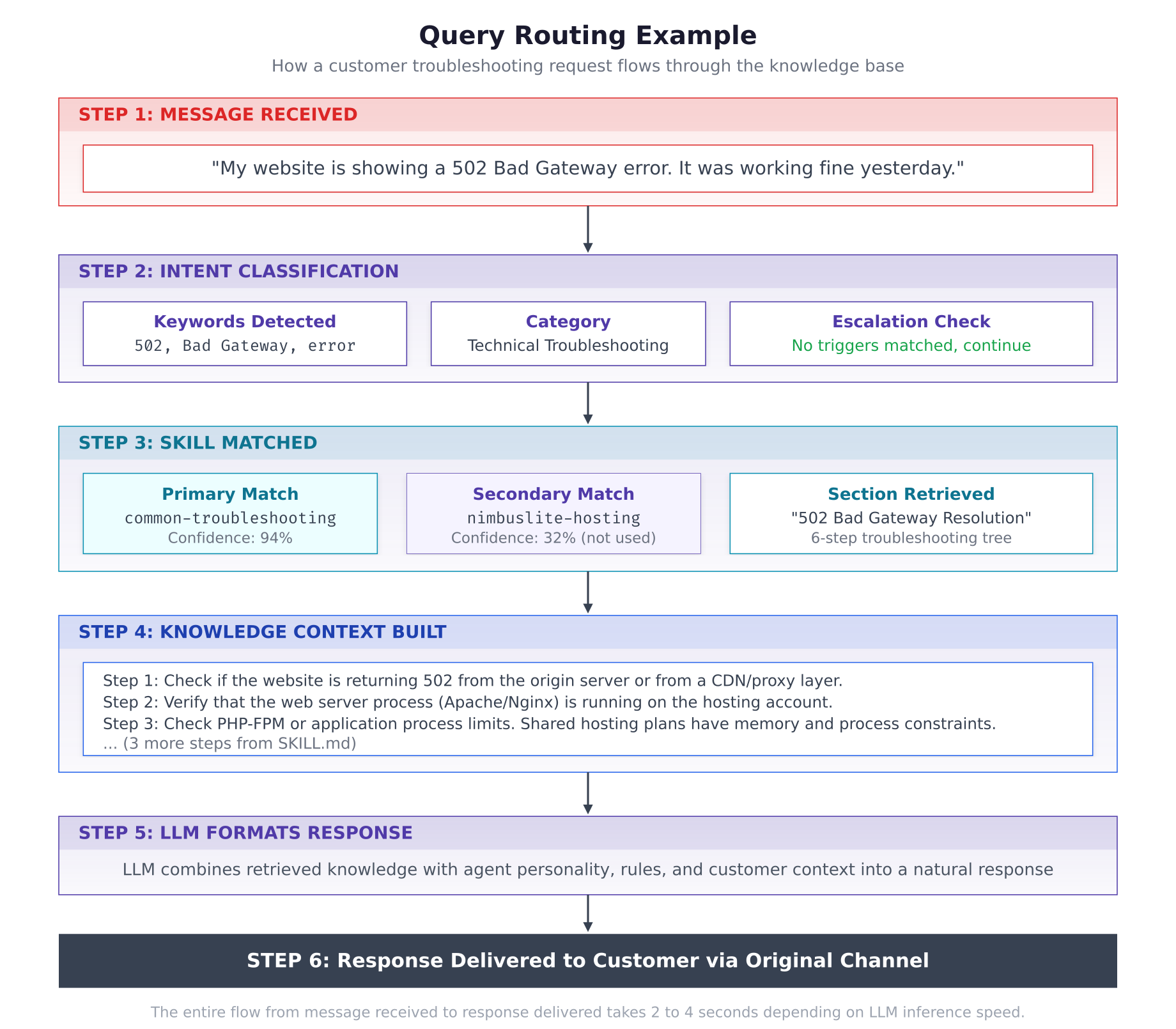
The query routing example above traces a real customer request through the entire pipeline. The customer reports a 502 Bad Gateway error. The intent classifier detects keywords “502,” “Bad Gateway,” and “error,” categorizing it as a technical troubleshooting query with no escalation triggers. The Skill Loader matches the query to the common-troubleshooting skill with 94% confidence. The “502 Bad Gateway Resolution” section is extracted from the SKILL.md file, providing a six-step troubleshooting tree. The LLM formats this retrieved knowledge into a natural, step-by-step response that is delivered back to the customer on their original channel.
Verifying Skill Loading in Logs
Check the gateway logs to confirm all six skills loaded successfully and that queries are being routed to the correct skills.
$ docker logs openclaw-gateway –tail 302026-03-03T14:22:10.112Z [info] Gateway starting…
2026-03-03T14:22:10.234Z [info] Agent loaded: Nimbus (NimbusServe Technologies)
2026-03-03T14:22:10.345Z [info] Loading skills from ~/.openclaw/skills/
2026-03-03T14:22:10.346Z [info] Skill loaded: nimbuslite-hosting (12 FAQ entries)
2026-03-03T14:22:10.347Z [info] Skill loaded: nimbuscloud-vps (10 FAQ entries)
2026-03-03T14:22:10.348Z [info] Skill loaded: nimbusbare-dedicated (8 FAQ entries)
2026-03-03T14:22:10.349Z [info] Skill loaded: nimbusdomains-dns (10 FAQ entries)
2026-03-03T14:22:10.350Z [info] Skill loaded: nimbussaas-modules (9 FAQ entries)
2026-03-03T14:22:10.351Z [info] Skill loaded: common-troubleshooting (6 issue trees)
2026-03-03T14:22:10.352Z [info] Total skills: 6, Total knowledge entries: 55
2026-03-03T14:22:10.412Z [info] Gateway ready on port 18789If the logs show all six skills loaded with their entry counts, the knowledge base is complete. The Nimbus agent now has detailed product information and troubleshooting procedures for every NimbusServe service line. Part 4 connects the customer channels, sets up the human escalation workflow, and takes the agent live.