
In Part 1, you prepared the Ubuntu 24.04 LTS server with Docker CE 27.5.1, Docker Compose v2.32.4, and Node.js 22.14.0. This part builds on that foundation by deploying the OpenClaw gateway as a Docker container.
By the end of this part, the LumaNova server will have the OpenClaw gateway running in a Docker container, responding to health checks on port 18789, with an authenticated LLM provider ready to process messages.
Free to use, share it in your presentations, blogs, or learning materials.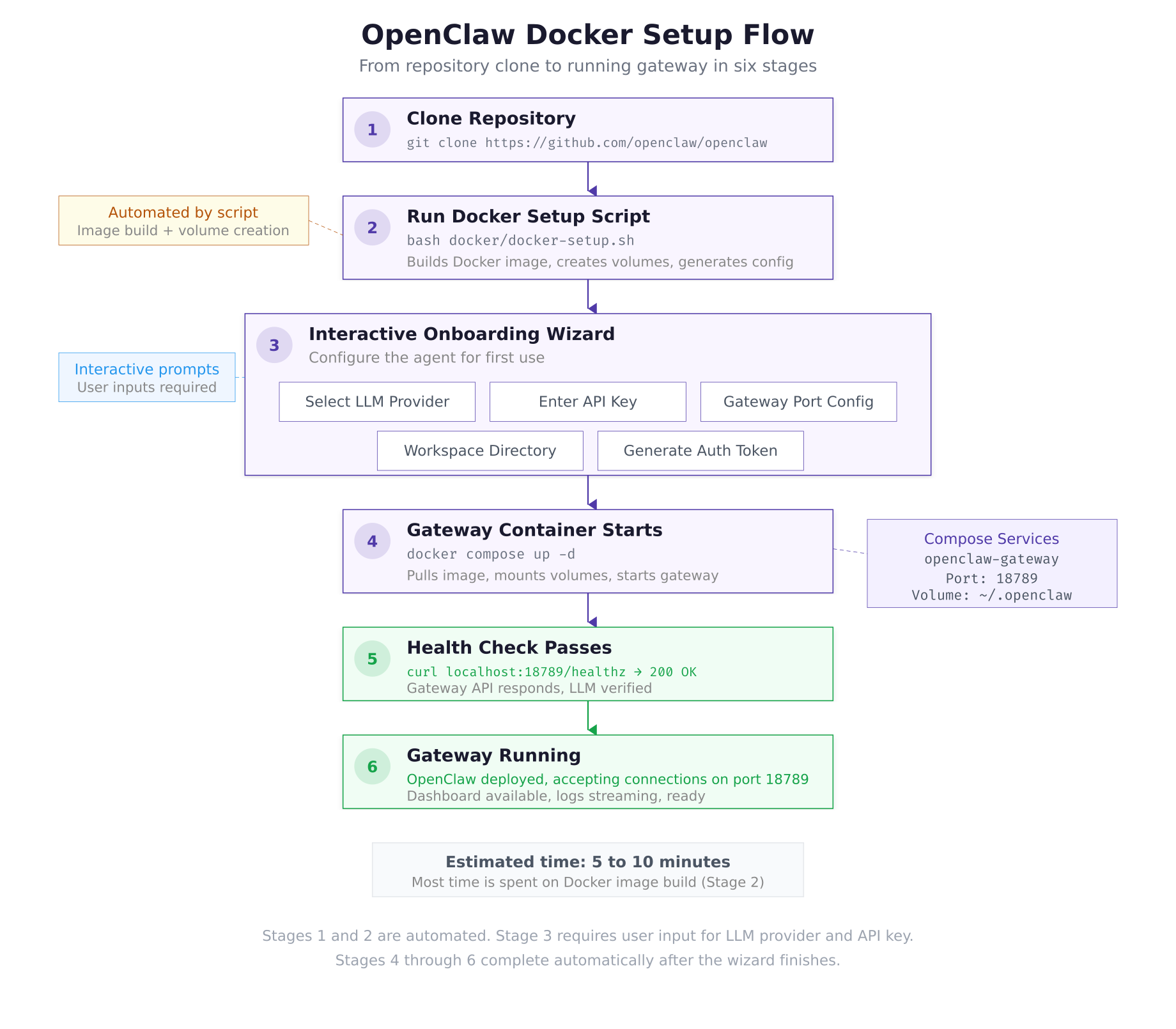
The setup flow above maps the six stages covered in this part. The first two stages are automated: clone the repository and run the setup script. Stage 3 is interactive, where you select an LLM provider and enter your API key. Stages 4 through 6 happen automatically as the container starts, the health check passes, and the gateway begins accepting connections.
Prerequisites
Before proceeding, confirm the following.
Completed Part 1: Docker CE is running, Docker Compose is available, and Node.js 22 LTS is installed.
An LLM provider API key: You need at least one API key from a supported provider. Anthropic (Claude) is recommended for the strongest reasoning capabilities. OpenAI, DeepSeek, or any of the 12+ supported providers also work. If you plan to use a local model via Ollama, that is covered in Part 5.
$ docker –version
$ docker compose version
$ node -vDocker version 27.5.1, build 9f9e405
Docker Compose version v2.32.4
v22.14.0Cloning the OpenClaw Repository
OpenClaw is an open-source project hosted on GitHub under the MIT License. Clone the repository to the LumaNova server’s home directory. This gives you access to the Docker setup script, Compose file, and configuration templates.
$ cd ~
$ git clone https://github.com/openclaw/openclaw.git
$ cd openclawCloning into ‘openclaw’…
remote: Enumerating objects: 14832, done.
remote: Counting objects: 100% (3241/3241), done.
remote: Compressing objects: 100% (1187/1187), done.
remote: Total 14832 (delta 2284), reused 2847 (delta 2024), pack-reused 11591 (from 3)
Receiving objects: 100% (14832/14832), 8.42 MiB | 12.61 MiB/s, done.
Resolving deltas: 100% (9847/9847), done.$ tree -L 2 –dirsfirstopenclaw/
├── docker/
│ ├── docker-compose.yml
│ ├── docker-setup.sh
│ ├── Dockerfile
│ └── .env.example
├── docs/
│ ├── channels/
│ ├── configuration/
│ ├── installation/
│ └── skills/
├── src/
│ ├── channels/
│ ├── core/
│ ├── gateway/
│ ├── llm/
│ ├── skills/
│ └── index.ts
├── scripts/
│ ├── onboarding.sh
│ └── health-check.sh
├── package.json
├── tsconfig.json
├── LICENSE
└── README.mdThe docker/ directory contains everything needed for containerized deployment: the Dockerfile that builds the gateway image, the Compose file that orchestrates the container, and the setup script that automates the entire process. The src/ directory holds the TypeScript source code organized by domain: channels, gateway core, LLM provider adapters, and the skill system.
Running the Docker Setup Script
The setup script handles image building, volume creation, configuration file generation, and launches the interactive onboarding wizard. It expects Docker and Node.js to be available, which is why Part 1 installed them first.
$ bash docker/docker-setup.shOpenClaw Docker Setup v2026.3.1
================================
[1/4] Building Docker image…
Sending build context to Docker daemon 12.84MB
Step 1/12 : FROM node:22-slim
—> 4a67b8a2c514
Step 2/12 : WORKDIR /app
Step 3/12 : COPY package*.json ./
Step 4/12 : RUN npm ci –production
Step 5/12 : COPY dist/ ./dist/
Step 6/12 : RUN addgroup –system openclaw && adduser –system –ingroup openclaw openclaw
Step 7/12 : USER openclaw
Step 8/12 : EXPOSE 18789
Step 9/12 : HEALTHCHECK –interval=30s –timeout=10s –retries=3 CMD curl -f http://localhost:18789/healthz || exit 1
Step 10/12 : ENV NODE_ENV=production
Step 11/12 : ENV OPENCLAW_HOME=/home/openclaw/.openclaw
Step 12/12 : CMD [“node”, “dist/index.js”]
Successfully built a3f7c2e9d814
Successfully tagged openclaw/gateway:latest
[2/4] Creating configuration directory…
Created: ~/.openclaw/
Created: ~/.openclaw/workspace/
Created: ~/.openclaw/workspace/skills/
Created: ~/.openclaw/workspace/memory/
[3/4] Starting onboarding wizard…Completing the Onboarding Wizard
The onboarding wizard runs as part of the setup script. It walks through five configuration steps: selecting an LLM provider, entering authentication credentials, setting the gateway port, configuring the workspace directory, and generating an authentication token for API access.
Step 1: Select LLM Provider
The wizard presents a list of supported providers. For the LumaNova deployment, select Anthropic as the primary provider. You can add additional providers and configure fallbacks in Part 5.
? Select your LLM provider:
  1) Anthropic (Claude) [recommended]
  2) OpenAI (GPT-4o, GPT-5.2)
  3) DeepSeek
  4) Google Gemini
  5) Ollama (local)
  6) OpenRouter
  7) Other

Enter selection [1]: 1

Selected: Anthropic (Claude)
Step 2: Enter API Key
Enter the API key for your selected provider. For Anthropic, this is a key starting with sk-ant- that you generate from the Anthropic Console at https://console.anthropic.com/settings/keys. The key is stored in the openclaw.json configuration file (you will move it to an environment variable for security in Part 5).
? Enter your Anthropic API key: sk-ant-api03-xxxxxxxxxxxxxxxxxxxxxxxxxxxxx

Validating key… ✓ Connected to Anthropic API
Available models: claude-opus-4-6, claude-sonnet-4-6, claude-haiku-4-5
Default model set to: claude-sonnet-4-6
Step 3: Gateway Configuration
The wizard asks for the gateway port and bind address. Accept the defaults unless you have a port conflict on the server.
? Gateway port [18789]: 18789
? Bind address [0.0.0.0]: 0.0.0.0

Gateway will listen on 0.0.0.0:18789
Step 4: Workspace Setup
? Workspace directory [~/.openclaw/workspace]: ~/.openclaw/workspace

Workspace configured at: /home/lumanova/.openclaw/workspace/
Skills directory: /home/lumanova/.openclaw/workspace/skills/
Memory directory: /home/lumanova/.openclaw/workspace/memory/
Step 5: Generate Authentication Token
The wizard generates a 48-character hexadecimal token used to authenticate API requests and dashboard access. Save this token securely. You will need it for CLI commands and any external integrations.
? Generate authentication token? [Y/n]: Y

Generated token: a4f8c2e19b7d3a6f0e5c8b1d4a7f9e2c3b6d8a1f4e7c0b3d
                 ^^^^^^^^^^^^^^^^^^^^^^^^^^^^^^^^^^^^^^^^^^^^^^^^

⚠ Save this token securely. It cannot be recovered after setup.
  Use this token for: CLI authentication, dashboard access, webhook verification

[4/4] Starting gateway container…
Creating network “openclaw_default” with the default driver
Creating openclaw-gateway … done

✓ OpenClaw setup complete!
  Gateway: http://127.0.0.1:18789
  Health:  http://127.0.0.1:18789/healthz
  Config:  ~/.openclaw/openclaw.json
Verifying the Gateway
After the setup script completes, verify that the gateway container is running and healthy.
$ docker psCONTAINER ID IMAGE COMMAND STATUS PORTS NAMES
c7a3f91e2b4d openclaw/gateway:latest “node dist/index.js” Up 2 minutes (healthy) 0.0.0.0:18789->18789/tcp openclaw-gatewayThe (healthy) status indicates that the built-in health check is passing. If the status shows (health: starting), wait 30 seconds and check again; the first health check runs after the configured interval.
$ curl -s http://127.0.0.1:18789/healthz | jq .{
“status”: “ok”,
“version”: “2026.3.1”,
“uptime”: 127,
“llm”: {
“provider”: “anthropic”,
“model”: “claude-sonnet-4-6”,
“connected”: true
},
“channels”: {
“configured”: 0,
“active”: 0
},
“skills”: {
“loaded”: 0,
“available”: 0
}
}The health response confirms that the gateway is running version 2026.3.1, the Anthropic LLM connection is active, and no messaging channels or skills are configured yet. Channels are set up in Part 3 and skills in Part 4.
Inspecting the Docker Compose File
The setup script uses a Docker Compose file to define the gateway service. Understanding this file helps when troubleshooting or customizing the deployment later.
$ cat ~/openclaw/docker/docker-compose.ymlversion: “3.8”
services:
gateway:
image: openclaw/gateway:latest
container_name: openclaw-gateway
restart: unless-stopped
ports:
– “${OPENCLAW_PORT:-18789}:18789”
volumes:
– ${HOME}/.openclaw:/home/openclaw/.openclaw
environment:
– NODE_ENV=production
– OPENCLAW_HOME=/home/openclaw/.openclaw
– OPENCLAW_PORT=18789
env_file:
– ${HOME}/.openclaw/.env
healthcheck:
test: [“CMD”, “curl”, “-f”, “http://localhost:18789/healthz”]
interval: 30s
timeout: 10s
retries: 3
start_period: 15s
logging:
driver: json-file
options:
max-size: “10m”
max-file: “3”
networks:
default:
name: openclaw_defaultThe restart: unless-stopped policy ensures the container comes back online after a server reboot (combined with Docker being enabled on boot from Part 1). The env_file directive loads sensitive values like API keys from a separate .env file rather than embedding them in the Compose file. The start_period gives the gateway 15 seconds to initialize before the first health check runs.
Reviewing the Configuration File
The onboarding wizard generated the primary configuration file at ~/.openclaw/openclaw.json. This file controls every aspect of the gateway’s behavior: LLM provider settings, channel connections, skill loading, and memory management.
$ cat ~/.openclaw/openclaw.json | jq .{
“version”: “2026.3.1”,
“gateway”: {
“port”: 18789,
“host”: “0.0.0.0”,
“authToken”: “a4f8c2e19b7d3a6f0e5c8b1d4a7f9e2c3b6d8a1f4e7c0b3d”
},
“llm”: {
“provider”: “anthropic”,
“model”: “claude-sonnet-4-6”,
“apiKey”: “sk-ant-api03-xxxxxxxxxxxxxxxxxxxxxxxxxxxxx”,
“maxTokens”: 4096,
“temperature”: 0.7
},
“channels”: {},
“skills”: {
“directory”: “~/.openclaw/workspace/skills”,
“autoload”: true,
“entries”: {}
},
“memory”: {
“directory”: “~/.openclaw/workspace/memory”,
“maxContextTokens”: 32000
},
“workspace”: {
“directory”: “~/.openclaw/workspace”
}
}The channels object is empty because no messaging platforms have been connected yet. The skills.entries object is also empty because no skills are installed. The llm section shows the provider, model, and API key configured during onboarding. In Part 5, you will move the API key out of this file and into an environment variable for better security.
Verifying Volume Mounts
The configuration directory on the host is bind-mounted into the container. Any changes you make to files under ~/.openclaw/ on the host are immediately visible inside the container, and vice versa.
$ ls -la ~/.openclaw/total 24
drwxr-x— 4 lumanova lumanova 4096 Mar 2 10:25 .
drwxr-x— 8 lumanova lumanova 4096 Mar 2 10:20 ..
-rw——- 1 lumanova lumanova 642 Mar 2 10:25 .env
-rw-r—– 1 lumanova lumanova 847 Mar 2 10:25 openclaw.json
drwxr-x— 4 lumanova lumanova 4096 Mar 2 10:25 workspace$ ls -la ~/.openclaw/workspace/total 16
drwxr-x— 4 lumanova lumanova 4096 Mar 2 10:25 .
drwxr-x— 4 lumanova lumanova 4096 Mar 2 10:25 ..
drwxr-x— 2 lumanova lumanova 4096 Mar 2 10:25 memory
drwxr-x— 2 lumanova lumanova 4096 Mar 2 10:25 skillsReading Gateway Logs
The gateway container writes structured logs that show startup events, LLM connections, and any errors. These logs are essential for troubleshooting.
$ docker logs openclaw-gateway –tail 20[2026-03-02T10:25:12.847Z] INFO Gateway starting on 0.0.0.0:18789
[2026-03-02T10:25:12.923Z] INFO Loading configuration from /home/openclaw/.openclaw/openclaw.json
[2026-03-02T10:25:13.041Z] INFO LLM provider: anthropic (claude-sonnet-4-6)
[2026-03-02T10:25:13.218Z] INFO Anthropic API connection verified
[2026-03-02T10:25:13.219Z] INFO Skills directory: /home/openclaw/.openclaw/workspace/skills
[2026-03-02T10:25:13.220Z] INFO Loaded 0 skills (0 from directory, 0 from entries)
[2026-03-02T10:25:13.221Z] INFO Memory directory: /home/openclaw/.openclaw/workspace/memory
[2026-03-02T10:25:13.224Z] INFO Channels: 0 configured, 0 active
[2026-03-02T10:25:13.225Z] INFO Health check endpoint: /healthz
[2026-03-02T10:25:13.226Z] INFO Gateway ready. Listening on port 18789Every log line includes a UTC timestamp, log level, and message. The startup sequence confirms that the configuration loaded successfully, the Anthropic API connection was verified, and the gateway is listening on port 18789.
Free to use, share it in your presentations, blogs, or learning materials.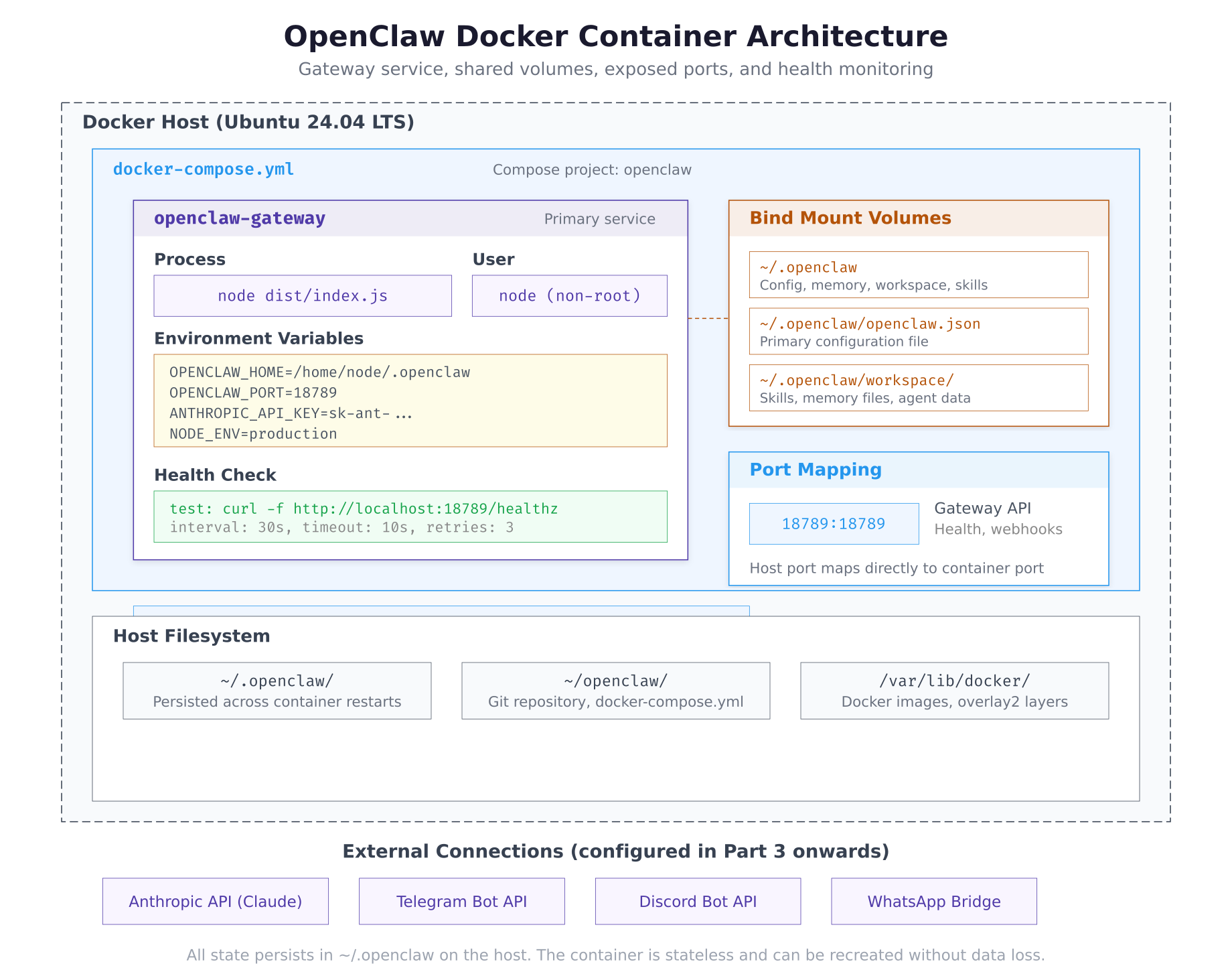
The container layout above shows how the gateway service fits within the Docker host. The ~/.openclaw directory on the host is bind-mounted into the container, making configuration changes persistent across container restarts. The gateway exposes port 18789 for health checks, API access, and webhook endpoints. External connections to LLM providers and messaging platforms flow through this single port.
Managing the Gateway
Common container management commands for the OpenClaw gateway.
$ cd ~/openclaw/docker && docker compose down$ cd ~/openclaw/docker && docker compose up -d$ cd ~/openclaw/docker && docker compose restart$ docker logs openclaw-gateway -f –tail 50After editing ~/.openclaw/openclaw.json, always restart the gateway for changes to take effect. The live log command (-f flag) streams new log entries in real time, which is useful during channel and skill configuration in the next parts.
Troubleshooting
Container Exits Immediately
If the container exits right after starting, check the logs for the error message.
$ docker logs openclaw-gateway 2>&1 | tail -5Common causes: invalid JSON in openclaw.json (missing comma, unmatched brace), invalid API key (expired or incorrectly pasted), or port 18789 already in use by another process.
$ sudo lsof -i :18789Health Check Failing
If docker ps shows (unhealthy) status, the gateway process started but is not responding on the expected port.
$ docker exec openclaw-gateway curl -s http://localhost:18789/healthzIf this command returns a response, the issue is network routing between the container and the host. If it returns nothing, the gateway process may have crashed after startup. Check the logs for error messages.
API Key Validation Failed
If the onboarding wizard reports that the API key validation failed, verify the key is correct and that your server can reach the provider’s API endpoint.
$ curl -s https://api.anthropic.com/v1/messages \
$   -H “x-api-key: YOUR_KEY_HERE” \
$   -H “anthropic-version: 2023-06-01” \
$   -H “content-type: application/json” \
$ -d ‘{“model”:”claude-sonnet-4-6″,”max_tokens”:10,”messages”:[{“role”:”user”,”content”:”hi”}]}’ | jq .type“message”If the response shows "error" instead of "message", the API key is invalid or expired. Generate a new key from the Anthropic Console.
Summary
The LumaNova OpenClaw gateway is now running and verified. This part accomplished the following:
- Cloned the OpenClaw repository from GitHub
- Examined the repository structure: Docker files, source code, documentation
- Ran the Docker setup script which built the gateway image and created the configuration directory
- Completed the interactive onboarding wizard: selected Anthropic as the LLM provider, entered the API key, configured the gateway on port 18789, set up the workspace, and generated an authentication token
- Verified the gateway container is running with
(healthy)status - Tested the health endpoint returning version 2026.3.1 with an active Anthropic connection
- Reviewed the Docker Compose file with restart policy, volume mounts, health check, and log rotation
- Inspected the generated
openclaw.jsonconfiguration file - Verified host volume mounts and directory structure
- Read gateway startup logs confirming successful initialization
What Comes Next
In Part 3: Configuring Messaging Channels, you will connect the LumaNova gateway to three messaging platforms: Telegram for the management team, Discord for the engineering team, and WhatsApp for the sales team. Each channel connects to the same agent backend, sharing memory and context across all three platforms.