
In Part 2, you deployed the OpenClaw gateway in a Docker container with an authenticated Anthropic connection. The gateway is running and healthy on port 18789, but no messaging channels are configured yet. This part changes that.
By the end of this part, messages sent on Telegram, Discord, or WhatsApp will reach the OpenClaw gateway, get processed by Claude, and return responses through the same channel. Context from one platform carries over to any other because the memory layer is shared.
Free to use, share it in your presentations, blogs, or learning materials.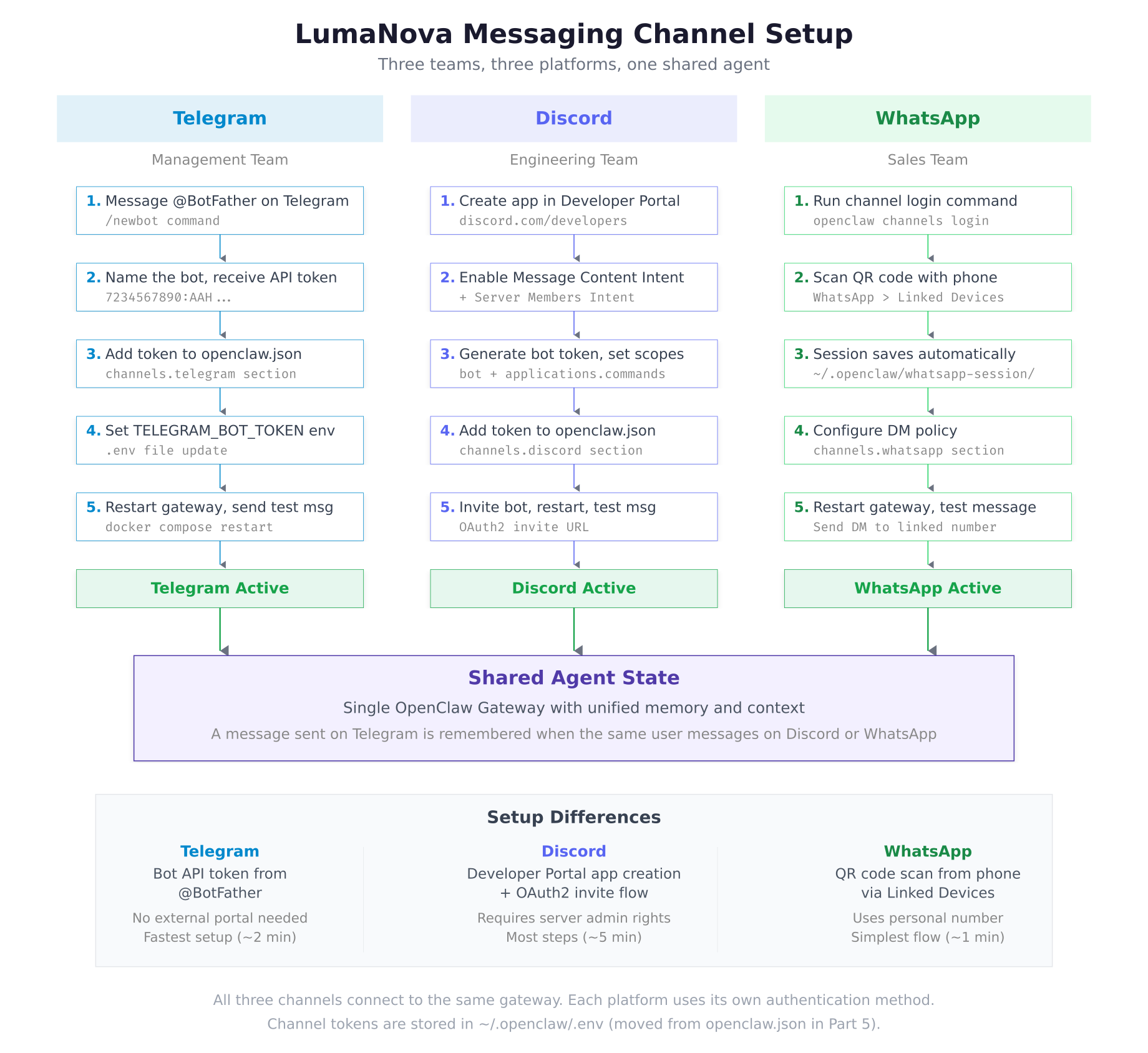
The setup flow above shows the five steps for each channel running in parallel. Each platform has its own authentication method (BotFather token for Telegram, Developer Portal for Discord, QR code scan for WhatsApp), but all three connect to the same gateway and share the same memory pool.
Prerequisites
Before proceeding, confirm the following.
Completed Part 2: The OpenClaw gateway container is running with a healthy status and an authenticated LLM provider.
$ docker ps –filter name=openclaw-gateway –format “{{.Status}}”
$ curl -s http://127.0.0.1:18789/healthz | jq .statusUp 45 minutes (healthy)
“ok”Platform accounts: A Telegram account (for creating a bot), a Discord account with a server you administer (for adding a bot), and a WhatsApp account on your phone (for linking the device).
Setting Up the Telegram Channel
Telegram is the fastest channel to configure. The entire process uses the BotFather bot inside Telegram itself, with no external developer portal or OAuth flow required.
Creating the Bot via BotFather
Open Telegram on your phone or desktop, search for @BotFather, and start a conversation. BotFather is Telegram’s official bot for creating and managing bots.
You: /newbot

BotFather: Alright, a new bot. How are we going to call it?
           Please choose a name for your bot.

You: LumaNova Assistant

BotFather: Good. Now let’s choose a username for your bot. It must
           end in ‘bot’. Like this, for example: TetrisBot or tetris_bot.

You: lumanova_assistant_bot

BotFather: Done! Congratulations on your new bot. You will find it at
           t.me/lumanova_assistant_bot.

           Use this token to access the HTTP API:
           7234567890:AAHdqTcvCH1vGWJxfSeofSAs0K5PALDsaw

           Keep your token secure and store it safely, it can be used
           by anyone to control your bot.
Copy the API token (the string in the format XXXXXXXXXX:XXXXXXXXXXXXXXXXXXXXXXXXXXXXXXXXXXX). This token authenticates the gateway to the Telegram Bot API.
Adding the Telegram Token to Environment
Store the bot token in the OpenClaw environment file. This keeps sensitive credentials separate from the main configuration file.
$ vim ~/.openclaw/.envANTHROPIC_API_KEY=sk-ant-api03-xxxxxxxxxxxxxxxxxxxxxxxxxxxxx
TELEGRAM_BOT_TOKEN=7234567890:AAHdqTcvCH1vGWJxfSeofSAs0K5PALDsawPress Esc, type :wq, press Enter to save and exit.
Configuring Telegram in openclaw.json
Add the Telegram channel configuration to the main config file. The requireMention option controls whether the bot responds to every message in a group or only when mentioned by name.
$ vim ~/.openclaw/openclaw.json{
“version”: “2026.3.1”,
“gateway”: {
“port”: 18789,
“host”: “0.0.0.0”,
“authToken”: “a4f8c2e19b7d3a6f0e5c8b1d4a7f9e2c3b6d8a1f4e7c0b3d”
},
“llm”: {
“provider”: “anthropic”,
“model”: “claude-sonnet-4-6”,
“apiKey”: “${ANTHROPIC_API_KEY}”,
“maxTokens”: 4096,
“temperature”: 0.7
},
“channels”: {
“telegram”: {
“enabled”: true,
“botToken”: “${TELEGRAM_BOT_TOKEN}”,
“requireMention”: true,
“allowedGroups”: [],
“dmPolicy”: “allow”
}
},
“skills”: {
“directory”: “~/.openclaw/workspace/skills”,
“autoload”: true,
“entries”: {}
},
“memory”: {
“directory”: “~/.openclaw/workspace/memory”,
“maxContextTokens”: 32000
},
“workspace”: {
“directory”: “~/.openclaw/workspace”
}
}Press Esc, type :wq, press Enter to save and exit.
The ${TELEGRAM_BOT_TOKEN} syntax references the value from the .env file. Setting requireMention to true means in group chats, the bot only responds when addressed as @lumanova_assistant_bot. In direct messages, it always responds regardless of this setting. The dmPolicy: "allow" permits anyone to message the bot directly.
$ cd ~/openclaw/docker && docker compose restart[+] Restarting 1/1
✔ Container openclaw-gateway Started$ curl -s http://127.0.0.1:18789/healthz | jq .channels{
“configured”: 1,
“active”: 1
}$ docker logs openclaw-gateway –tail 5INFO Loading channel: telegram
[2026-03-02T11:05:42.847Z] INFO Telegram bot connected: @lumanova_assistant_bot
[2026-03-02T11:05:42.848Z] INFO Telegram polling started
[2026-03-02T11:05:42.849Z] INFO Channels: 1 configured, 1 active
[2026-03-02T11:05:42.850Z] INFO Gateway ready. Listening on port 18789Open Telegram, search for @lumanova_assistant_bot, start a conversation, and send a test message like “Hello, what can you do?” The bot should respond within a few seconds using Claude.
Setting Up the Discord Channel
Discord requires more setup steps than Telegram because you need to create an application in the Discord Developer Portal, configure bot permissions, and invite the bot to your server.
Creating the Discord Application
Open https://discord.com/developers/applications in a browser and log in with your Discord account. Click New Application, name it LumaNova Assistant, and click Create.
In the application settings, navigate to the Bot section in the left sidebar and click Reset Token to generate a new bot token. Copy this token immediately as it is only shown once.
Enabling Required Intents
Still in the Bot section, scroll down to Privileged Gateway Intents and enable the following two intents.
- Message Content Intent: Required for the bot to read message content in servers (without this, the bot only receives message events but cannot see the actual text)
- Server Members Intent: Required for the bot to see member lists and user information in servers
Click Save Changes at the bottom of the page after enabling both intents.
Generating the Invite URL
Navigate to the OAuth2 section in the left sidebar. Under OAuth2 URL Generator, select the following scopes.
botapplications.commands
Under Bot Permissions, select the following permissions.
- Read Messages/View Channels
- Send Messages
- Embed Links
- Attach Files
- Read Message History
- Use Slash Commands
Copy the generated URL at the bottom of the page. It will look like this.
https://discord.com/oauth2/authorize?client_id=YOUR_CLIENT_ID&permissions=277025770560&scope=bot+applications.commandsOpen this URL in your browser, select the LumaNova Discord server, and click Authorize. The bot will appear in the server’s member list.
Configuring Discord in OpenClaw
$ vim ~/.openclaw/.envANTHROPIC_API_KEY=sk-ant-api03-xxxxxxxxxxxxxxxxxxxxxxxxxxxxx
TELEGRAM_BOT_TOKEN=7234567890:AAHdqTcvCH1vGWJxfSeofSAs0K5PALDsaw
DISCORD_BOT_TOKEN=MTIzNDU2Nzg5MDEyMzQ1Njc4OQ.GHJklm.abcdefghijklmnopqrstuvwxyz1234567890Press Esc, type :wq, press Enter to save and exit.
$ vim ~/.openclaw/openclaw.json,
“dmPolicy”: “allow”
},
“discord”: {
“enabled”: true,
“botToken”: “${DISCORD_BOT_TOKEN}”,
“requireMention”: true,
“allowedGuilds”: [],
“dmPolicy”: “allow”
}
}Press Esc, type :wq, press Enter to save and exit.
The allowedGuilds array limits which Discord servers the bot responds in. An empty array means it responds in all servers it has been invited to. Setting requireMention to true means the bot only responds when mentioned with @LumaNova Assistant in channels, but always responds in direct messages.
$ cd ~/openclaw/docker && docker compose restart$ curl -s http://127.0.0.1:18789/healthz | jq .channels{
“configured”: 2,
“active”: 2
}Open Discord, navigate to the server where the bot was invited, and send a message mentioning the bot: @LumaNova Assistant Hello, what can you do? The bot should respond within a few seconds.
Setting Up the WhatsApp Channel
WhatsApp uses a QR code linking flow, similar to WhatsApp Web. No developer portal or API key is needed. The bot operates through your personal WhatsApp number using the Linked Devices feature.
Adding WhatsApp to Configuration
$ vim ~/.openclaw/openclaw.json,
“dmPolicy”: “allow”
},
“discord”: {
“enabled”: true,
“botToken”: “${DISCORD_BOT_TOKEN}”,
“requireMention”: true,
“allowedGuilds”: [],
“dmPolicy”: “allow”
},
“whatsapp”: {
“enabled”: true,
“requireMention”: false,
“dmPolicy”: “allow”,
“groupPolicy”: “mention-only”,
“sessionDir”: “~/.openclaw/whatsapp-session”
}
}Press Esc, type :wq, press Enter to save and exit.
The WhatsApp configuration is simpler because there is no bot token. Authentication happens through a QR code scan. The groupPolicy: "mention-only" setting makes the bot respond only when mentioned in group chats, while direct messages are always answered. The sessionDir stores the WhatsApp session data so you do not need to scan the QR code again after a restart.
Linking WhatsApp via QR Code
$ cd ~/openclaw/docker && docker compose restart$ docker logs openclaw-gateway -f –tail 20INFO Loading channel: whatsapp
[2026-03-02T11:15:12.892Z] INFO WhatsApp: Scan the QR code below with your phone
█████████████████████████████████
█████████████████████████████████
████ ▄▄▄▄▄ █▄▄█ ▄█ █ ▄▄▄▄▄ ████
████ █ █ ██▄▀▀▀▄█▄█ █ █ ████
████ █▄▄▄█ █ ▄▀ █▀▄██ █▄▄▄█ ████
████▄▄▄▄▄▄▄█ █▄█ █▄█▄▄▄▄▄▄▄████
████ ▄ █▀▄▄▀▄▀ ▀▀█▀▀▀ ▄▀█▄▀████
████▄▄▄▄▄▄▄█▄█▄███▄█▄▄█▄▄██████
████ ▄▄▄▄▄ █ ▀▄▀ ▄██ ▄ █▄▀█████
████ █ █ █▀▀▀▀▄██▀██▄██▄▀████
████ █▄▄▄█ █▀ ▀█▀▄▄▄▄▄▀▄▄▀████
████▄▄▄▄▄▄▄█▄██▄▄▄▄▄█▄▄██▄████
█████████████████████████████████
[2026-03-02T11:15:12.893Z] INFO WhatsApp: Open WhatsApp > Settings > Linked Devices > Link a DeviceOn your phone, open WhatsApp, go to Settings (or the three-dot menu on Android), tap Linked Devices, then Link a Device. Point the camera at the QR code displayed in the terminal.
INFO  WhatsApp: Device linked successfully
[2026-03-02T11:15:38.341Z] INFO  WhatsApp: Session saved to ~/.openclaw/whatsapp-session/
[2026-03-02T11:15:38.342Z] INFO  WhatsApp: Listening for messages
[2026-03-02T11:15:38.343Z] INFO  Channels: 3 configured, 3 active
[2026-03-02T11:15:38.344Z] INFO  Gateway ready. Listening on port 18789
Press Ctrl+C to stop following the logs. The WhatsApp session is saved locally, so the connection persists across gateway restarts.
Send a WhatsApp message to the linked number from a different phone or from a contact. The OpenClaw agent will respond through WhatsApp.
Verifying All Three Channels
$ curl -s http://127.0.0.1:18789/healthz | jq .{
“status”: “ok”,
“version”: “2026.3.1”,
“uptime”: 842,
“llm”: {
“provider”: “anthropic”,
“model”: “claude-sonnet-4-6”,
“connected”: true
},
“channels”: {
“configured”: 3,
“active”: 3
},
“skills”: {
“loaded”: 0,
“available”: 0
}
}All three channels show as configured and active. The gateway is routing messages from Telegram, Discord, and WhatsApp through the same Claude backend with shared memory.
Testing Cross-Channel Context
The most powerful aspect of a multi-channel deployment is shared memory. A conversation started on one platform is accessible from any other. Test this by sending a message on Telegram and then referencing it from Discord.
Step 1 (Telegram):
  You: “Remember that our Q3 revenue target is 2.4 million EUR.”
  Bot: “Noted. I’ll remember that LumaNova’s Q3 revenue target is 2.4 million EUR.”

Step 2 (Discord):
  You: “What is our Q3 revenue target?”
  Bot: “Your Q3 revenue target is 2.4 million EUR, as you mentioned earlier.”

Step 3 (WhatsApp):
  You: “Summarize what we discussed today.”
  Bot: “Today you set a Q3 revenue target of 2.4 million EUR, confirmed across
       Telegram and Discord. No other topics were discussed.”
The agent retrieved context from the Telegram conversation when answering on Discord, and summarized the full cross-channel history when asked on WhatsApp. This works because all channels read from and write to the same memory directory at ~/.openclaw/workspace/memory/.
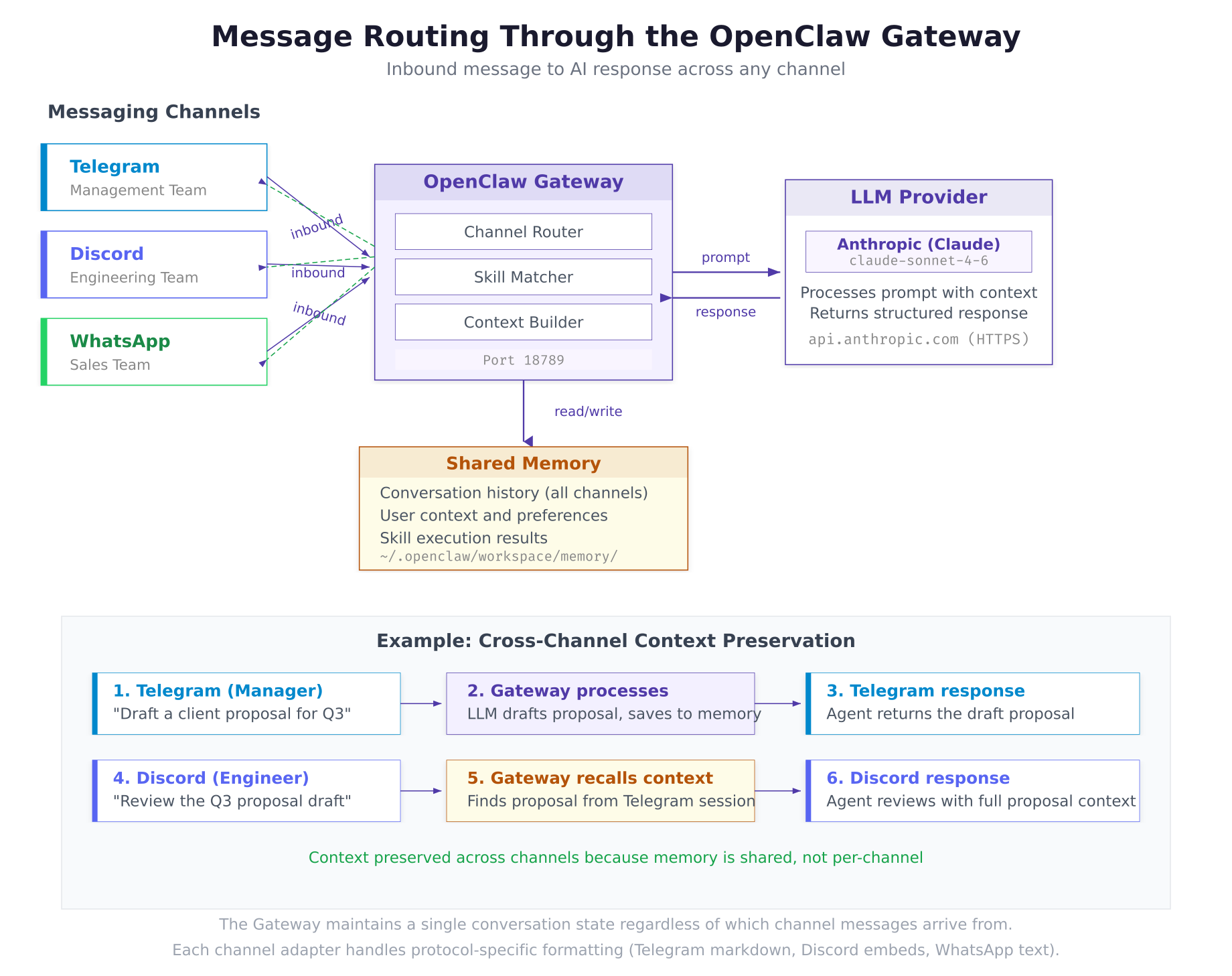
The routing diagram above traces the path of a message from any channel through the gateway to the LLM provider and back. The Channel Router identifies which platform sent the message. The Skill Matcher checks if any installed skills are relevant (covered in Part 4). The Context Builder loads conversation history from shared memory and assembles the prompt sent to Claude. The response flows back through the same channel.
Complete Channel Configuration Reference
The full openclaw.json file with all three channels configured.
$ cat ~/.openclaw/openclaw.json | jq .{
“version”: “2026.3.1”,
“gateway”: {
“port”: 18789,
“host”: “0.0.0.0”,
“authToken”: “a4f8c2e19b7d3a6f0e5c8b1d4a7f9e2c3b6d8a1f4e7c0b3d”
},
“llm”: {
“provider”: “anthropic”,
“model”: “claude-sonnet-4-6”,
“apiKey”: “${ANTHROPIC_API_KEY}”,
“maxTokens”: 4096,
“temperature”: 0.7
},
“channels”: {
“telegram”: {
“enabled”: true,
“botToken”: “${TELEGRAM_BOT_TOKEN}”,
“requireMention”: true,
“allowedGroups”: [],
“dmPolicy”: “allow”
},
“discord”: {
“enabled”: true,
“botToken”: “${DISCORD_BOT_TOKEN}”,
“requireMention”: true,
“allowedGuilds”: [],
“dmPolicy”: “allow”
},
“whatsapp”: {
“enabled”: true,
“requireMention”: false,
“dmPolicy”: “allow”,
“groupPolicy”: “mention-only”,
“sessionDir”: “~/.openclaw/whatsapp-session”
}
},
“skills”: {
“directory”: “~/.openclaw/workspace/skills”,
“autoload”: true,
“entries”: {}
},
“memory”: {
“directory”: “~/.openclaw/workspace/memory”,
“maxContextTokens”: 32000
},
“workspace”: {
“directory”: “~/.openclaw/workspace”
}
}Troubleshooting
Telegram Bot Not Responding
If the Telegram bot does not respond to messages, check the gateway logs for connection errors.
$ docker logs openclaw-gateway 2>&1 | grep -i telegramCommon causes: incorrect bot token (copy the full token including the colon), another bot instance polling the same token (only one process can poll a Telegram bot token at a time), or network connectivity issues reaching api.telegram.org.
Discord Bot Shows Offline
If the Discord bot appears offline in the server member list, the Message Content Intent may not be enabled.
$ docker logs openclaw-gateway 2>&1 | grep -i discordReturn to the Discord Developer Portal, navigate to the Bot section, and confirm both the Message Content Intent and Server Members Intent toggles are enabled. Save changes and restart the gateway.
WhatsApp QR Code Not Appearing
If the QR code does not appear in the logs, the WhatsApp channel may not be enabled in the configuration.
$ cat ~/.openclaw/openclaw.json | jq ‘.channels.whatsapp.enabled’trueIf the value is true but no QR code appears, check that the sessionDir path is writable and that no stale session files exist. Deleting the session directory forces a fresh QR code login.
$ rm -rf ~/.openclaw/whatsapp-session/
$ cd ~/openclaw/docker && docker compose restart
$ docker logs openclaw-gateway -f –tail 20
Summary
The LumaNova OpenClaw deployment now serves all three teams through their preferred messaging platforms. This part accomplished the following:
- Created a Telegram bot via @BotFather and configured the API token in the gateway
- Created a Discord application in the Developer Portal with Message Content and Server Members intents enabled
- Generated a Discord bot invite URL with appropriate permissions and added the bot to the LumaNova server
- Linked WhatsApp via QR code scan using the Linked Devices feature
- Configured all three channels in
openclaw.jsonwith per-channel mention policies and DM handling - Stored all sensitive tokens in the
.envfile using variable references in the config - Verified cross-channel context preservation: information shared on Telegram was recalled on Discord and summarized on WhatsApp
- Confirmed all three channels showing as active in the health endpoint
What Comes Next
In Part 4: Installing Skills and Configuring Automation, you will install skills from the ClawHub marketplace, create a custom morning briefing skill for the LumaNova team, and set up cron-based scheduling so the agent delivers automated reports at specific times each day.